Partitions Operations
In the Partitions tab, you can perform various operations related to the topic's partitions. Basic operations include increasing partitions, reassigning partitions, electing new partition leaders, and changing the number of partition replicas. In addition, Smart Rebalance is provided to effectively reassign partitions based on broker storage conditions.
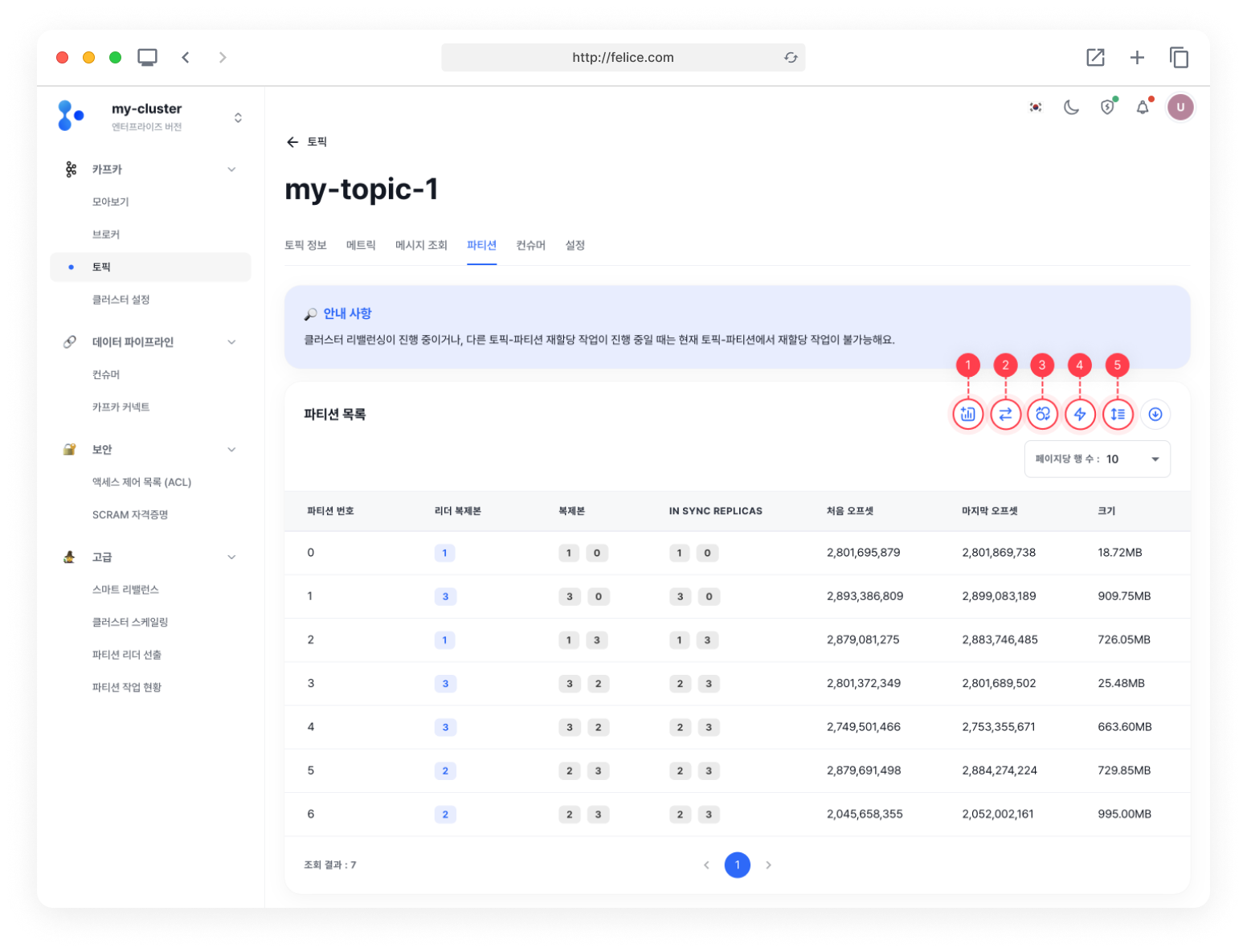
1. Increasing Partitions
You can increase the number of partitions for a topic. Check the topic name you wish to change, and enter how many partitions you want to increase, then review the guide message.
Once you have reviewed all the guide messages, click on [Increase] to add partitions.
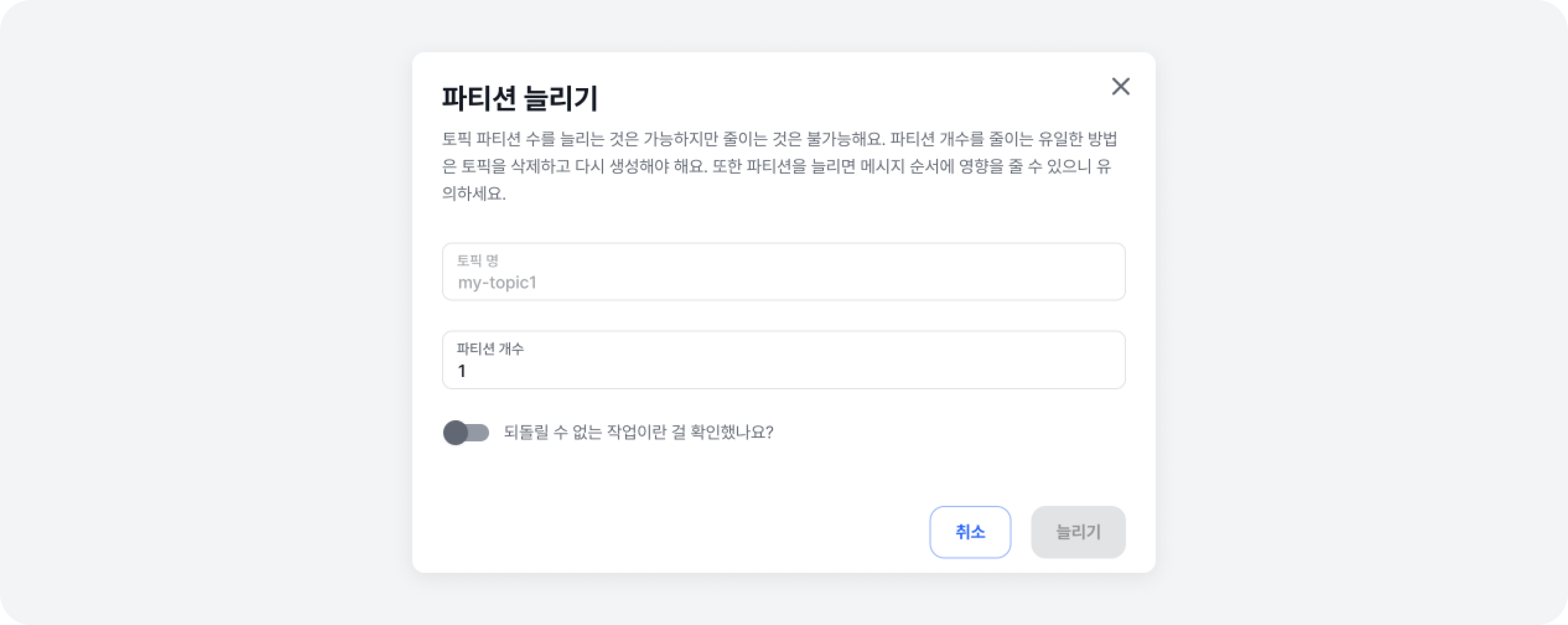
While it is possible to increase the number of partitions, it is not possible to decrease them. The only way to reduce the number of partitions is to delete and recreate the topic, so please be careful when making decisions. Also, increasing partitions can affect the order of the messages.
2. Reassigning Partitions
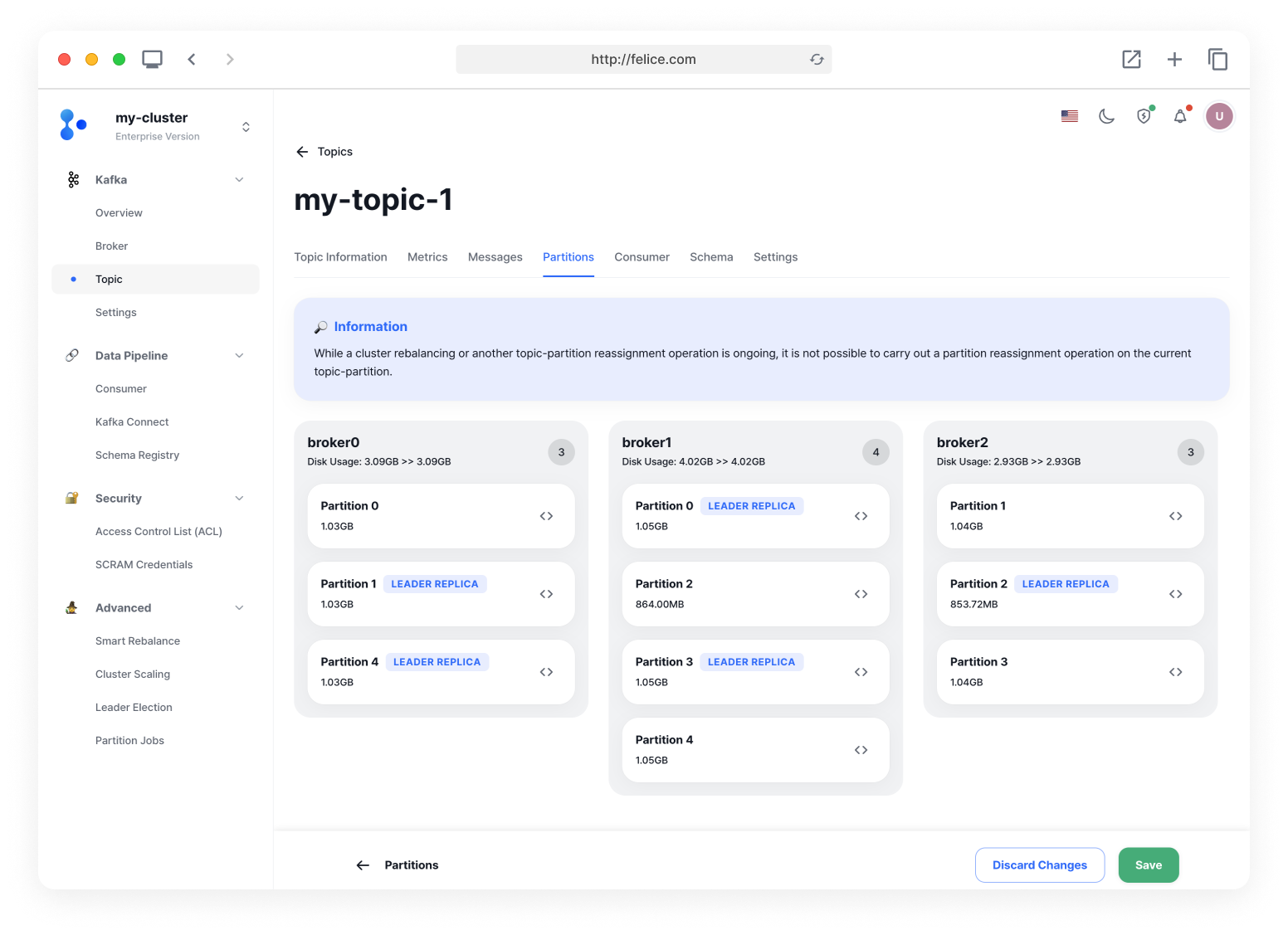
You can check the partitions assigned to each broker and reassign specific partitions to the desired broker. You can easily reassign partitions by dragging and dropping the desired partitions to another broker. Note that partitions with the same name cannot be assigned to the same broker together.
After moving all the partitions you want to reassign, click the [Save] button in the bottom right to apply the partition assignment modifications.
- Reassigning partitions is not recommended when the number of partitions is large or if there are offline brokers in the cluster.
- You cannot use the reassign partitions feature when the number of topic replicas is the same as the number of brokers.
- The reassign partitions feature cannot reassign partitions allocated to an offline broker to another broker or assign partitions to an offline broker.
3. Partition Leader Election
In Topic > Partitions Tab, click the [Swap Icon] to navigate to the page for electing partition leaders. To elect a leader, select the Leader Election Type and whether to Designate a leader replica for re-election.
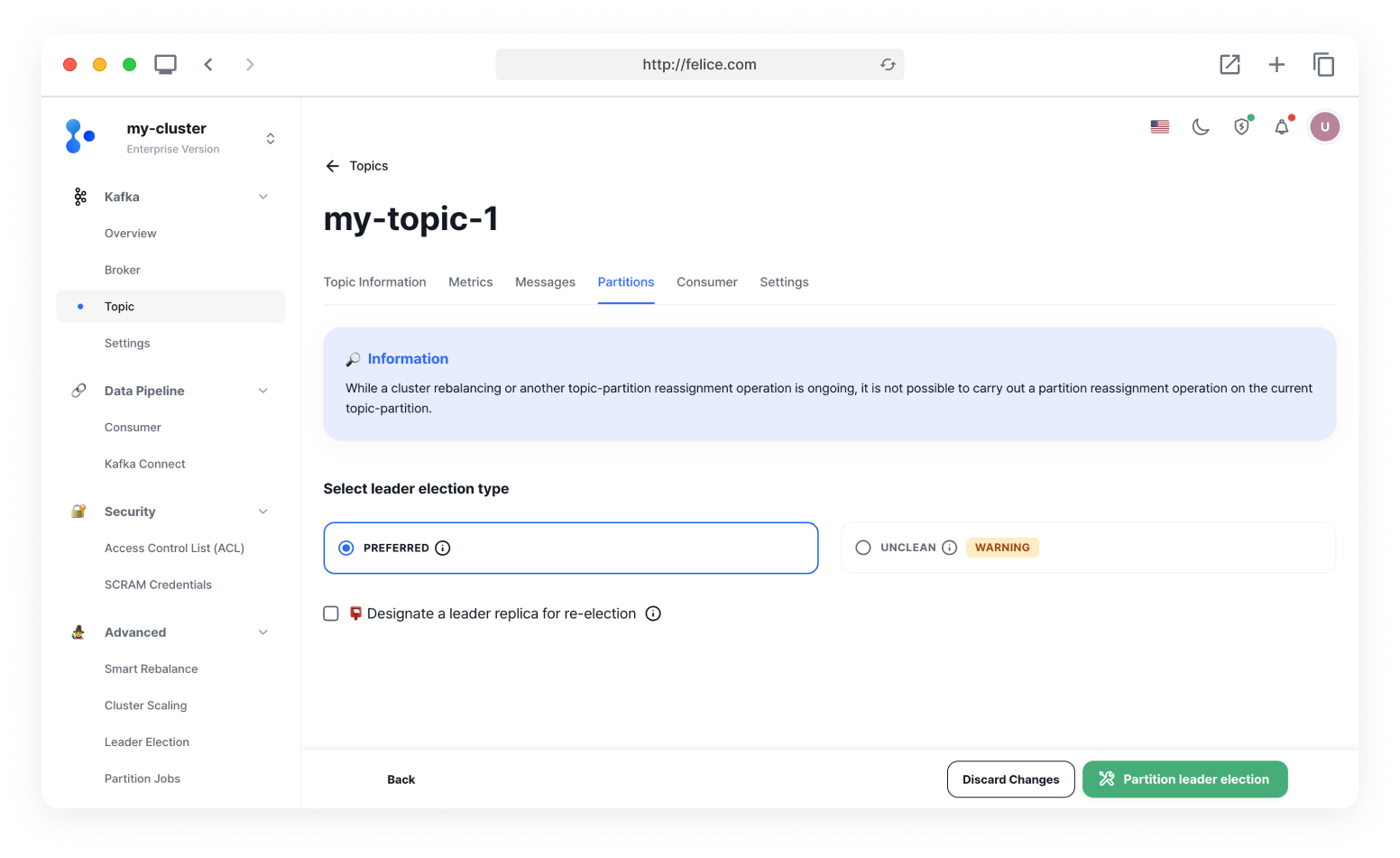
Leader Election Types
There are two types of leader election methods available.
1) Preferred Leader Election
This method elects a leader among the replicas in the ISR (In-Sync Replicas) list. The ISR is a set of replicas that have the most recent data, which ensures data consistency and durability.
2) Unclean Leader Election
This method allows the election of a leader also from replicas not in the ISR list. This, however, has the risk of data loss, so it should only be used in emergency situations where availability must be maintained.
Designating a Leader Replica for Re-election
This option allows you to position the partition's leader replica to another broker that has a replica. Review the leader broker, replica, and ISR information for each partition and select the new leader broker from the list.
If you want to move the partition leader to a broker that does not have a replica, please refer to the Reassign Partitions document.
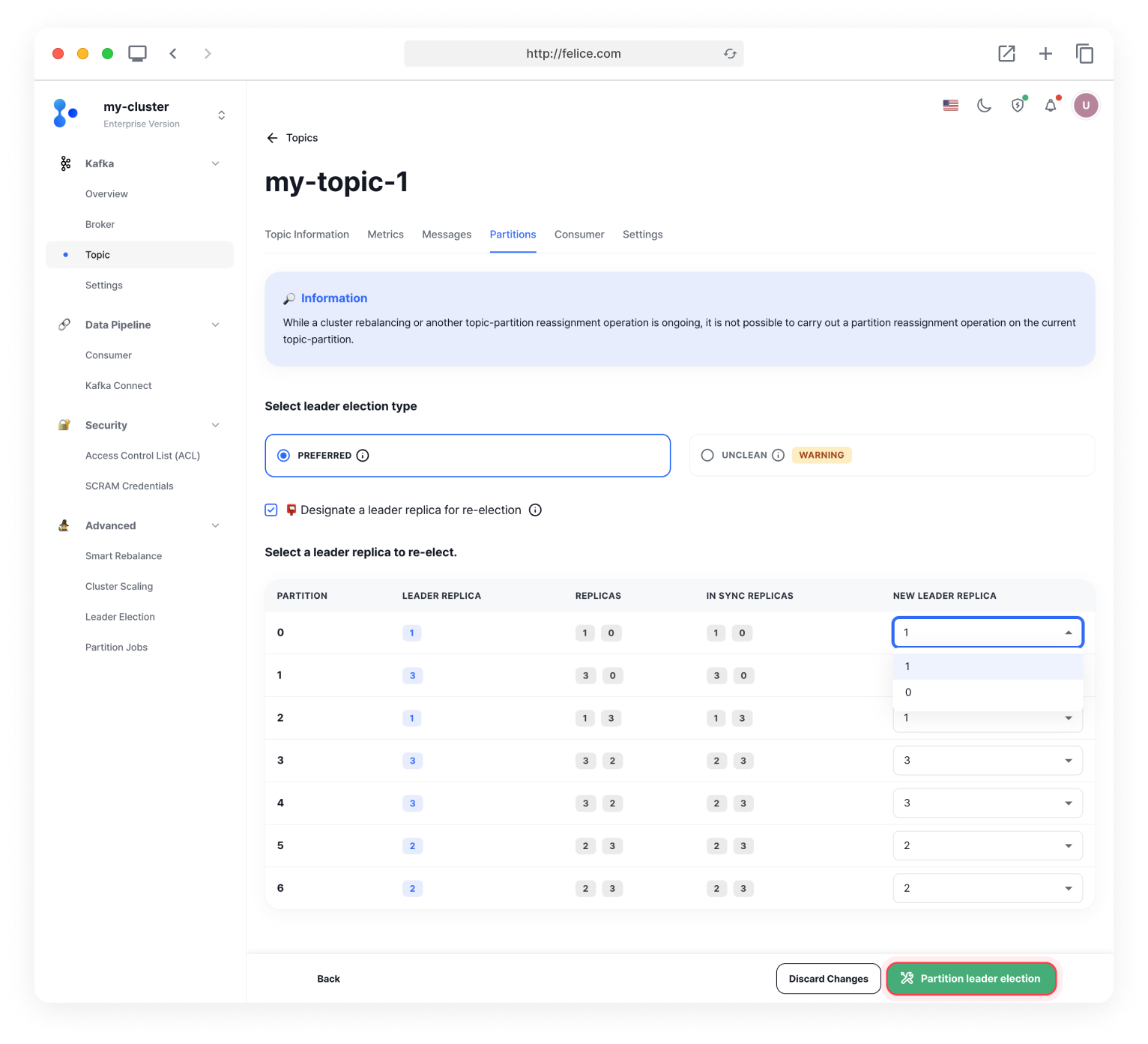
Once you have completed specifying the leader broker to re-elect for all partitions, click on the [Partition leader election] button to see the leader election confirmations modal.
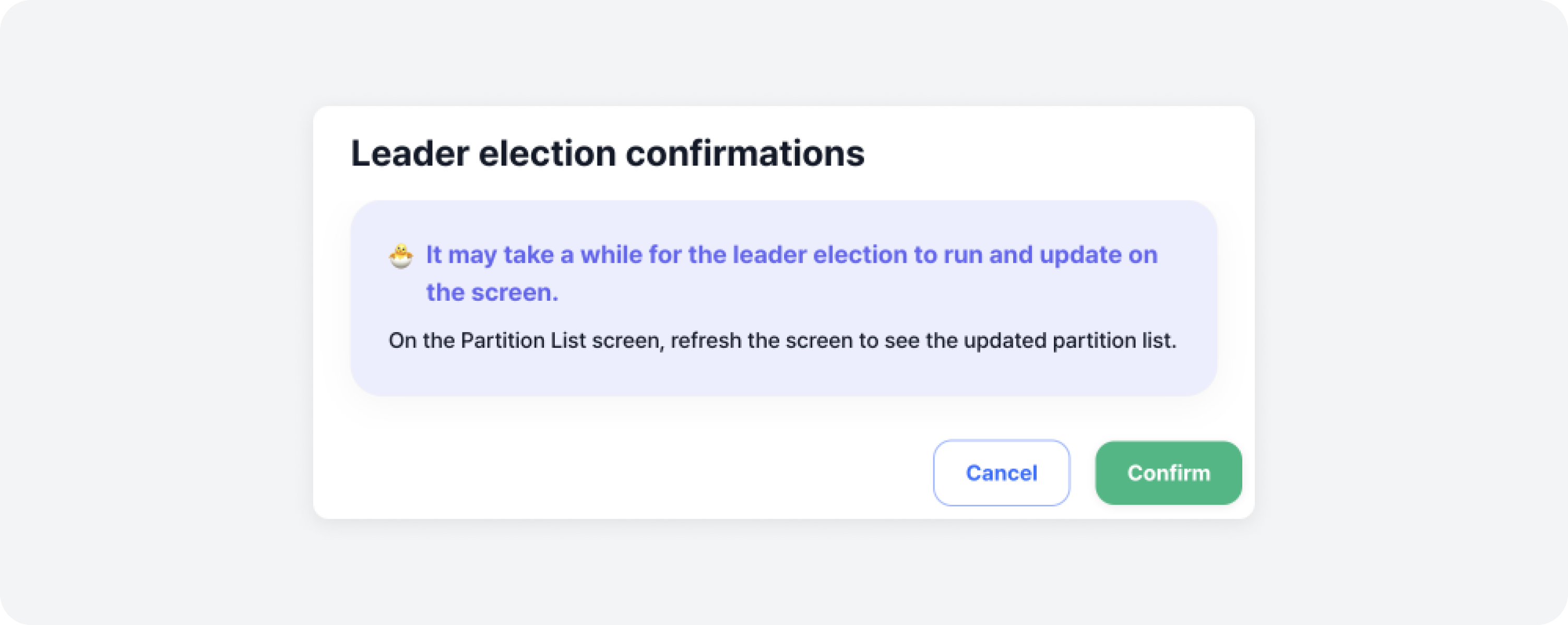
Once you have reviewed the notice message saying that it may take a while for the leader election to run and update on the screen, click the [Confirm] button to execute the partition leader election.
4. Smart Rebalancing
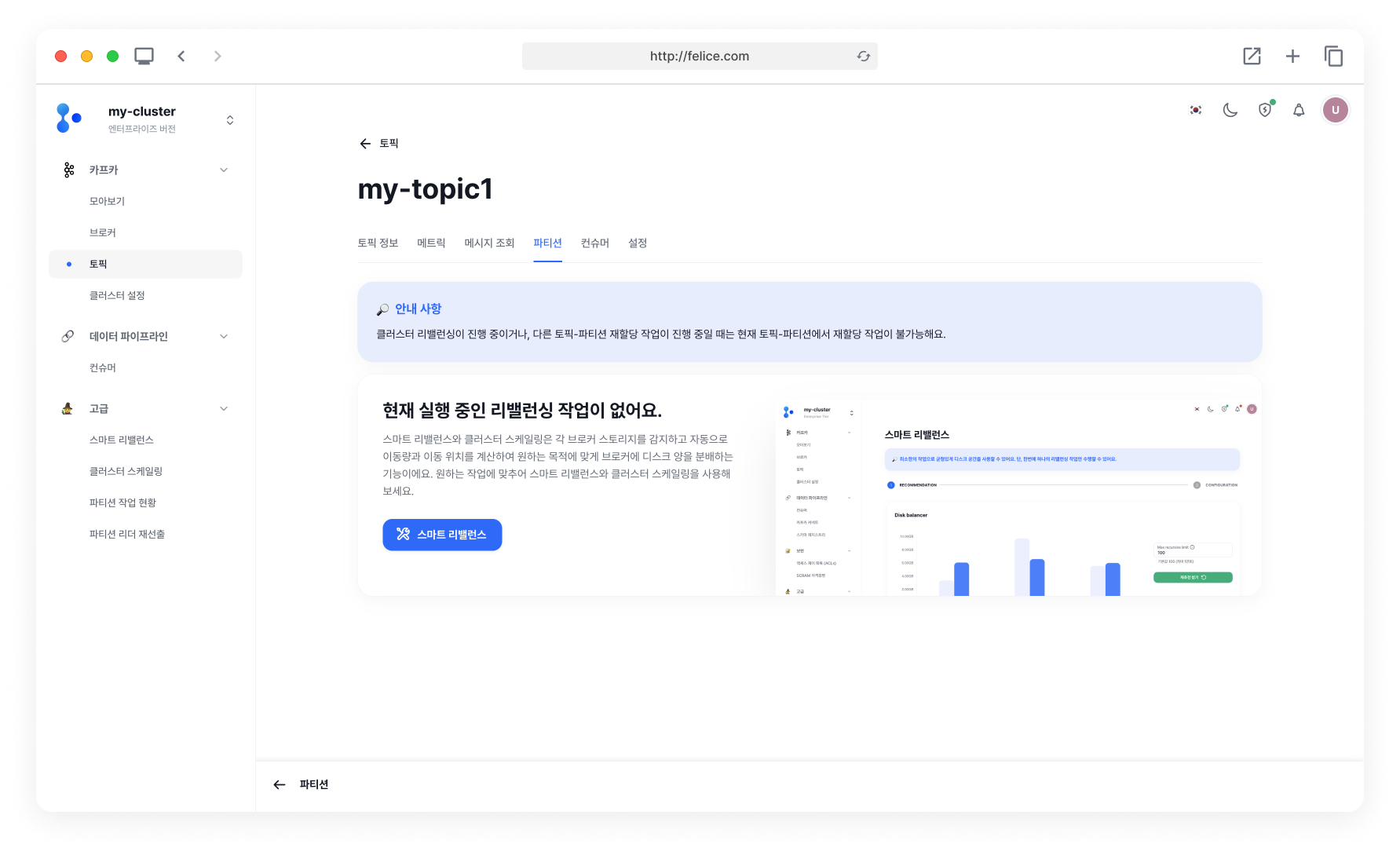
You can effectively reassign the partitions of a specific topic, considering the disk usage of each broker. For more details on smart rebalance, refer to the Smart Rebalance document.
5. Changing Replication Factor
You can change the number of replicas (Replication Factor) for partitions. Enter the desired number of replicas and click on the [Change] button to update the partition Replication Factor.
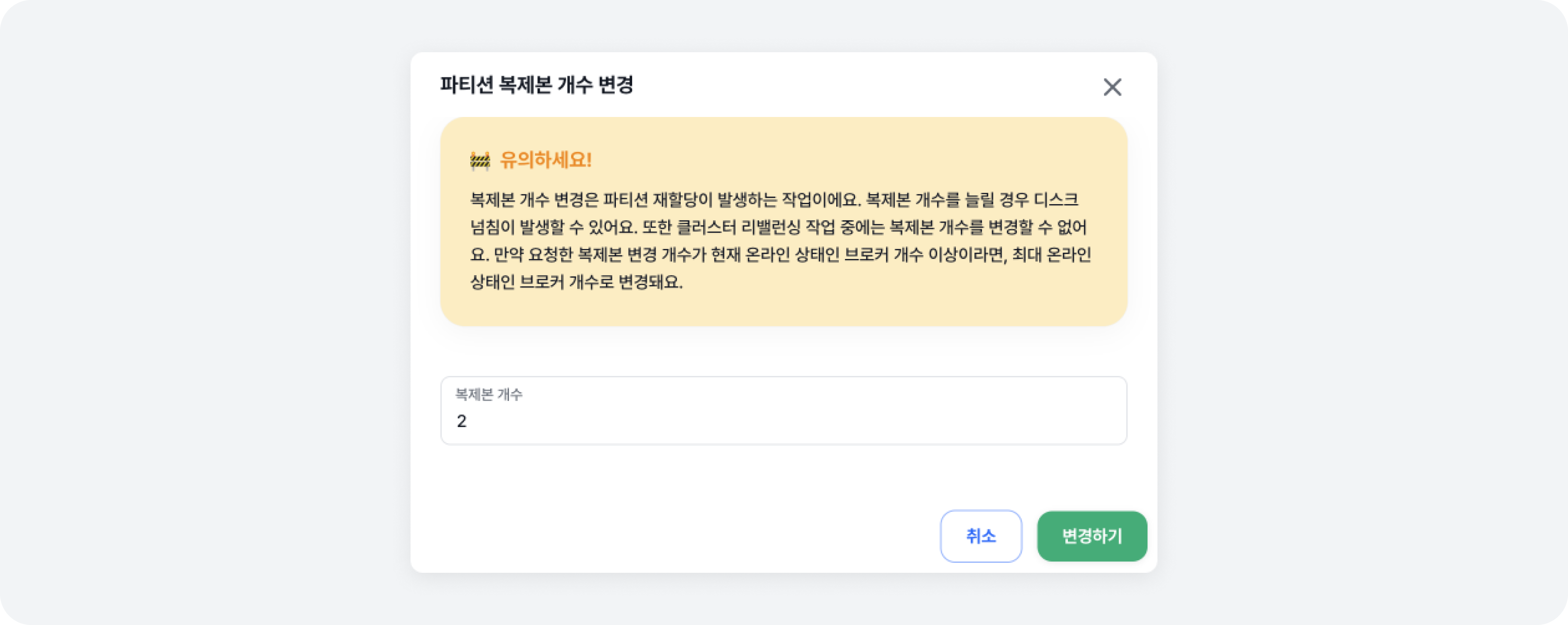
Changing the number of replicas requires partition reassignment and can result in disk overflow if the number is increased.
If you enter a number larger than the current number of online brokers, the replication factor will be adjusted to match the number of online brokers.