Smart Rebalance
A Kafka Cluster consists of one or more brokers that are connected to each other and delivers messages published by producers to consumers. Additionally, Kafka stores received messages on disk for a certain period of time to prepare for failures and provides an interface that allows consumers to read them again if necessary.
In this process, Kafka Brokers use disk devices, and as you operate a Kafka Cluster, disk usage will inevitably vary across brokers. This imbalance in disk usage indicates that the amount of messages being sent by producers differs, leading to varying levels of network usage among brokers.
Therefore, balancing the disk usage between brokers by moving some topic partitions will ultimately balance the usage of network and other resources as well. Felice provides the Smart Rebalancing feature to easily balance disk usage based on the collected information.
If a partition movement is in progress, accessing the Smart Rebalance screen will automatically redirect to the Partition Jobs screen.
Without setting up metrics for the cluster, the Smart Rebalance recommendation job is not possible so the feature will not be provided.
Creating a New Rebalancing Job
To create a new rebalancing job, go to the Advanced > Smart Rebalance menu.
Step1: Calculating Recommendations through Disk Balancer
Adjust the Max Recursive Limit to find the optimal total movement. After modifying the count, click the [New Recommendation] button to view the newly calculated recommendations.
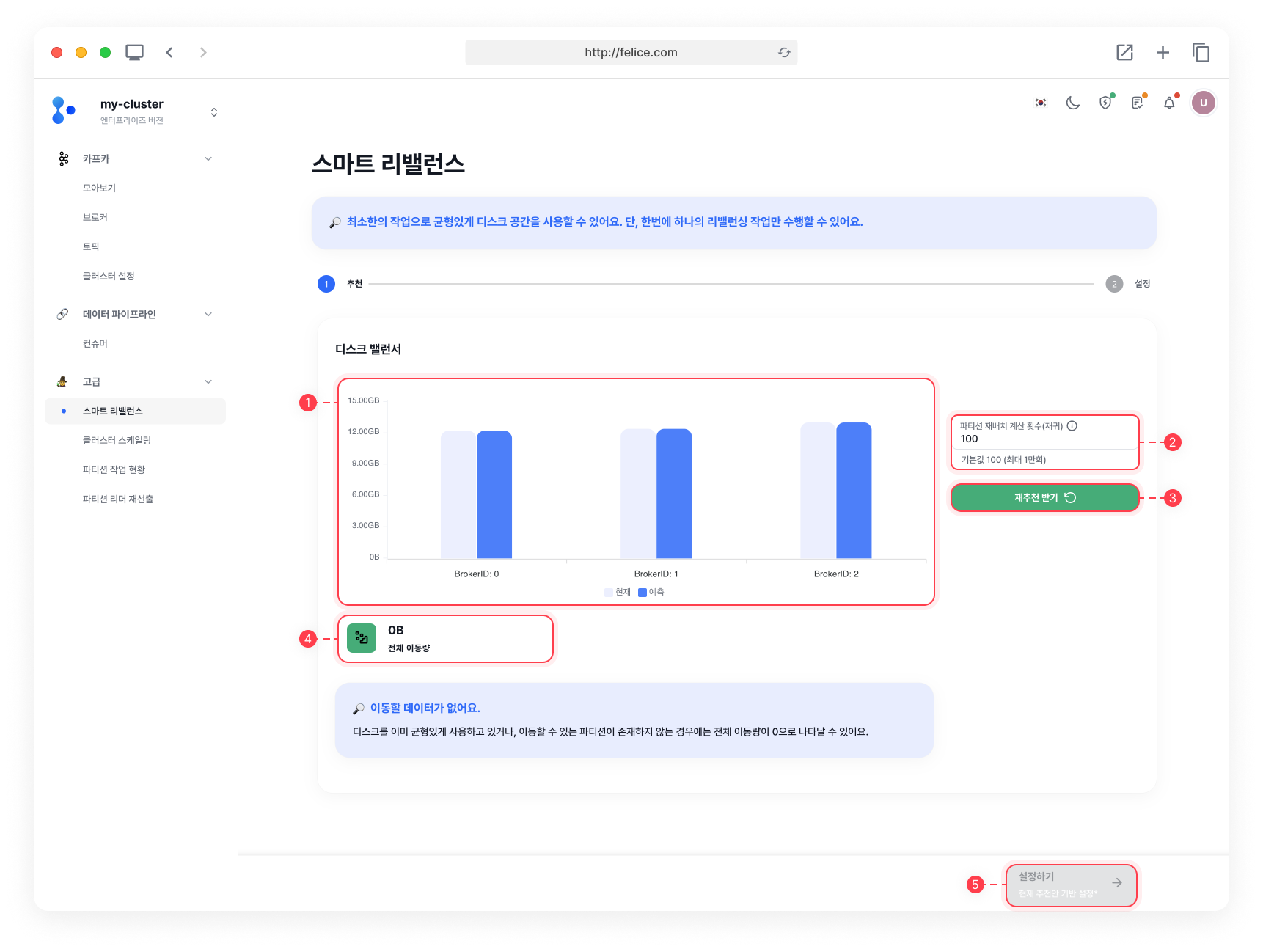
| Item | Description |
|---|---|
| ⓵ Disk Balancer | Graph comparing current and post-rebalancing predicted usage per broker |
| ⓶ Max recursive limit | Limit of the number of partitions rebalance calculations (recursion) |
| ⓷ New recommendation | Recalculates partition movements |
| ⓸ Total Data Movement | The total amount of data moved as a result of the calculation |
| ⓹ Configure rebalance | Moves to configuration screen after reviewing recommendations and movement amounts |
There's a risk of disk overflow during the data replication process (moving partitions).
- Disk usages are already balanced
- No partitions available to move
Movement of partitions is only possible to brokers that do not have an existing partition with the same topic-partition number. Therefore, Smart Rebalancing may be difficult when the number of replica factors for all partitions matches the number of brokers, meaning there are no partitions available for movement.
Step2: Confirming and Creating Job Configuration
When you come to the next page, following the calculation from the previous step, you will be able to see the list of topic-partition to be moved. Once you have checked the list of topic-partitions that will be moved based on recommendations and have completed the Throttling Settings, you can start Smart Rebalancing by clicking the [Smart rebalance] button.
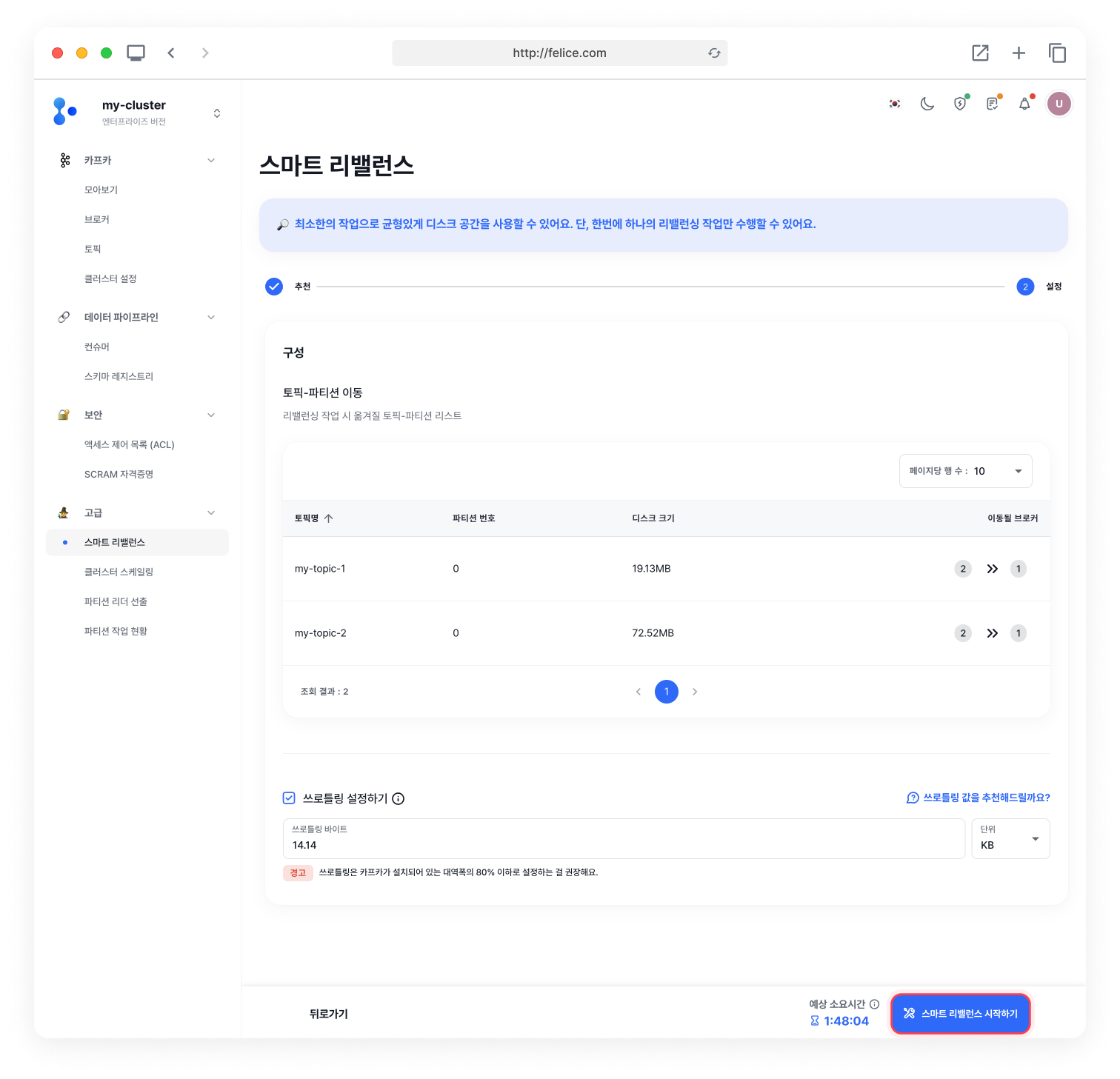
Throttling Settings
For further details about throttling, refer to the Throttle document.
For rebalancing job, only one iob can be running at a time. Therefore, you cannot create a new job if there already is one in progress, so please create a new job once the previous one is completed.
Step3: Checking Running Job Status
By clicking the Advanced > Partition Jobs menu on the left, you can check the status for the job that was just created and is currently running. In Partition Jobs, you can cancel the Smart Rebalance Job, or modify or disable the throttle values.