Masking Rule
Data masking is one of the techniques used to protect your data from unauthorized users. This involves the process of replacing original data with other characters, to hide important or sensitive information.
In Felice, data masking can be applied according to the RBAC permissions. You can create masking rules for specific data types and apply these rules to specific topics. Masking rules can be managed at Admin Menu > Security > Masking Rule.
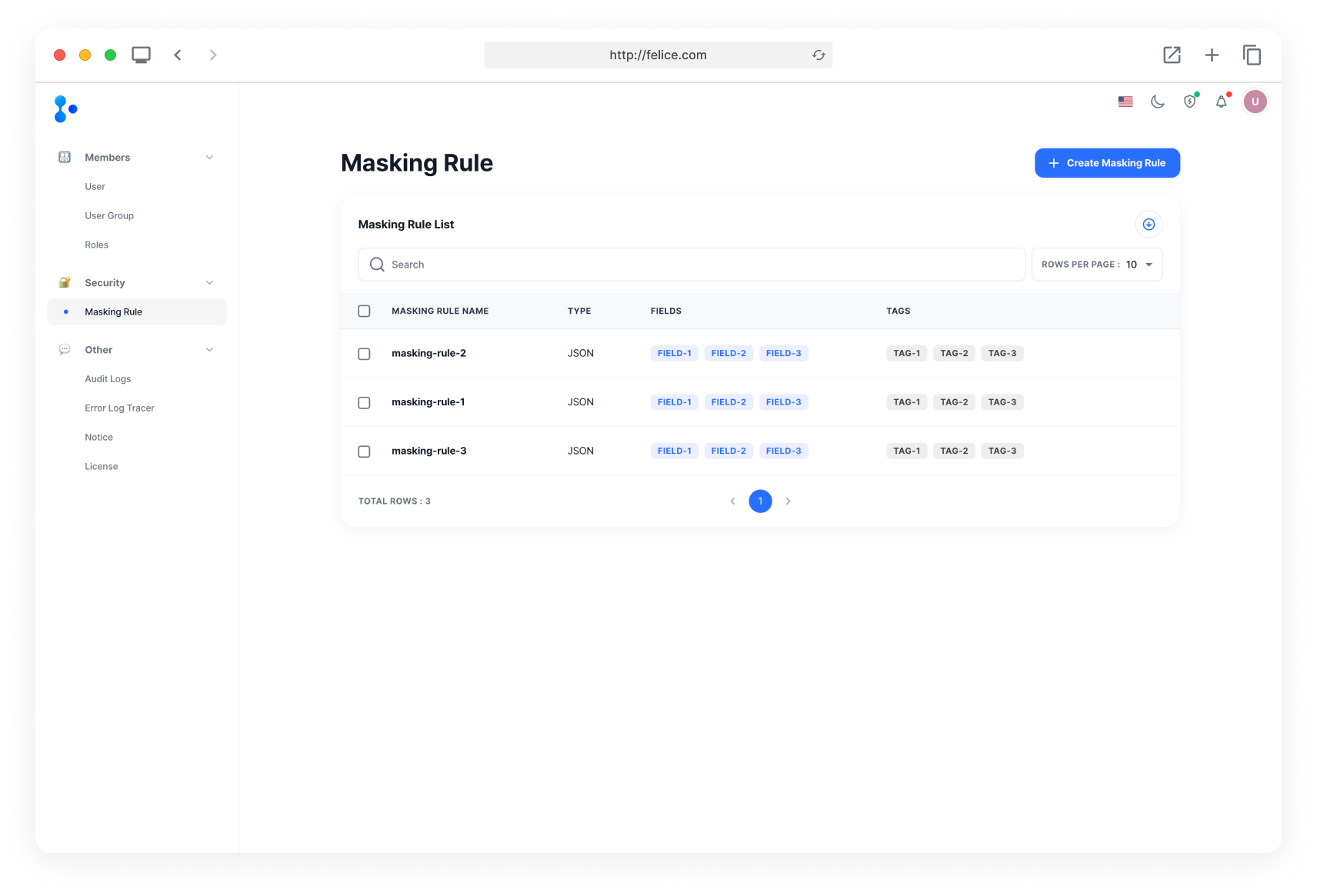
To create a new masking rule, click on [Create Masking Rule] on the Masking Rule List page and access the Create Masking Rule page.

Creating Masking Rule
Step1: Masking Rule Information
Enter the information for the new masking rule here.
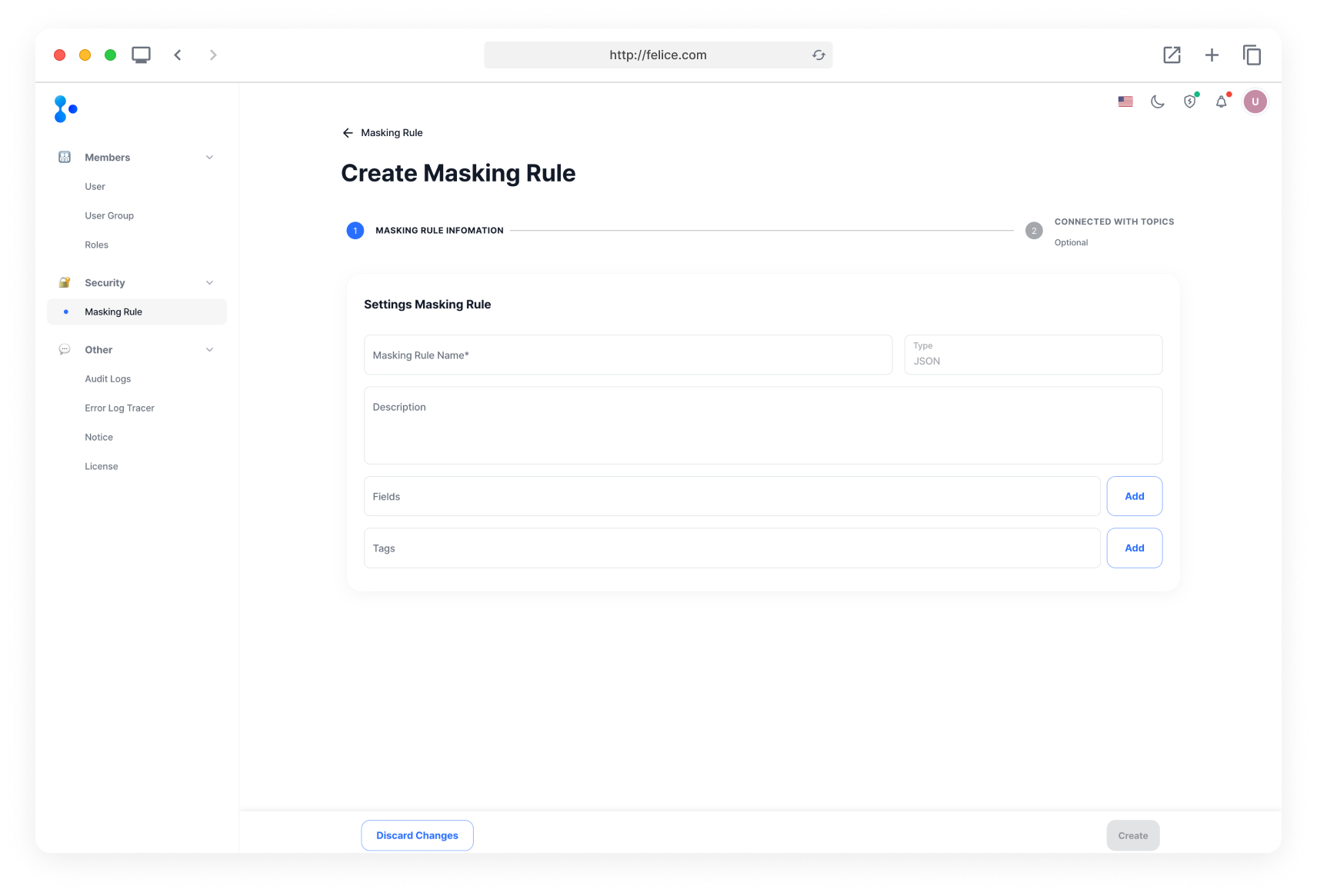
| Field | Description |
|---|---|
| ⓵ Masking Rule Name | Name of the masking rule being created |
| ⓶ Data Type | Only JSON is currently supported |
| ⓷ Description | Description of the masking rule being created |
| ⓸ Fields | Name of the field to apply the masking rule (note that nested object fields are not supported) |
| ⓹ Tags | Tags related to the masking rule |
Once you have filled in all the information, click on [Create] to create the masking rule.
Step2: Connected with Topics
You can apply the new masking rule to your topics right away. But note that the masking rule can be applied only when the Topic Information already exists. For more details about Topic Information, please refer to Topic - Create Topic - Entering Topic Information.
Select a Cluster Name, then choose a topic from the selected cluster's Topic List that you want to apply the masking rule to.
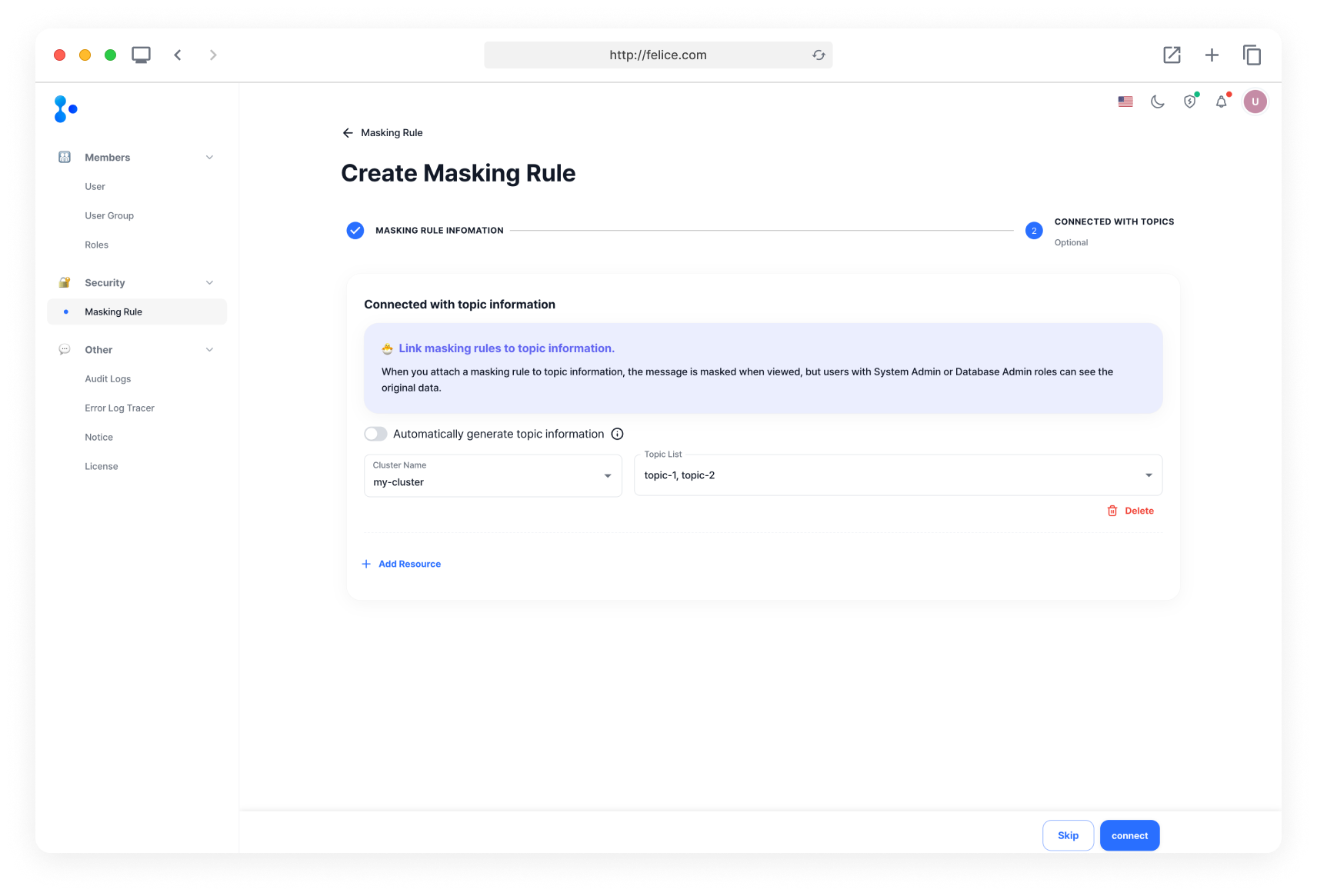
If you enable the 'Automatically generate topic information' flag, Topic Information will automatically be added to topics without existing Topic Information, during the Create Masking Rule process.
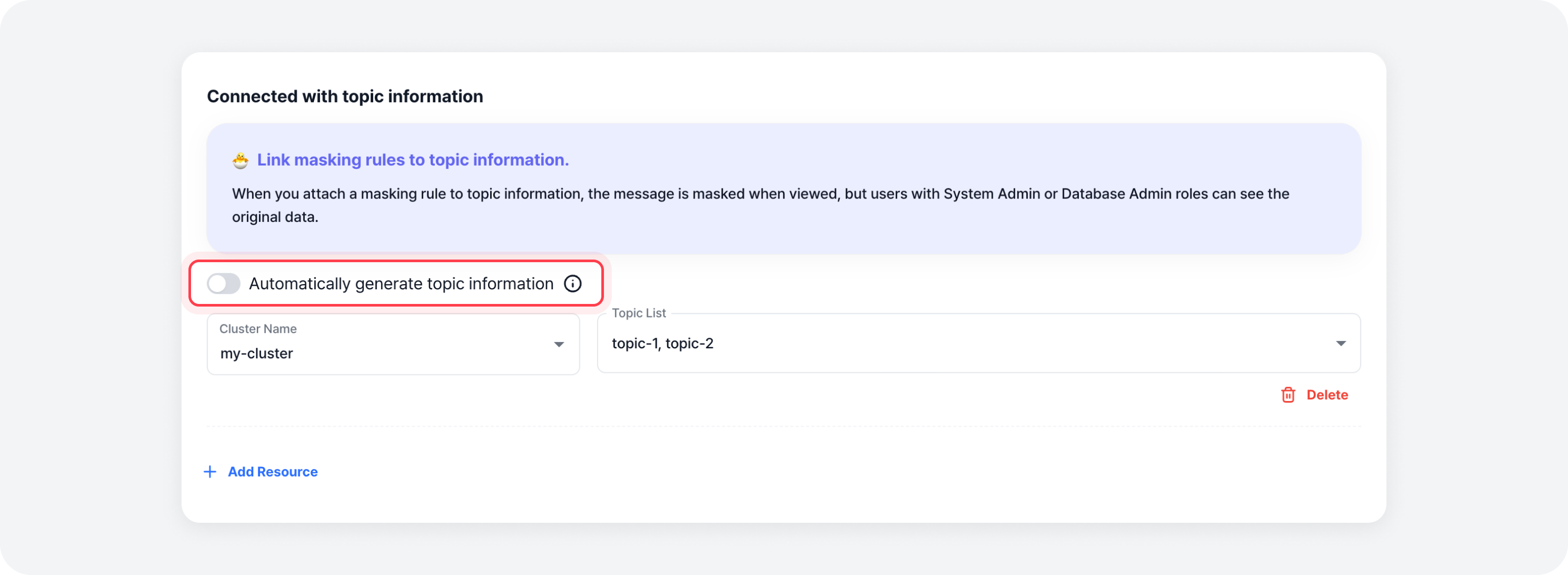
When creating a masking rule, connecting it to a Topic Information is optional. If you do not wish to connect to a topic, feel free to skip this step by clicking on [Skip] in the bottom navigation.
Masking Rule Details
You can view the details of a masking rule by clicking on a row in the Masking Rule List.
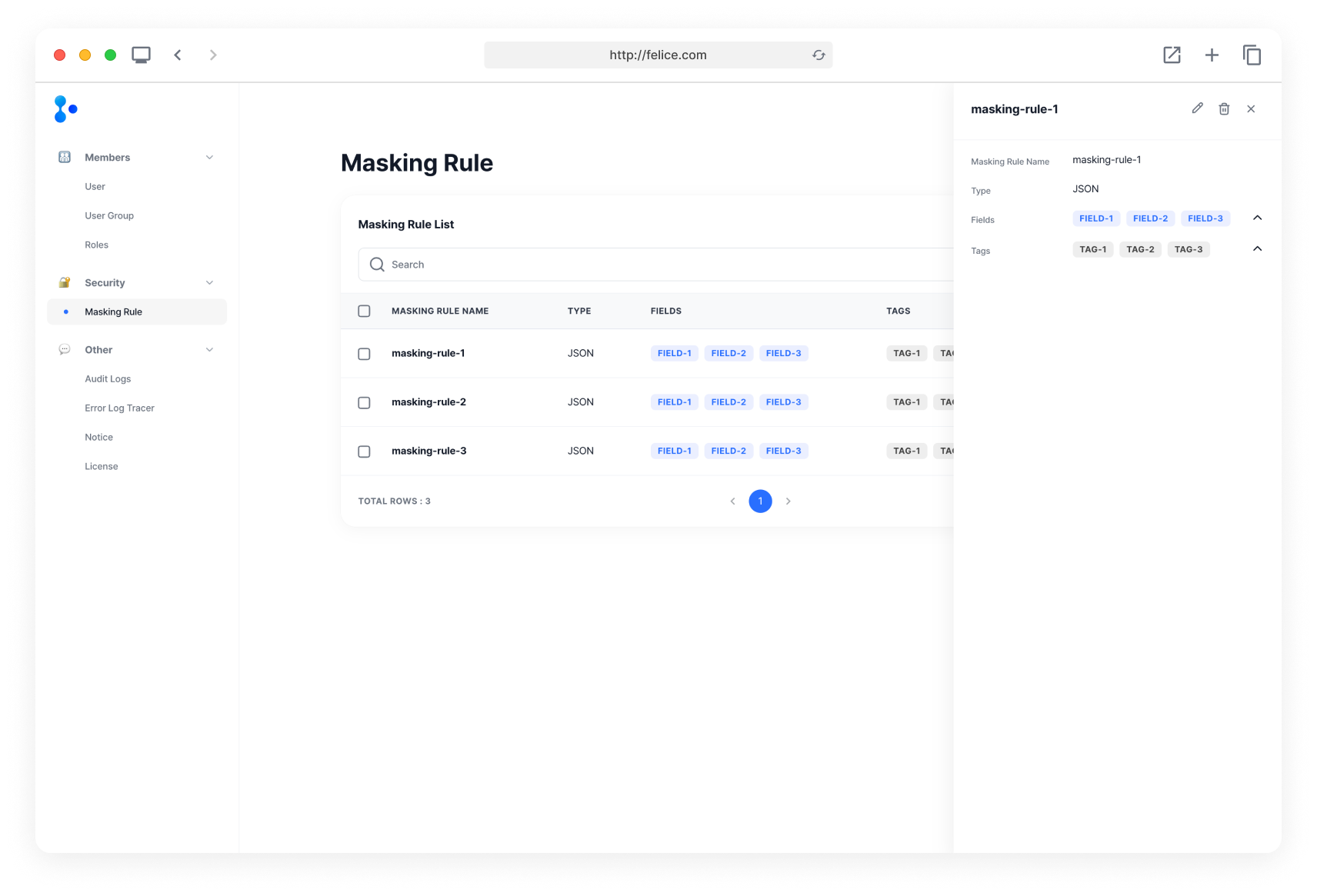
Editing Masking Rule
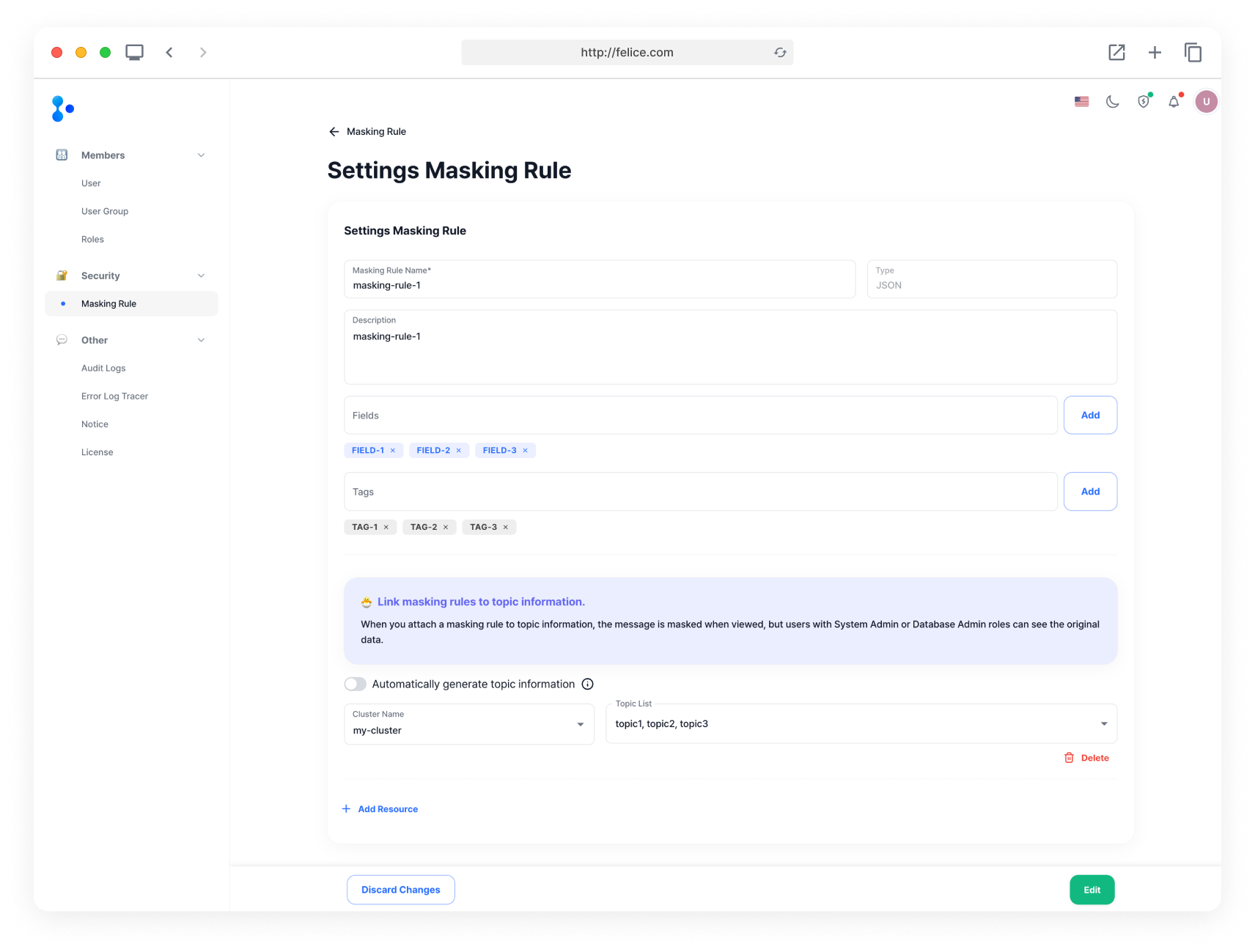
To make changes to a masking rule, either click on [Edit] located on the right side of the row, or the [Edit] button at the top right of the rule's details page. This will take you to where you can adjust the settings of the rule.
Here, you will be able to find all the current details. You can also choose additional topics to apply the rule to, just like when you first created it.
Deleting Masking Rule
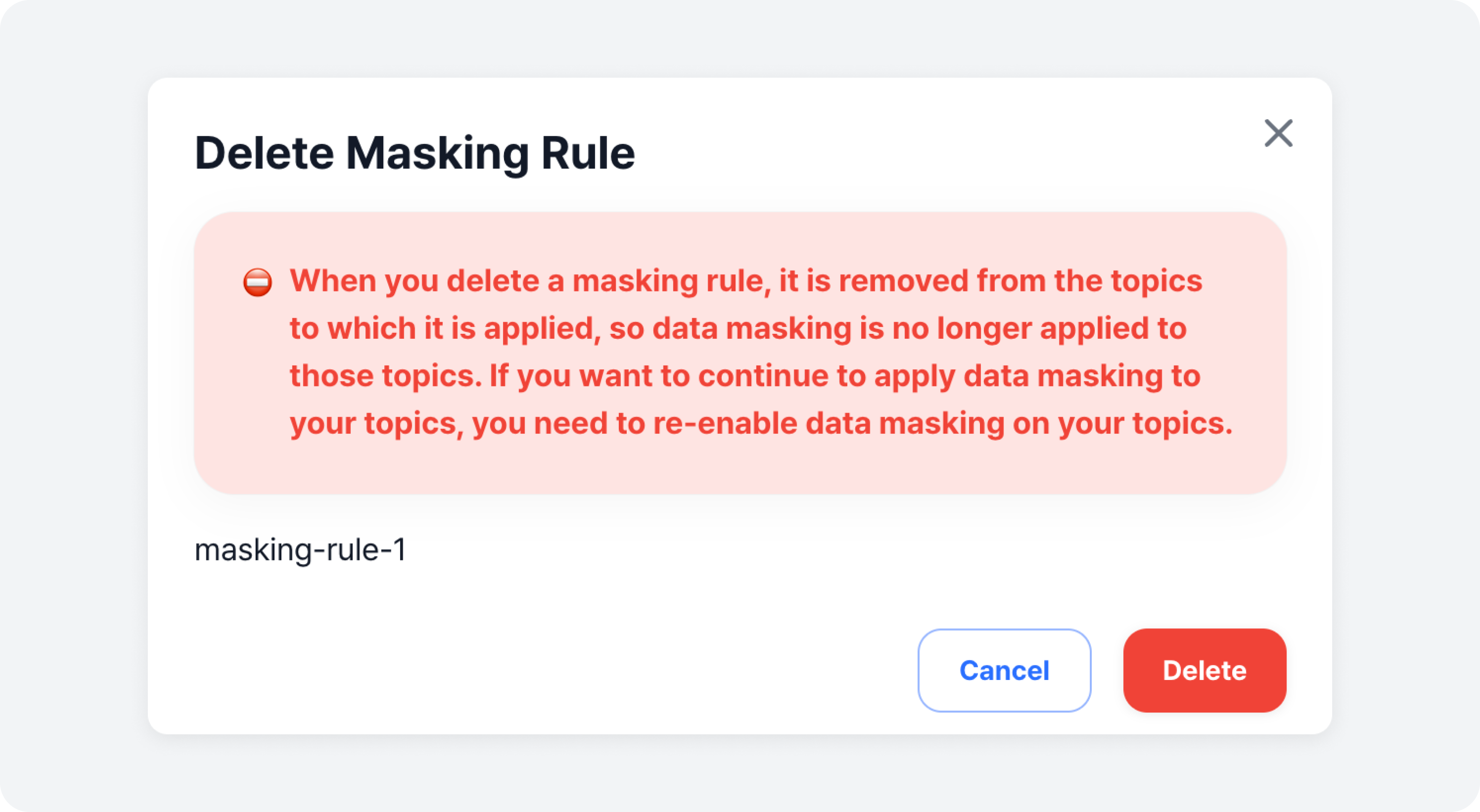
To delete a masking rule, you can either click on the [Trash Can Icon] on the right side of the row, or the [Trash Can Icon] at the top right of the rule's details page. This will prompt a confirmation modal to appear.
Take a moment to review the warning message and the details to double check if you are deleting the right one. Click [Delete] to finalize the deletion.