Messages
The Messages page allows users to effectively monitor, search, and manage messages within Kafka topics. It provides essential features for understanding and managing Kafka data, including real-time message streaming, detailed message viewing, message filtering, message deletion, and message downloading.
1. Message Filters
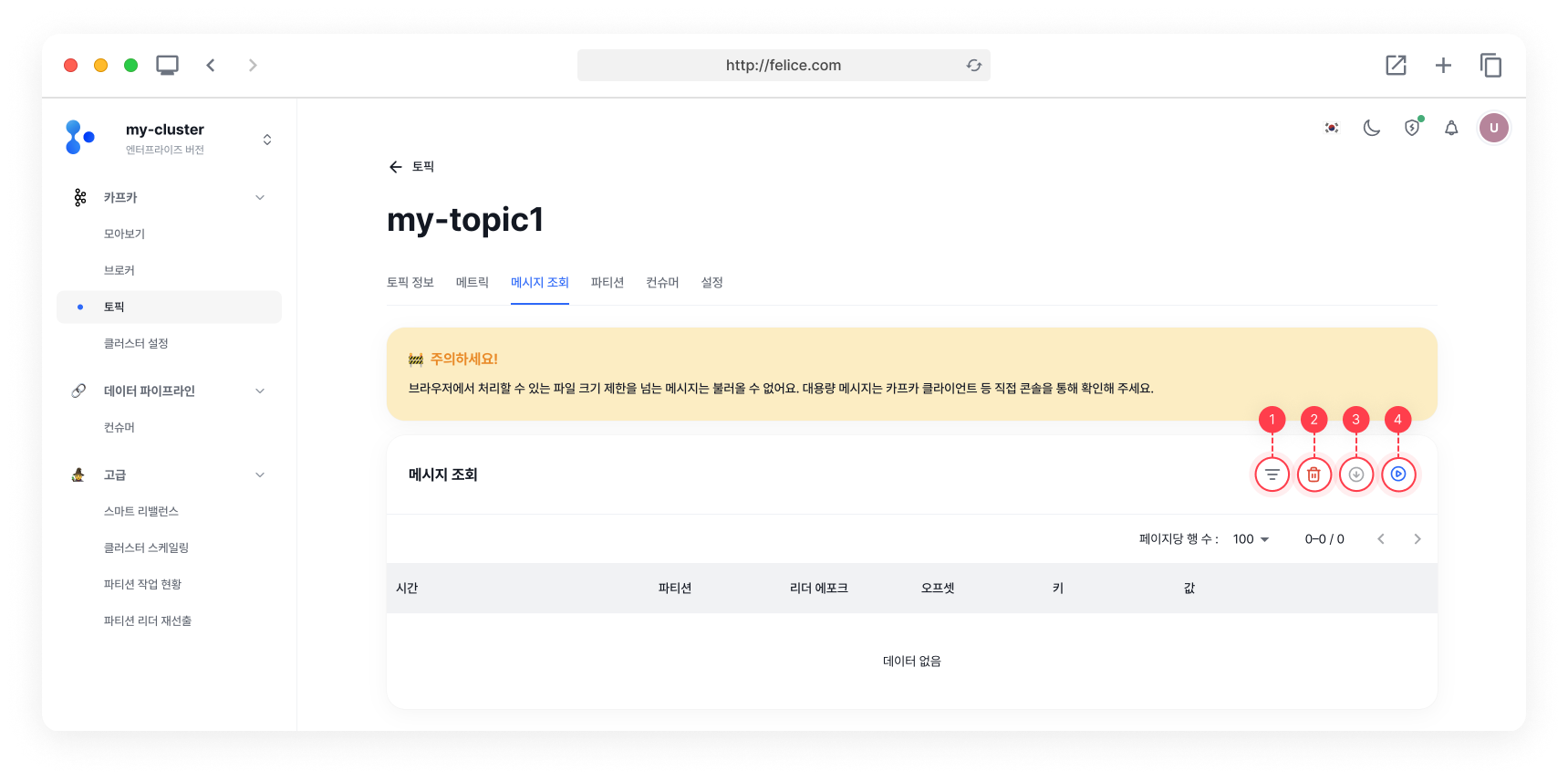
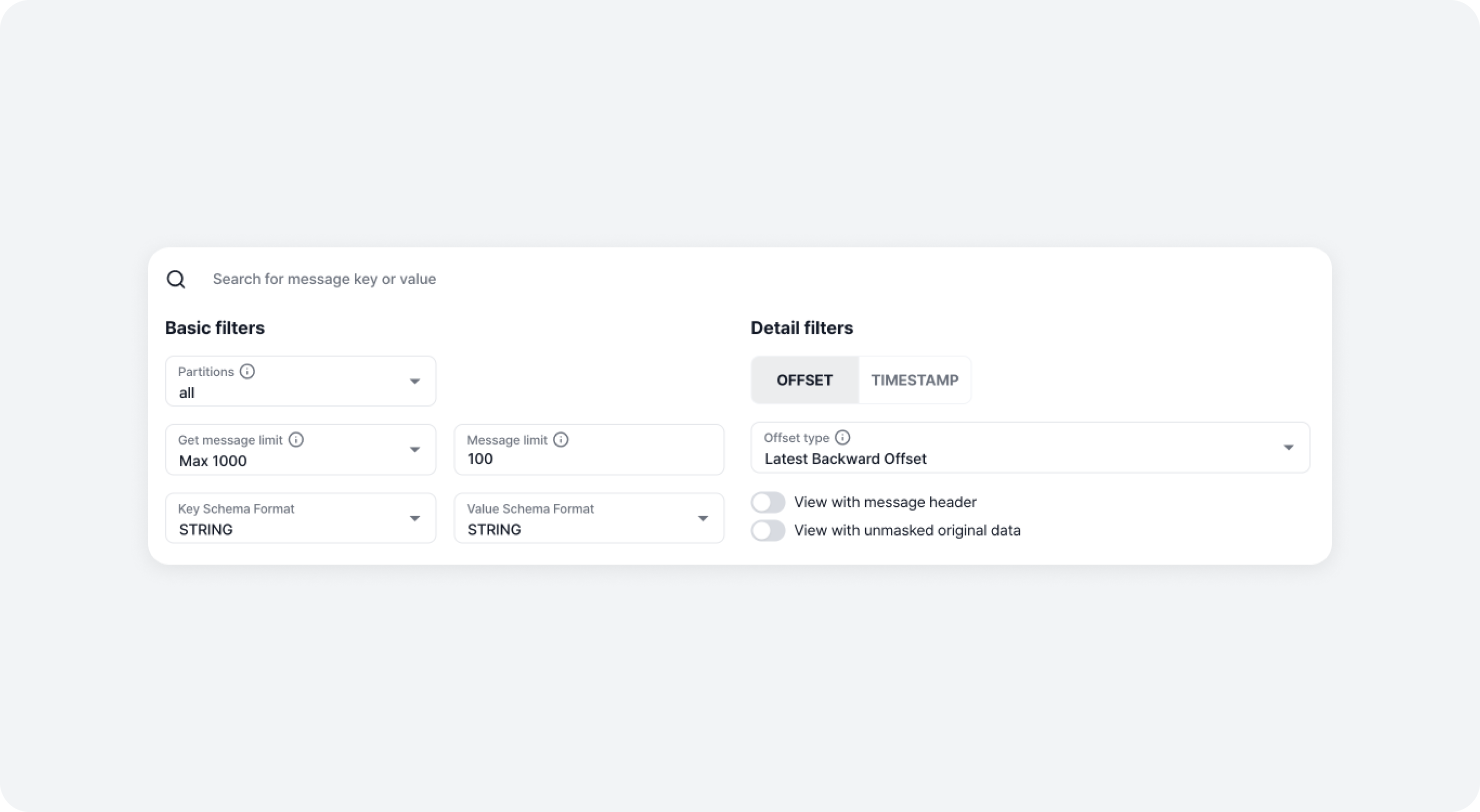
You can view messages stored in a topic using various filters. There are Basic Filters and Detail Filters, and note that Detail Filters cannot be used during streaming.
1.1 Basic Filters
| Filter | Description |
|---|---|
| Partitions | View messages by partition (if you select all, information for the entire partition is retrieved) |
| Get message limit | The maximum number of messages to be displayed on the screen |
| Message limit | The maximum number of messages to retrieve in one query (the message limit is limited to a maximum of 1000 for smooth data call) |
| Key format | View messages by message key type |
| Value format | View messages by message value type |
1.2 Detail Filters
| Filter | Description |
|---|---|
| Offset type | View messages by the selected offset type |
| Timestamp | View messages from the selected date to the present time |
| View with Message Header | When enabled, if message headers are available, they will be displayed together when viewing message details |
| View with Unmasked Original Data | When enabled, masked messages will be viewed as unmasked original data |
Offset Types
| Type | Description |
|---|---|
Earliest Offset | Fetch messages starting from the first offset |
Latest Forward Offset | Fetch messages starting from the last offset for each partition at the time of the request |
Latest Backword Offset | Fetch messages starting from the last offset for each partition at the time of the request, minus the limit on the number of messages to fetch at once |
Custom Offset | Fetch messages starting from the entered offset (available only when an individual partition is selected) |
2. Deleting Messages
You can delete messages by topic-partitions. Deletion invalidates messages before a specific offset, and it is not possible to delete messages from the middle or after a certain offset in the topic. To delete, register the desired offset for each partition and click on the [Delete] button to finalize the deletion.
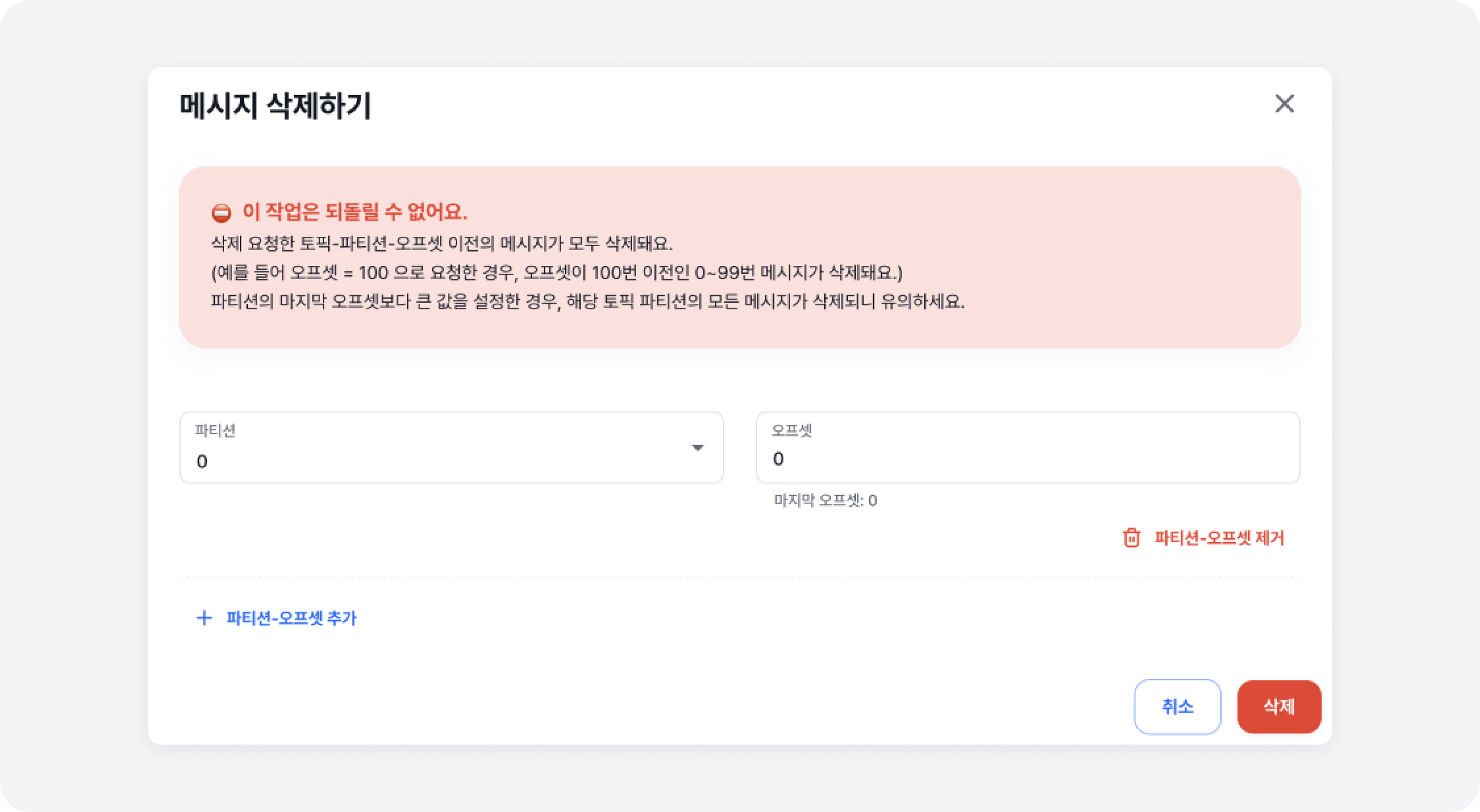
Deleted messages cannot be recovered, because deletion invalidates the message. Therefore, please proceed with caution when deleting messages. Additionally, beware that if you set a value larger than the last offset of a partition, all messages in that topic partition will be deleted.
Deleting messages invalidates messages before a specific offset, so the topic size does not immediately decrease. The topic size will decrease when the invalidated messages are actually deleted according to the message cleaning cycle.
3. Exporting
You can download the retrieved messages in CSV and JSON formats.
4. Message Streaming
Click on the [Start streaming] button to view real-time streaming messages from the current topic in the message list below. You can only use Basic Filters during streaming, and no other message operations, including filtering, can be performed during streaming.
- Streaming automatically stops 1 minute after it has started. To continue streaming, please restart it.
- Partition sampling occurs when messages are viewed from all partitions, so the desired message may not appear.
- If there are too many messages currently being produced, or the message size is too large, streaming messages may take time.
- If you have specified a message key value, try selecting the corresponding partition number in the message filter to stream. This allows you to check faster if the desired messages are being produced.
5. View Message Details
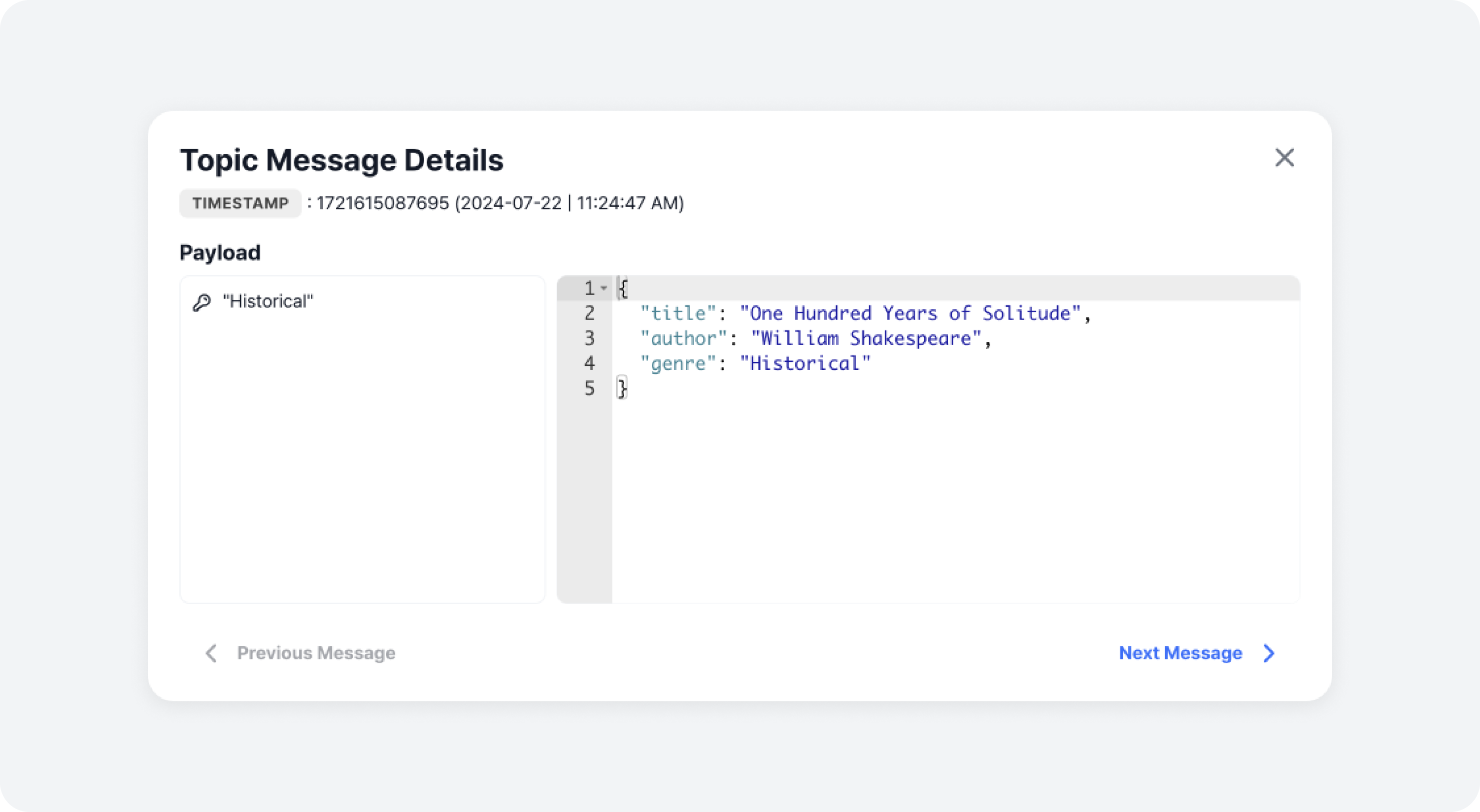
You can view the detailed message corresponding to the selected offset by clicking on the key or value rowof the retrieved message. If you want to view the header information included in the message as well, please enable the View with message header option in the Detail Filters.