User Group Management
In Admin Menu > User Group, you can manage Users by grouping them together. For example, if an organization has three teams (Data Platform, Operations, and Sales Team), you can create and manage groups as the following.
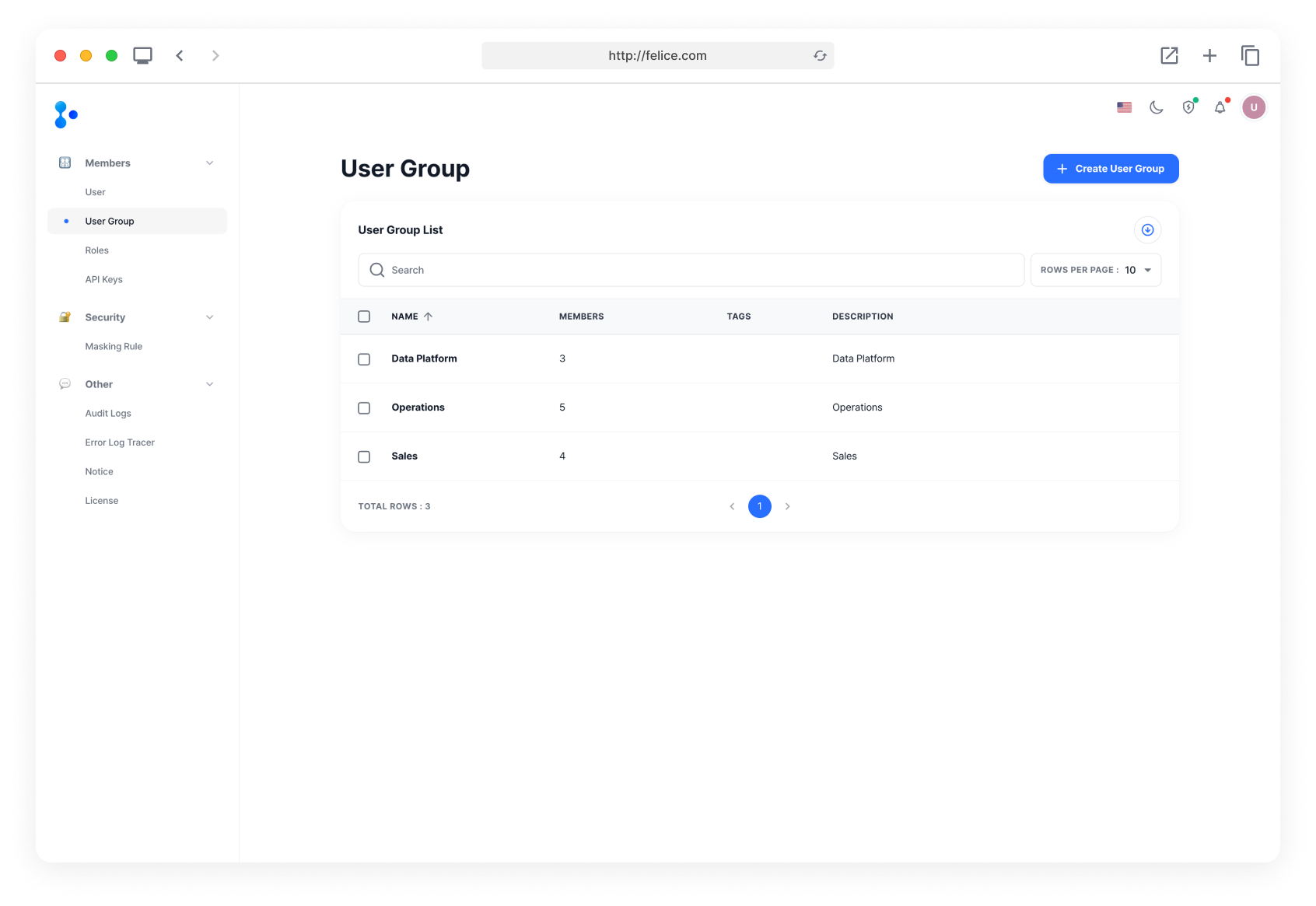
When a user is added to a group, the group information is displayed in the user's profile.
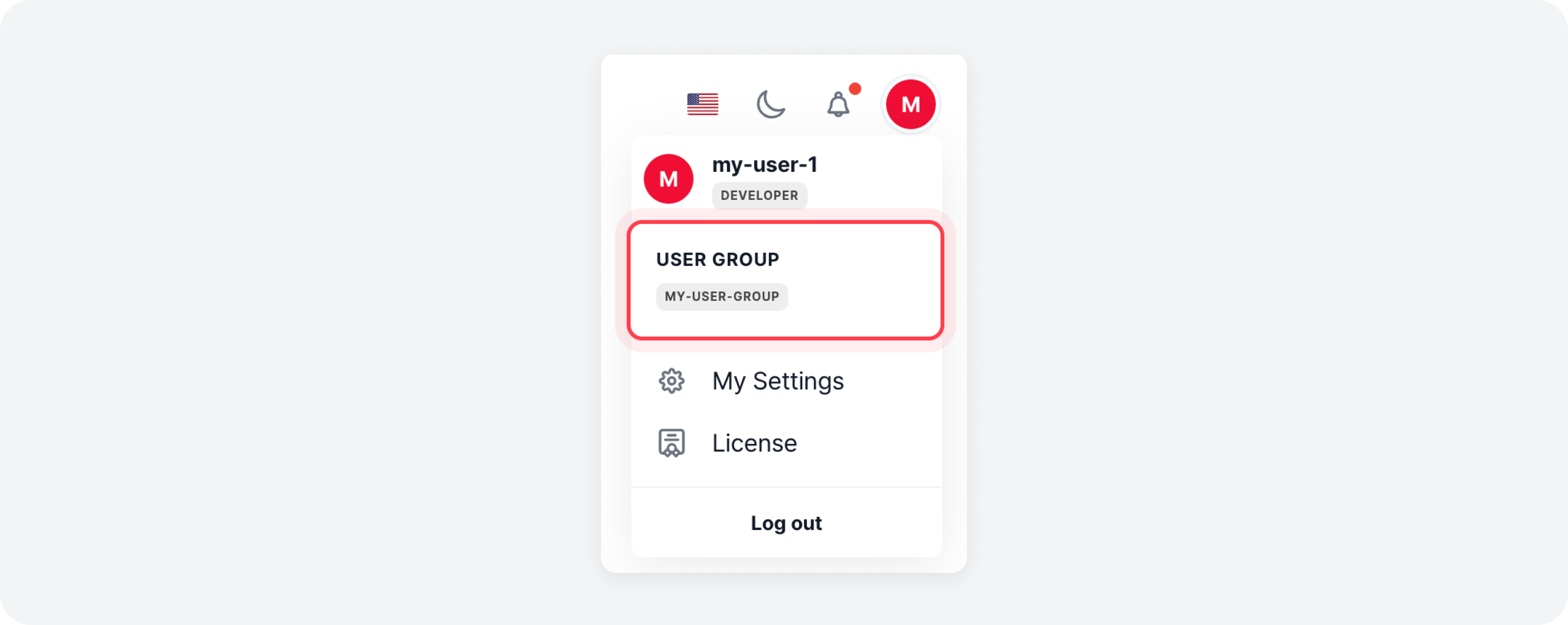
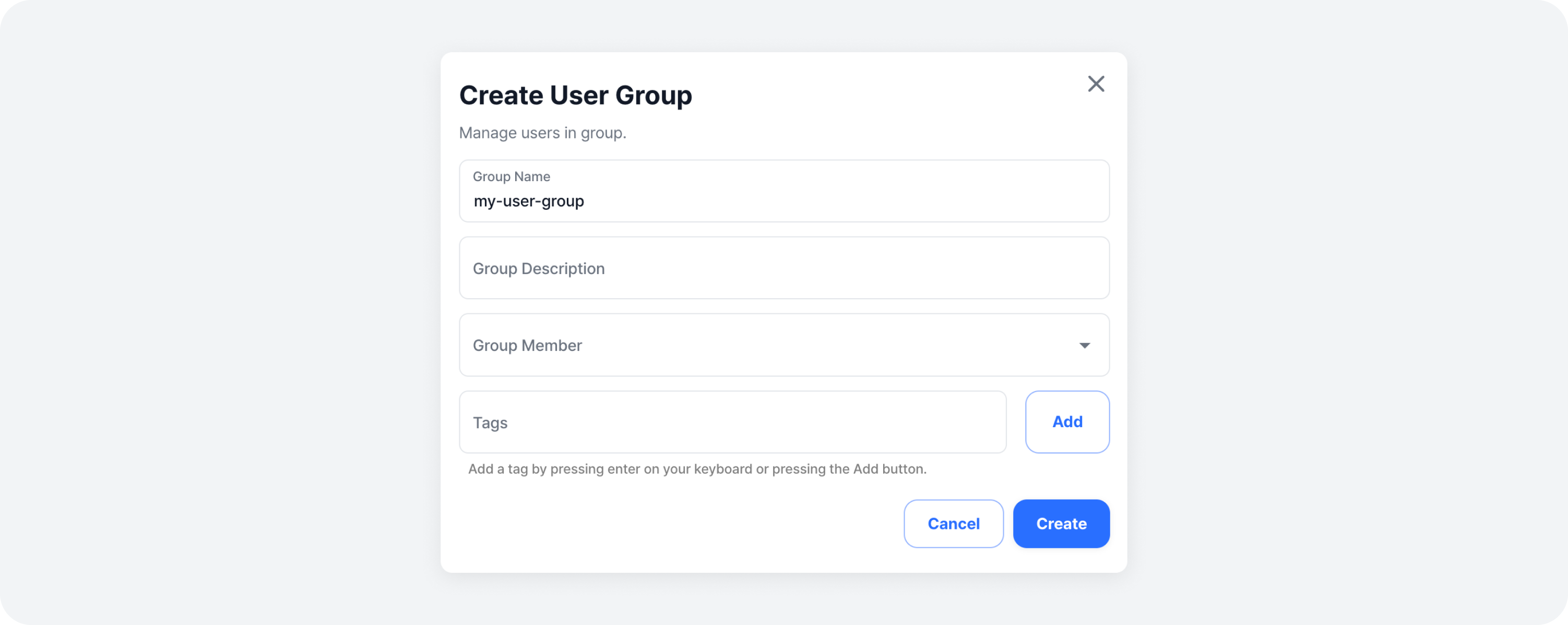
To create a new group, go to the User Group List and click the [Create User Group] button to open the registration modal.

Create User Group
Enter the information for the user group you are creating. Once you have filled in all the details, click on [Create] to complete the creation.
- Group Name
- Group Description
- Group Member (supports multiple selection)
- Tags
User Group Details
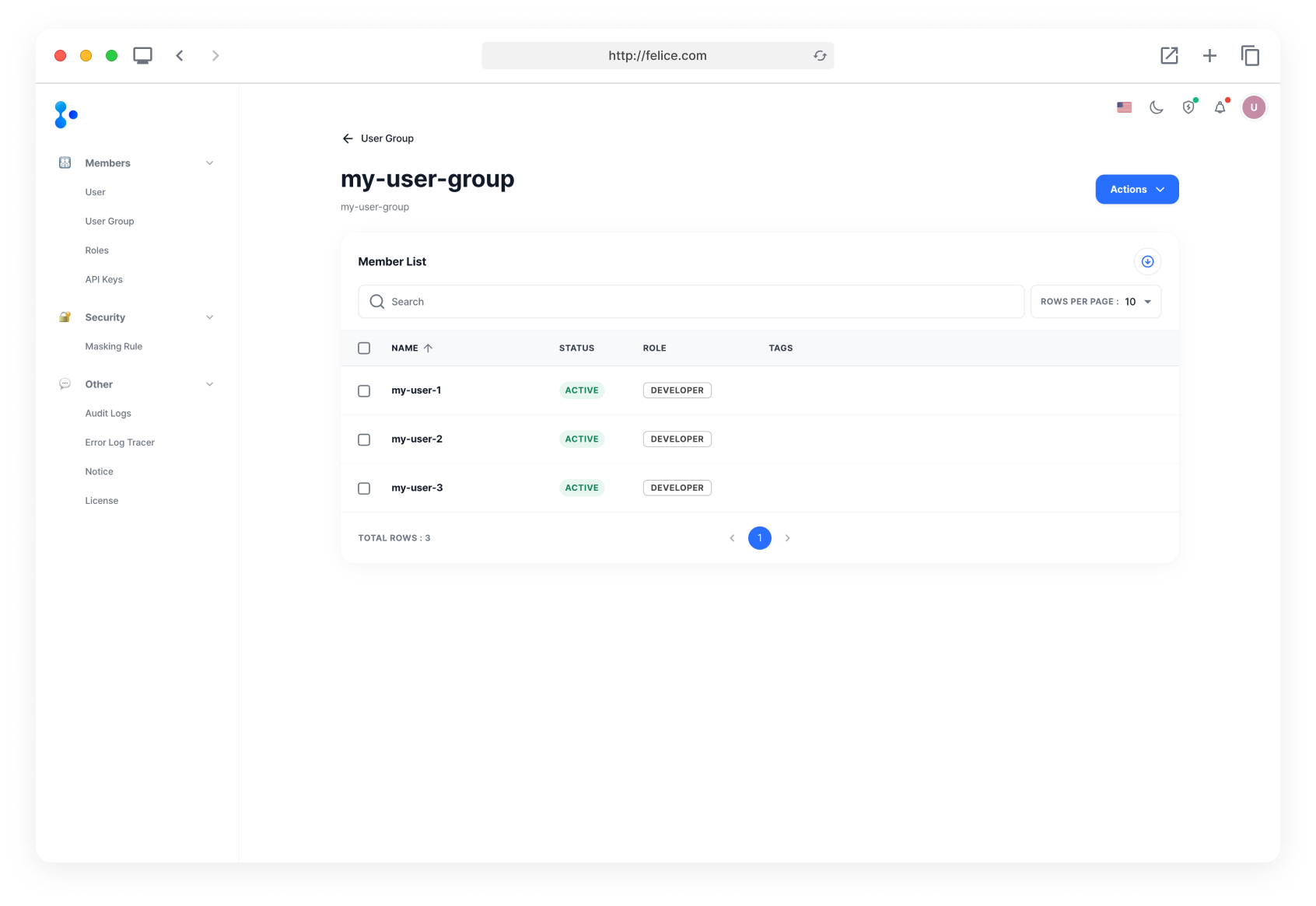
In the User Group List, click on the [Group Name] to navigate to the group details page. In group details, you can view the activation status, roles, and tags of users in the group.
Editing User Group Information
In the user group details, click on the [Actions] menu at the top right and select the [Edit Group] button to open the Edit Group modal.

The modal will display the existing group information. Modify or add the information you need and click on [Modify] to complete the editing.
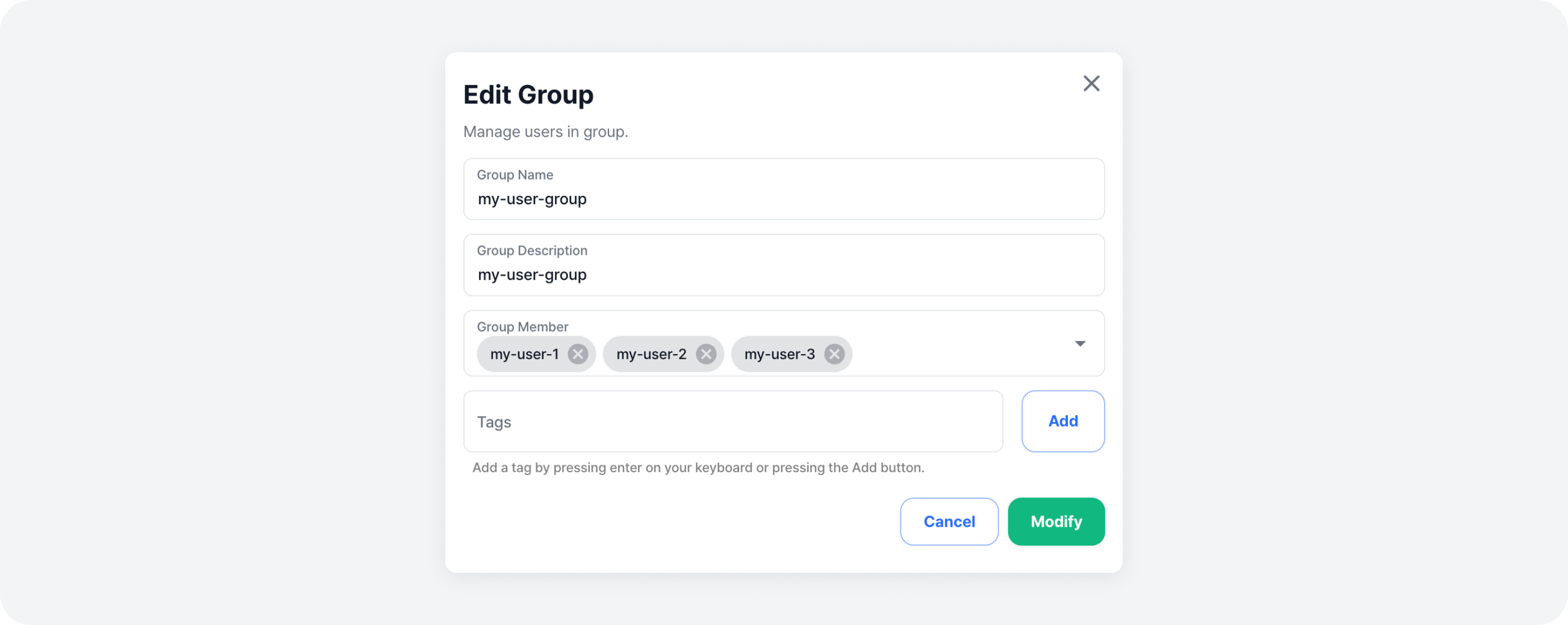
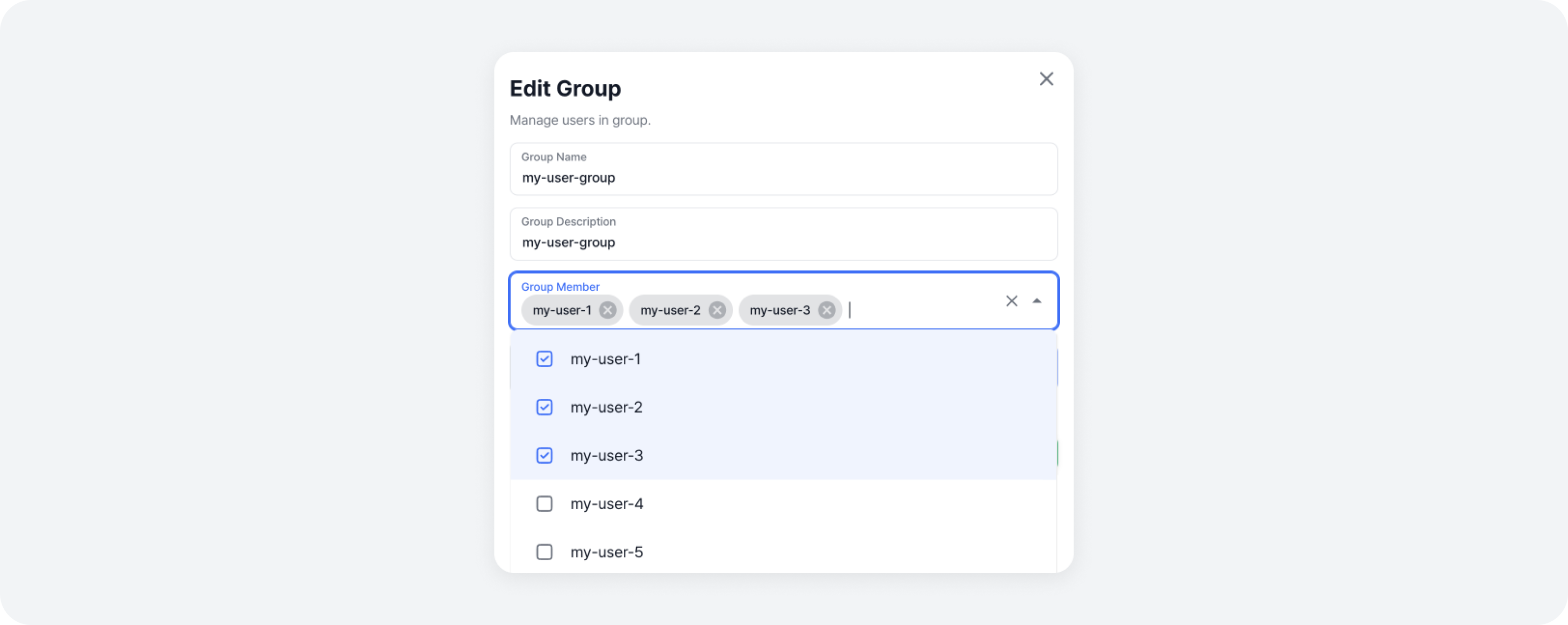
When editing user group information, you can also add group members. Just like you did when creating the group, select the group members to add.
Excluding Member from Group
In the user group details page, you can exclude members by clicking on the [Remove Icon] on the right side of the Member List row, or by selecting multiple members using checkboxes and pressing [Exclude]. After reviewing the warning message, press [Exclude] once again, to exclude the selected members from the group.
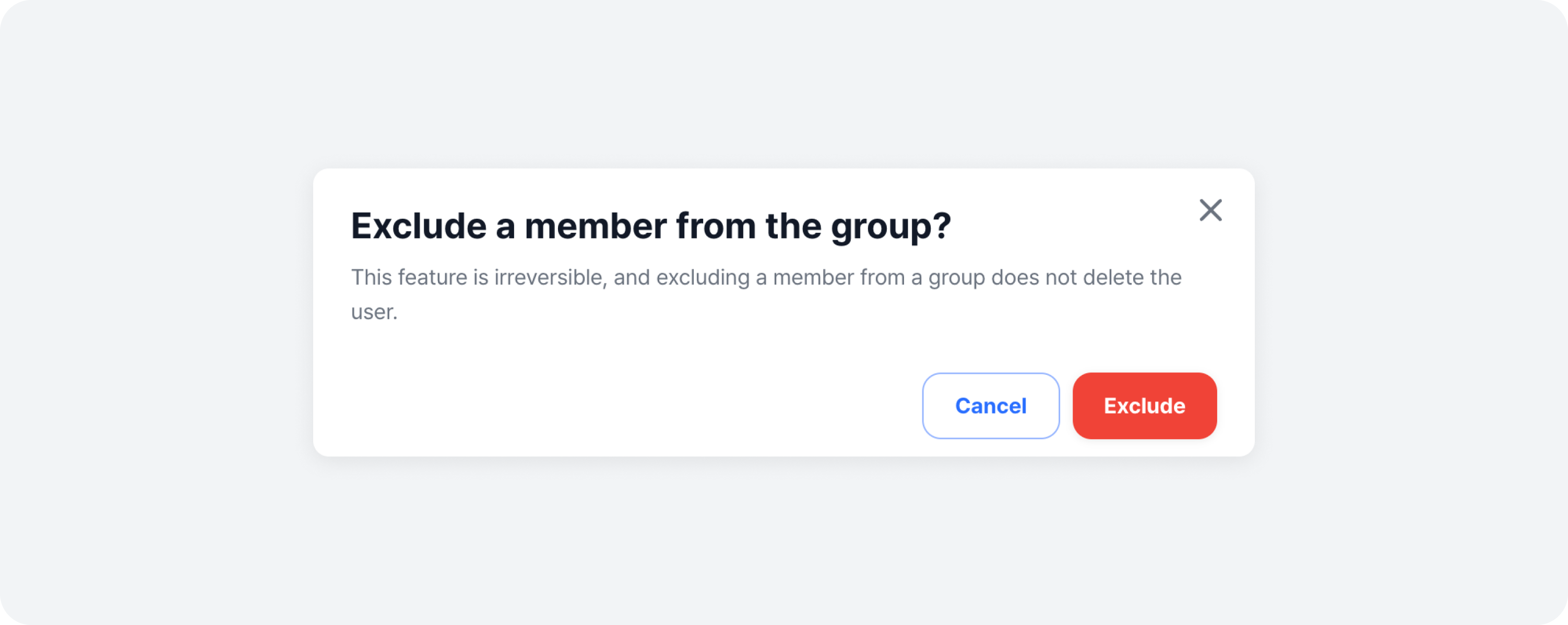
Excluding a user from a group does not mean you are deleting the user information; it only removes them from the group. Therefore, even if a user is excluded from a group, their information remains intact. If you want to completely delete the user information from Felice, refer to the User Management - Deleting User document.
Deleting User Group
In the top right of the user group details page, click on the [Actions] menu then select the [Delete Group] button or open the delete group modal. After reviewing the warning message about deleting the user group, click the Delete button to complete the deletion.
