User Management
In the Felice dashboard, you can manage both active/inactive users that were created. To modify a user or add additional settings, click on the User's Name in the list or click the Edit Icon on the right side of each row to access the user modification page.
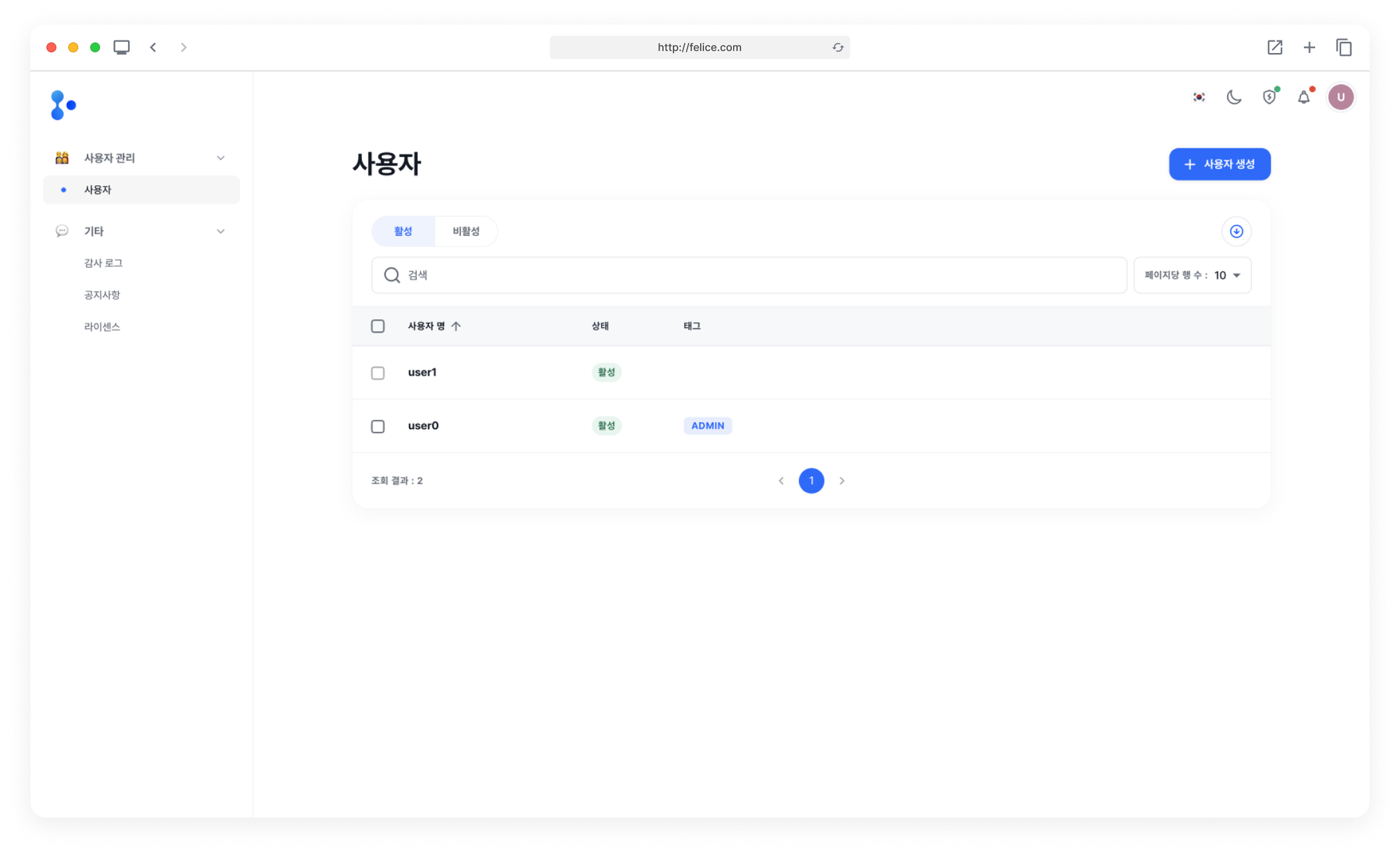
The edit, lock, and trash can icons located on the right side of each row appear once you hover your mouse over the row.
You cannot modify your own settings in the user management section. To charge your own account settings, go to My Settings.
User Status
| Status | Description |
|---|---|
| ⓵ Active | Users who have access to the dashboard |
| ⓶ Locked | Users who are locked and do not have access to the dashboard due to reasons like password expiration |
Deleting User
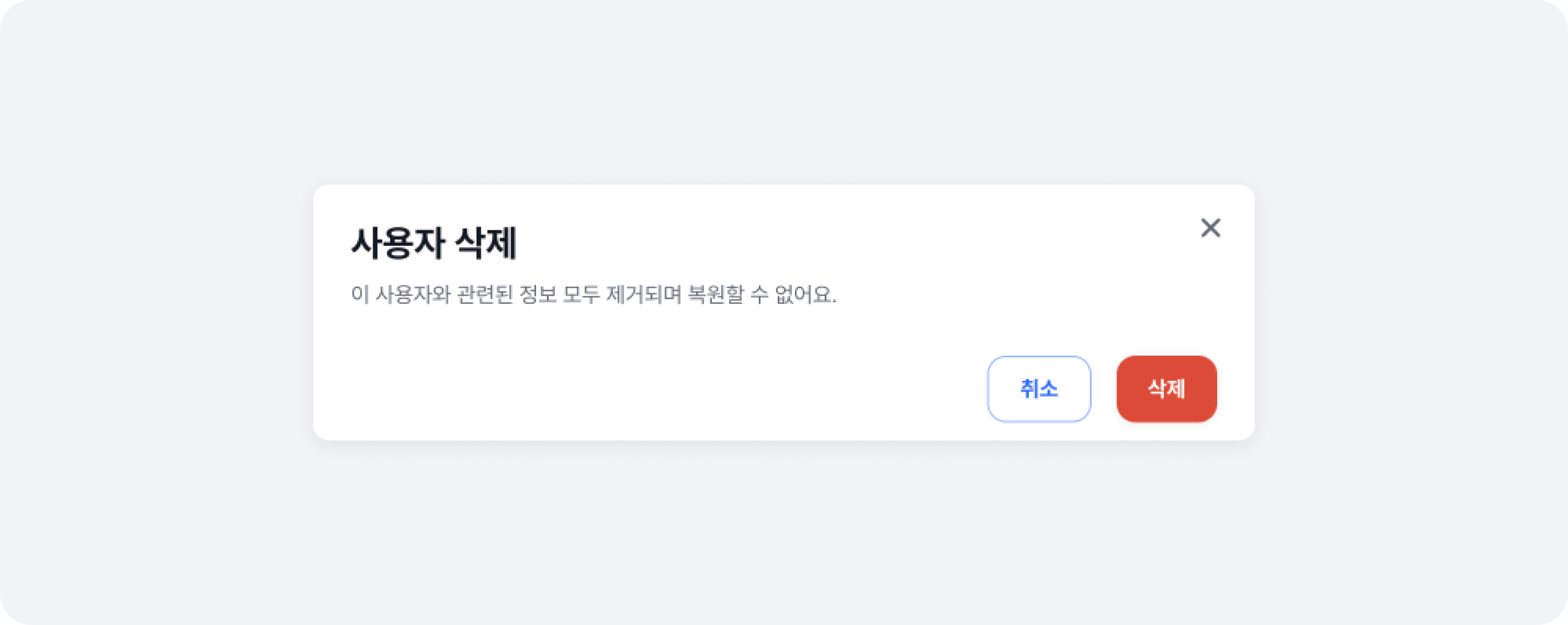
You can delete user accounts that are no longer used. Once deleted, the user will not be able to log in to the Felice dashboard anymore.
Click on the Trash Can Icon button on the right side of each row or click on the [Actions] button in the upper right corner of each User Settings page, then the Delete User menu to expose the modal. There, click on the Delete button to remove the user.
Unlocking/Locking User
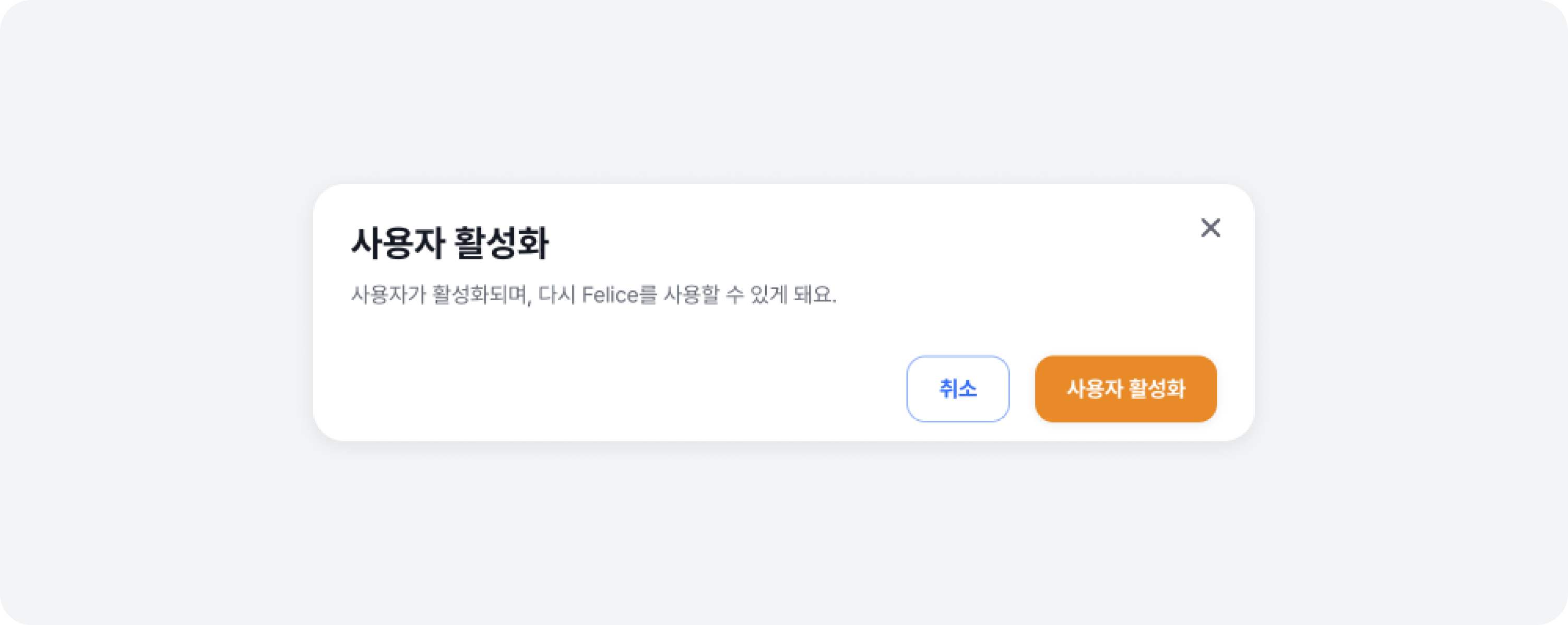
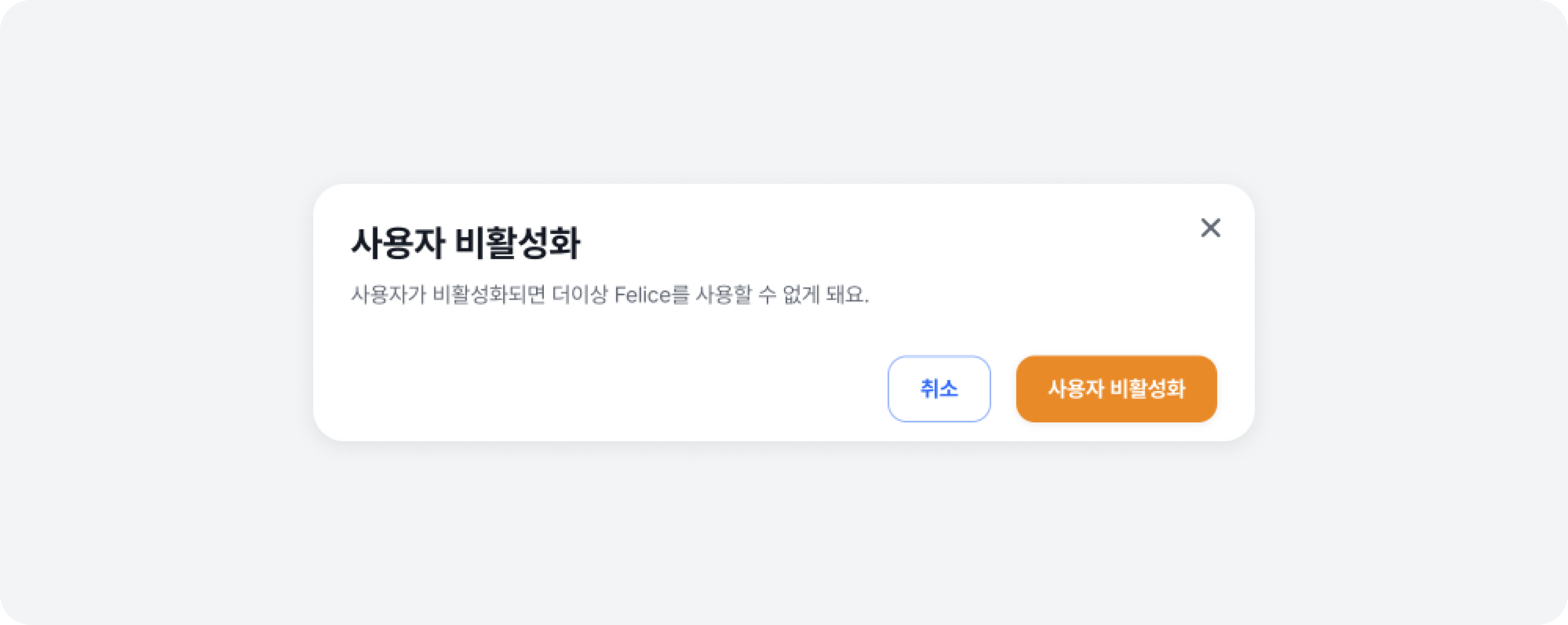
You can change a user's activation status. Locked users cannot log in to the Felice dashboard until they are reactivated.
To change a user's activation status, click on the Lock Icon on the right side of the row in the list, or the [Actions] button in the upper right corner of each User Settings page, then the Unlock/Lock User menu to expose the modal. There, click on the Unlock User or the Lock User button to change the user's status.
Unlock User Modal
Lock User Modal
Reset User Password
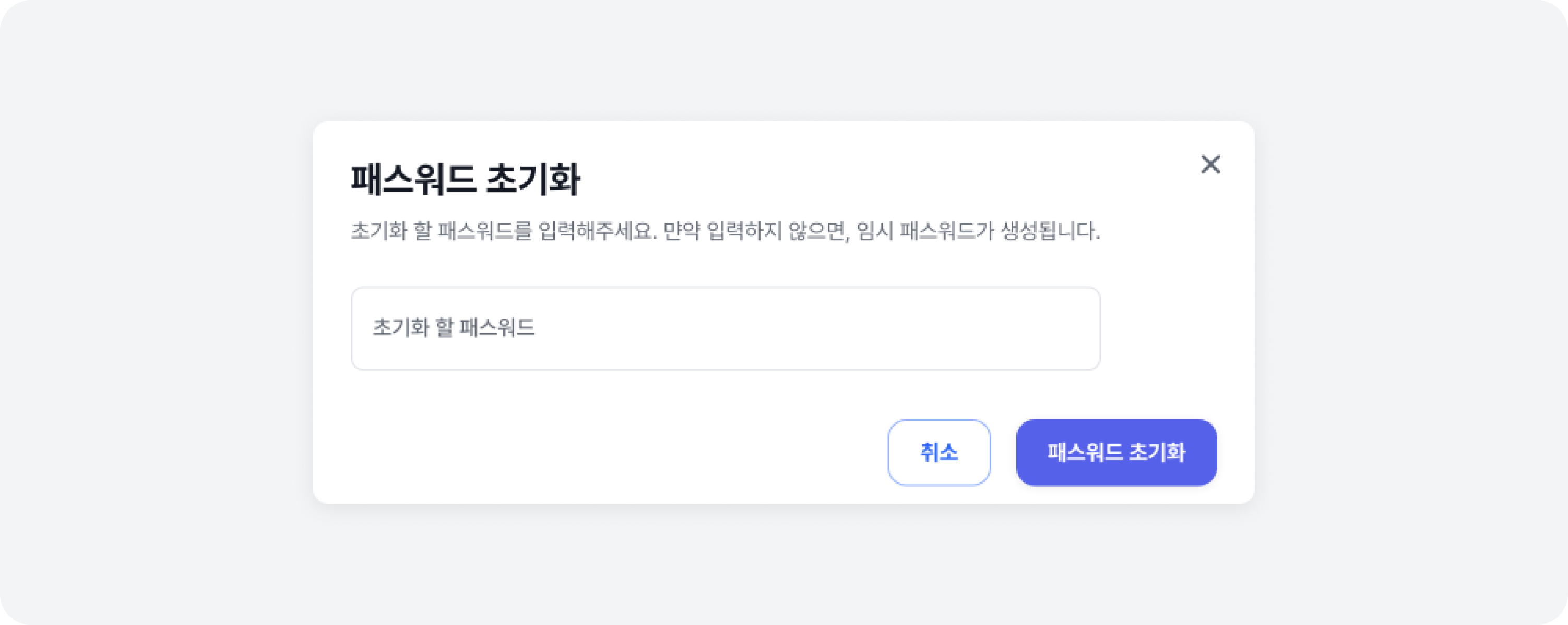
If a user forgets their password, it can be reset. Since passwords are encrypted in one-way, they cannot be recovered. To reset a user's password, go to the User Settings page and click on the [Actions] button in the upper right corner, then select the Reset Password menu to expose the modal.
If you click on Reset Password without entering a new password, Felice will generate a random password and display it on the screen. The user can log in using this temporary password.
- When a user's password is reset with a randomly generated temporary password, the user must change the password upon the first login with the new password.
- To reset a user's password by manually entering an initial password with password policy enforcement disabled, the following conditions must all be met.
Password Requirements:
⓵ At least 8 characters
⓶ Includes lowercase letters
⓷ Includes uppercase letters
⓸ Includes numbers
⓹ Includes special characters
⓺ Spaces not allowed