Cluster Scaling
Introduction
Scaling a Kafka Cluster is a task that may frequently occur in production environments due to various reasons such as increased traffic, data growth, or resource constraints. Felice facilitates this process by allowing users to easily perform the necessary steps before or after adjusting the number of cluster brokers.
You can start a new cluster scaling job by selecting the Advanced > Cluster Scaling menu.
If a partition movement is in progress, accessing the Cluster Scaling screen will automatically redirect to the Partition Jobs screen.
Without setting up metrics for the cluster, the Cluster Scaling recommendation job is not possible so the feature will not be provided.
Balancing Data after Scale-out
After completing a Scale-out Operation to add new brokers, it is important to ensure that the disk usage of the entire cluster is evenly distributed, including the newly integrated brokers. During this process, you can monitor the data of each broker and efficiently carry out the necessary rebalancing jobs.
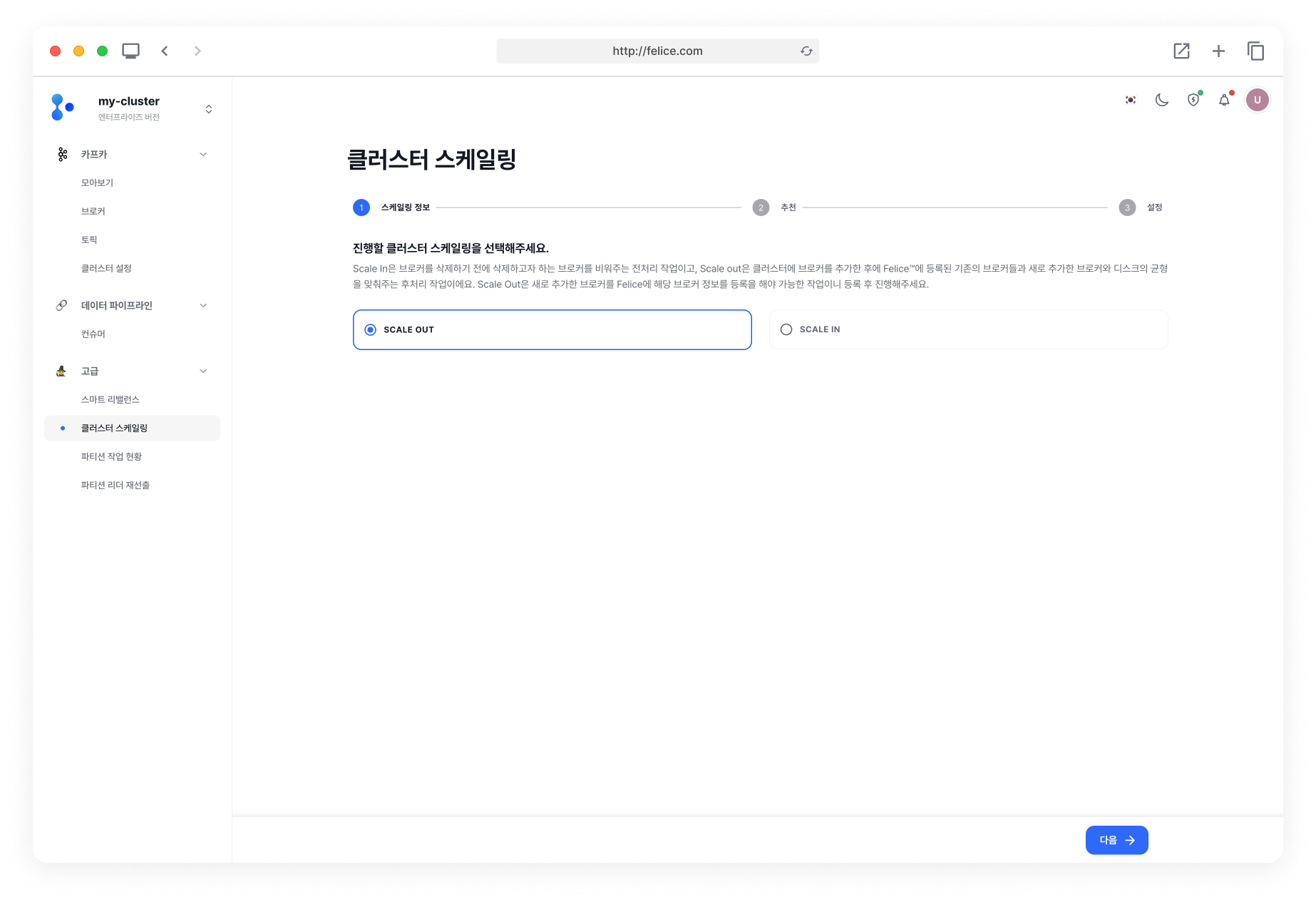
Step1: Selecting Operation Type
First, select Scale-out from Scaling Info.
Step2: Calculating Recommendations through Disk Balancer
Check if the predicted usage for the new broker was calculated to be evenly distributed. For detailed instructions on using the Disk Balancer, please refer to the Smart Rebalancing > Calculating Recommendations through Disk Balancer section.
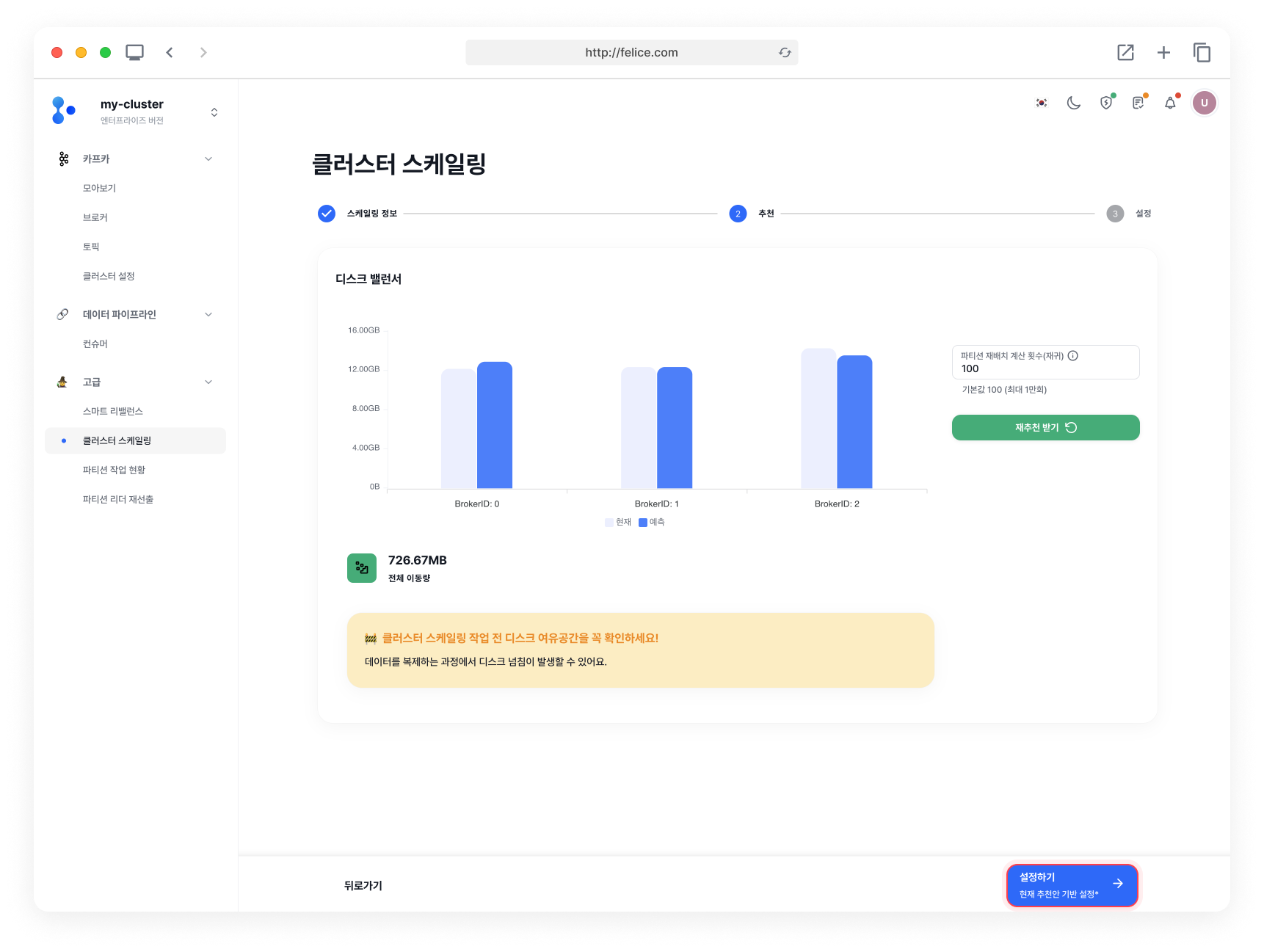
Step3: Confirming and Creating Job Configuration
After reviewing the results from the previous step, you can see a list of topic-partition movements on the next page. Once you have checked the list of topic-partitions that will be moved based on recommendations and have completed the Throttling Settings, you can start Cluster Scaling by clicking the [Cluster Scaling] button.
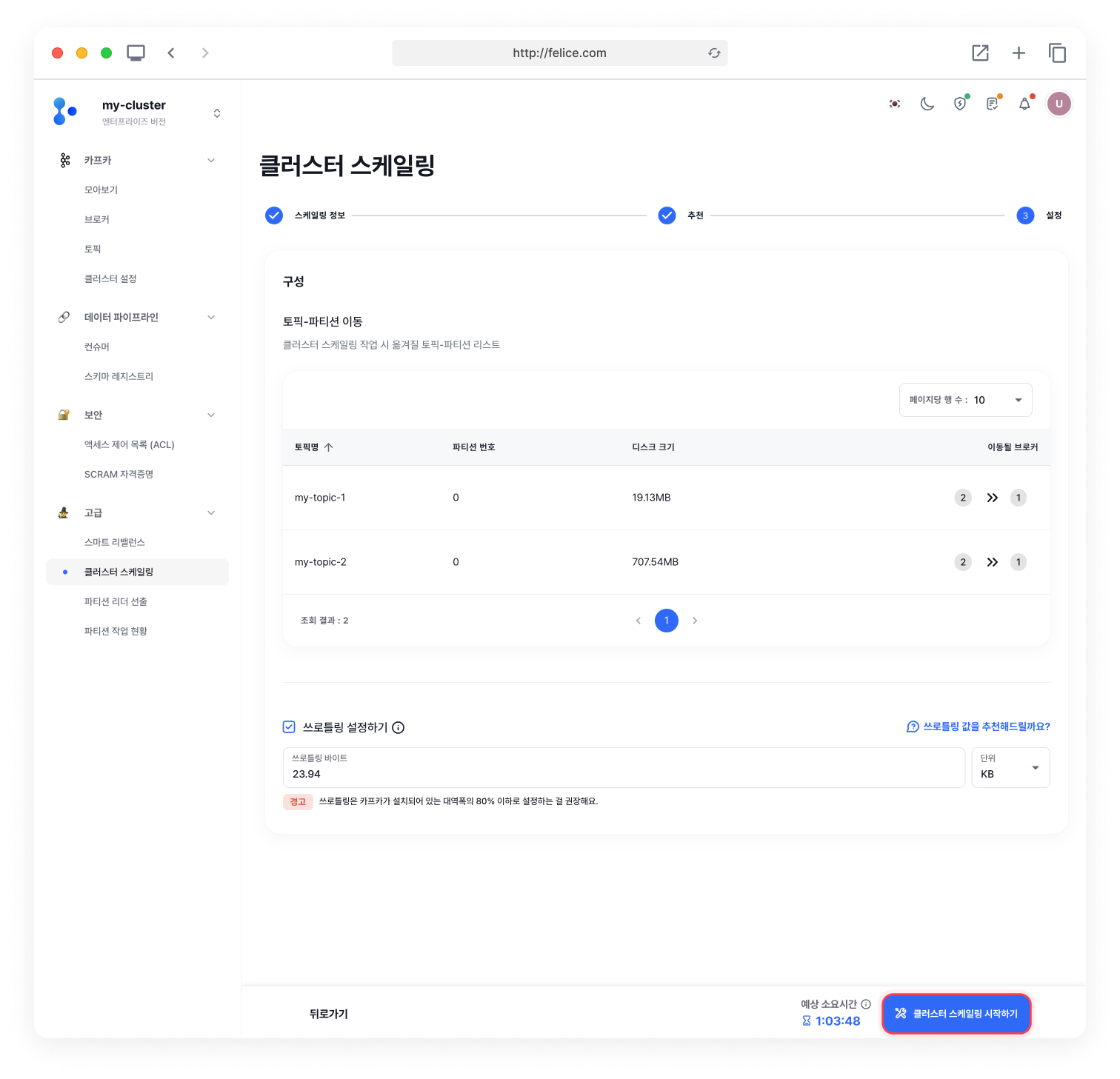
Throttle Settings
For further details about throttling, refer to the Throttle document.
Step4: Checking Running Job Status
By clicking the Advanced > Partition Jobs menu on the left, you can check the status for the scaling job that was just created and is currently running.
Transferring Data before Scale-in
Before proceeding with Scale-in Operation which reduces the number of brokers, you have to safely transfer data of the broker to be removed, to other brokers. In this process, you can efficiently perform the necessary rebalancing tasks, to ensure that the data being moved is evenly distributed among the remaining brokers.
Step1: Selecting Operation Type and Broker to Empty
First, select Scale-in from the scaling options, and choose the broker you wish to empty. If it is not possible to empty the selected broker, the recommendation calculation in the next step may not be available.
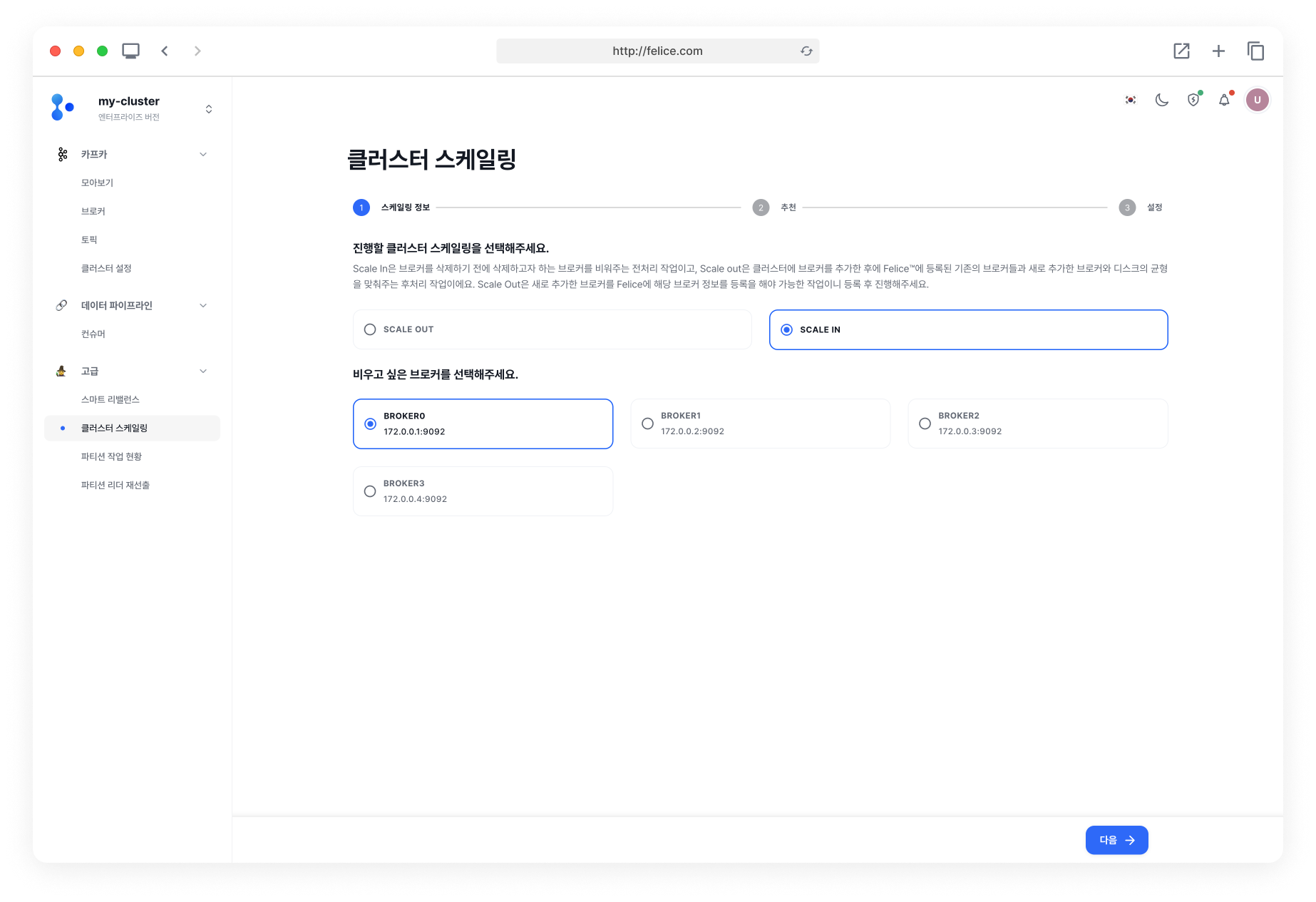
- When there is not enough free disk space for the selected brokers to be moved
- When a partition exists on which the number of replicas cannot be reduced
Step2: Calculating Recommendations through Disk Balancer
Check if the predicted usage of the broker to be emptied is calculated to be 0 bytes (excluding the usage of the __blackbox_exporter topic). For detailed instructions on using the Disk Balancer, please refer to the Smart Rebalancing > Calculating Recommendations through Disk Balancer section.
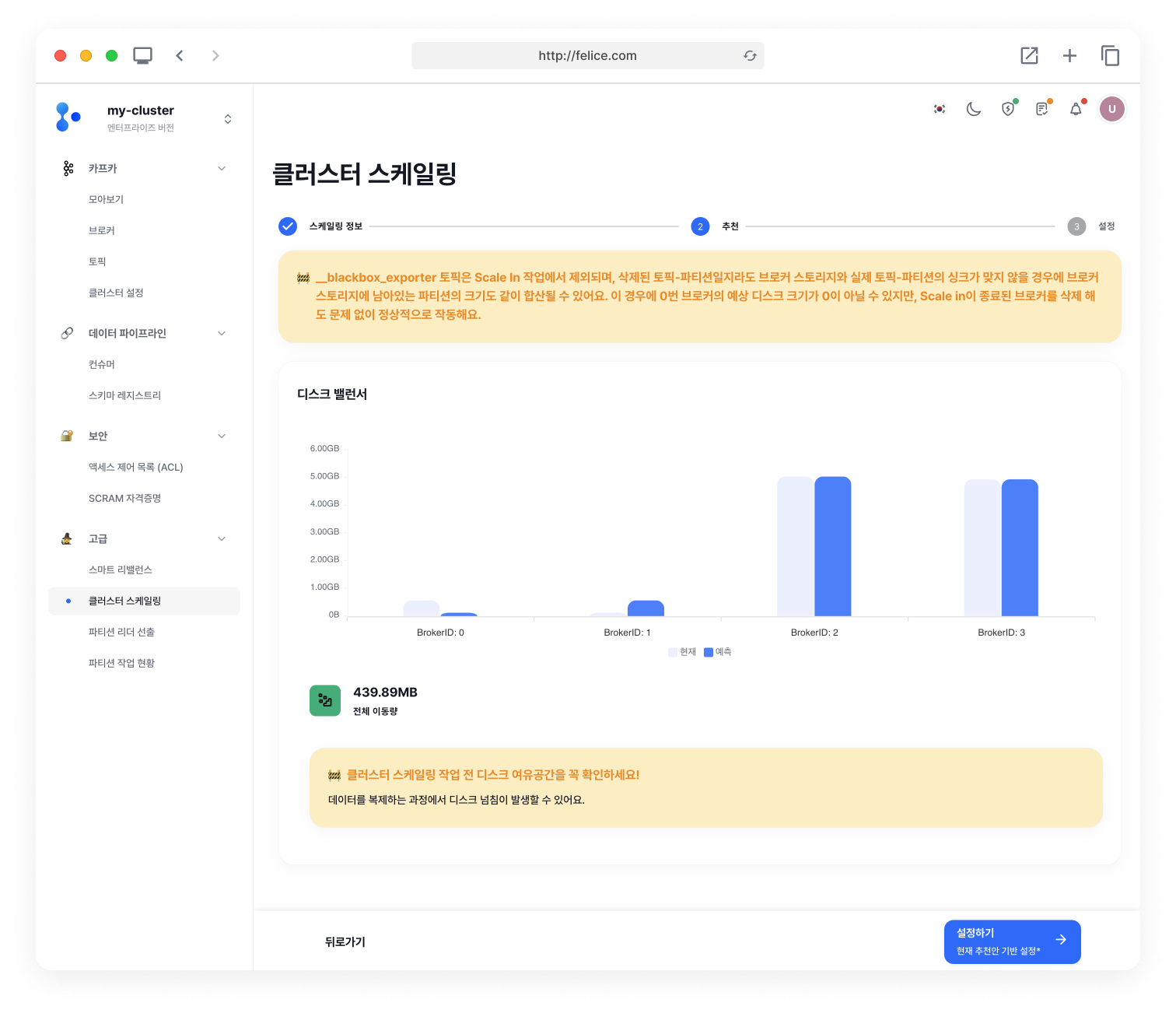
During cluster scale-in, the __blackbox_exporter topic is excluded from the Scale-in operation. Even for deleted topic-partitions, if the broker storage does not sync with the actual topic-partitions, the size of partitions remaining in the broker storage may be included in the total. Although the broker's usage might not equal to 0 after emptying, it will still function properly even if the scaled in broker is deleted.
Step3: Confirming and Creating Job Configuration
After reviewing the results from the previous step, you can see a list of topic-partition movements on the next page. Once you have checked the list of topic-partitions that will be moved based on recommendations and have completed the Throttling Settings, you can start Cluster Scaling by clicking the [Cluster Scaling] button.
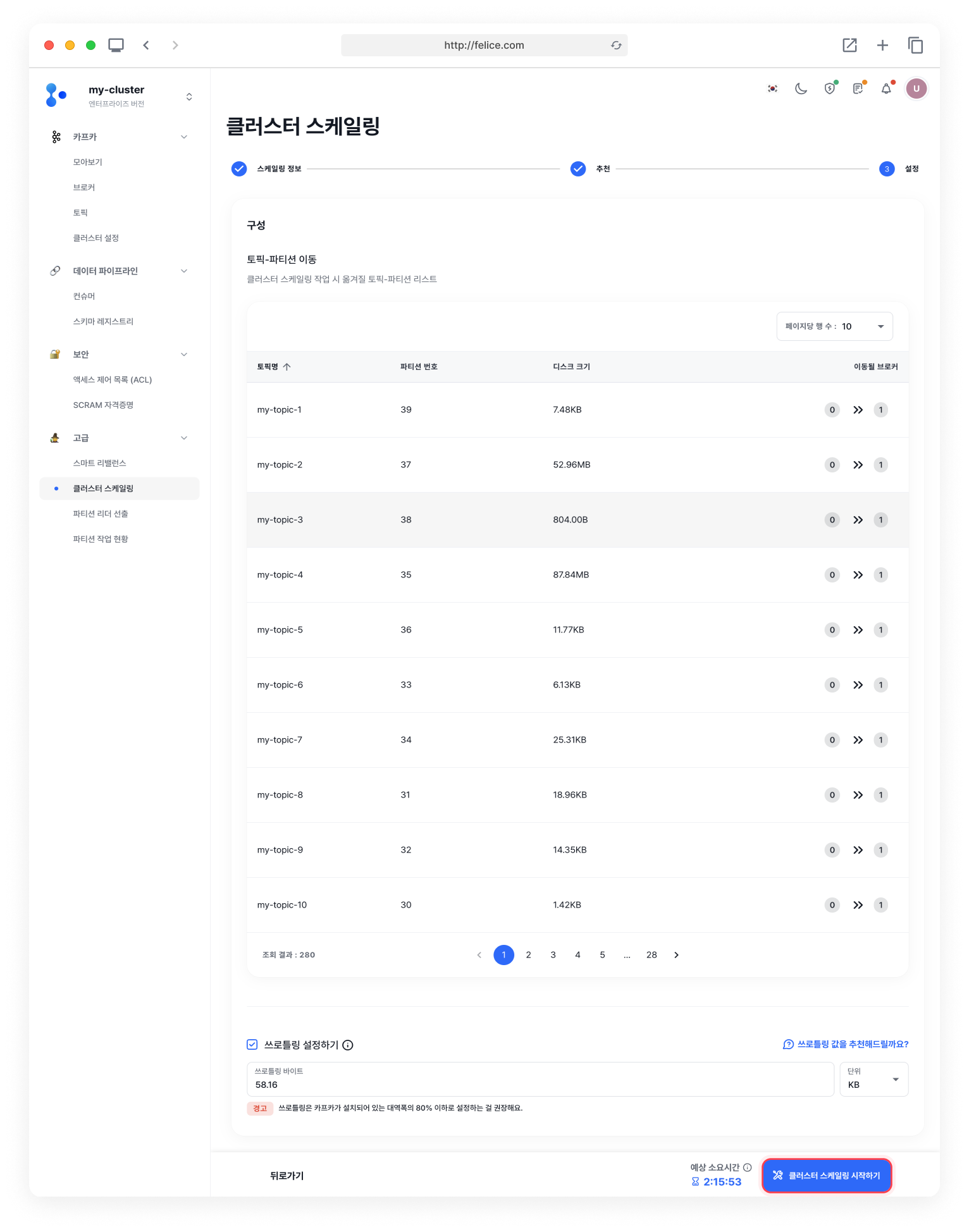
Throttle Settings
For further details about throttling, refer to the Throttle document.
Step4: Checking Running Job Status
By clicking the Advanced > Partition Jobs menu on the left, you can check the status for the scaling job that was just created and is currently running.