Create Data Mirroring Job
To start data mirroring, you first need to create a new mirroring job. In the Data Mirroring menu, go to the Data Mirroring List and click on the [Create New Mirroring Job] button to proceed to the job creation screen.

Step1: Define Mirroring Job Basic Information and Select Clusters
Fill in the basic job information for data mirroring, Connect cluster information, source cluster information, target cluster information, and common mirroring job settings in sequence.
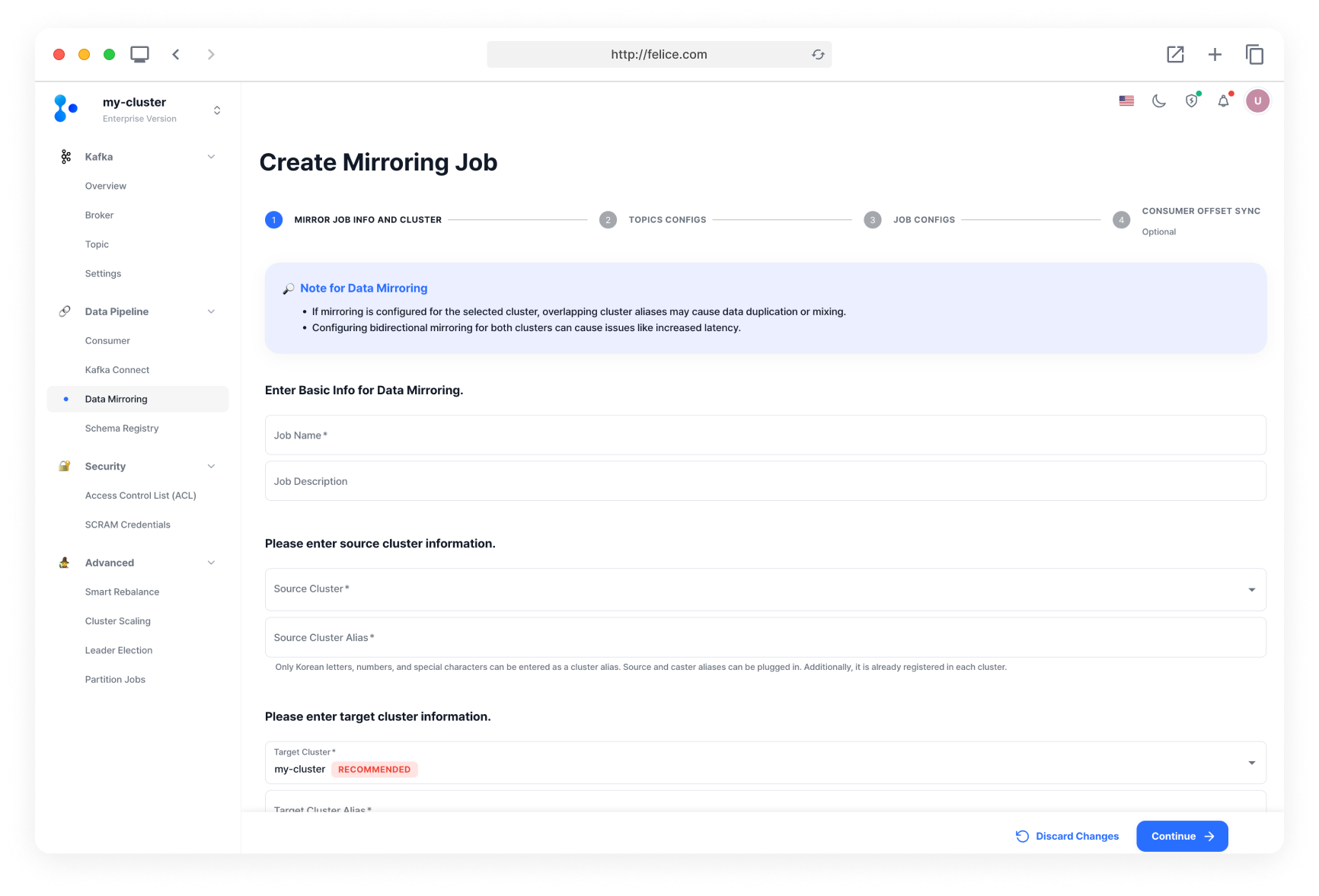
When creating a data mirroring chain across multiple Kafka clusters, circular replication of specific topics and messages may occur.
- Message Duplication : If replication is set up across all clusters with the same topic name, each cluster will replicate the same topic, leading to duplicated messages.
- Infinite Topic Replication : If a new topic is created in the source cluster and is included in the replication target category, it may be repeatedly replicated in a circular manner. This could result in the original topic returning to the source cluster with the cluster alias attached, causing infinite topic replication. (e.g., topic [Cluster A] - A.topic [Cluster B] - B.A.topic [Cluster C] - C.B.A.topic [Cluster A - Circular replication occurs!] - A.C.B.A.topic [Cluster B] - ...)
Basic Information for Data Mirroring Job

| Field | Description |
|---|---|
| ⓵ Job Name | Name of the data mirroring job |
| ⓶ Job Description | Description of the data mirroring job |
Connect Cluster Information

Select the Connect cluster to perform data mirroring. This selection form appears only if there are two or more registered Connect clusters in the Kafka cluster.
Cluster Information
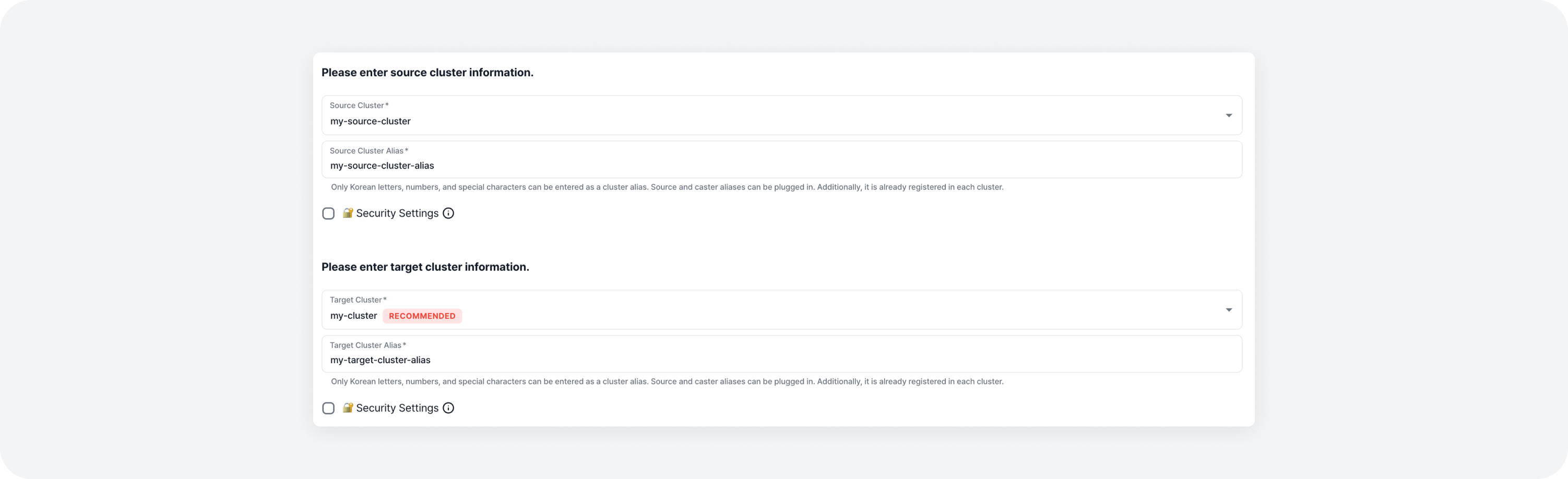
Select Source Cluster
Choose the source cluster that contains the data source. Only Kafka clusters registered in Felice are displayed; for others, register the external cluster before selecting. After choosing the cluster, enter an alias for the source cluster.
Select Target Cluster
Choose the target cluster that will receive the replicated data. Only Kafka clusters registered in Felice are displayed; for others, register the external cluster before selecting. After choosing the cluster, enter an alias for the target cluster.
Changing the target cluster to a cluster other than the current one may make it difficult to manage the data mirroring job. Therefore, it is recommended to designate the target cluster as the current cluster.
If you want to configure new connection information instead of using the Kafka cluster connection information registered in Felice, enable the security settings. Be aware that if there is an issue with the connection information, mirroring job creation may fail. For more details on security settings, refer to the Cluster Security Settings documentation.
Common Settings for Mirroring Jobs
These are configurations (settings) commonly applied to connectors (Data Replication, Consumer Offset Synchronization) used in mirroring jobs.

Once all information is entered, click the [Continue] button to proceed to the next step.
Step 2: Topic Configuration
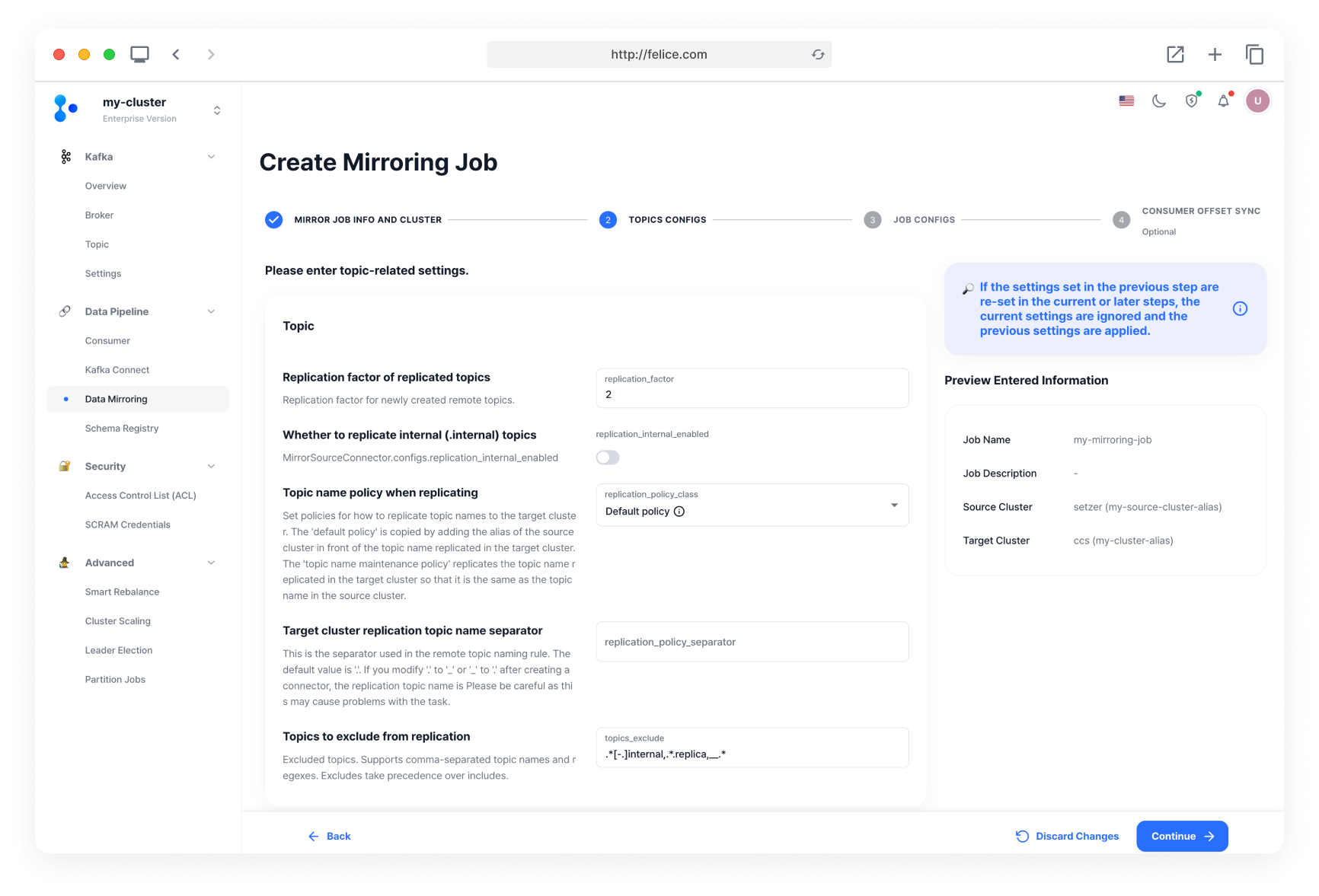
Topic-related Settings
Set configurations related to topics. The configured values will be entered as settings for the Data Replication Connector when the mirroring job is created.

Select Replication Topics
The topic information entry form differs depending on the type of source cluster. The selected topic information is entered as the value of topics in the Data Replication Connector settings when the mirroring job is created.
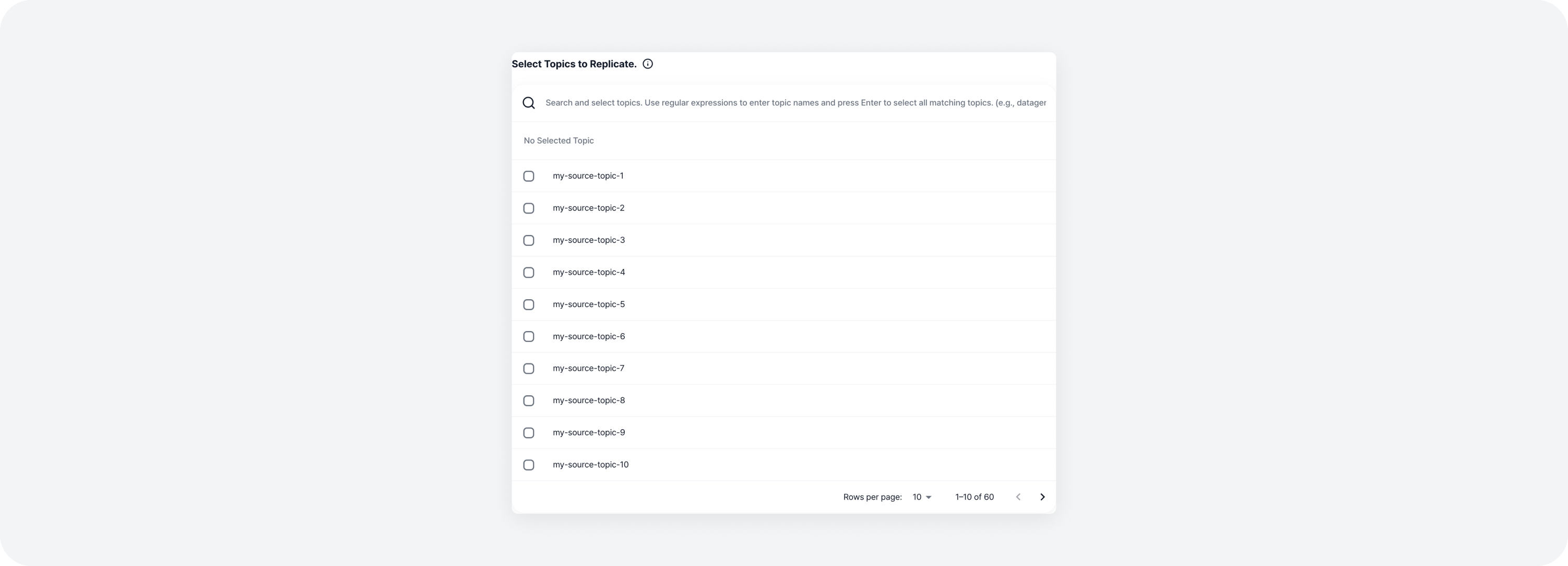
1. For clusters registered in Felice
- The topic list is displayed in a table format. You can select topics to replicate using checkboxes, enter topic names, or use regular expressions to select multiple topics.
2. For external clusters
- The topic list is not displayed, so you need to enter topic names or regular expression patterns directly.

Once all information is entered, click the [Continue] button to proceed to the next step.
Step 3: Job Configuration
These are settings for the Data Replication Connector. The configured values will be entered as settings for the Data Replication Connector when the mirroring job is created.
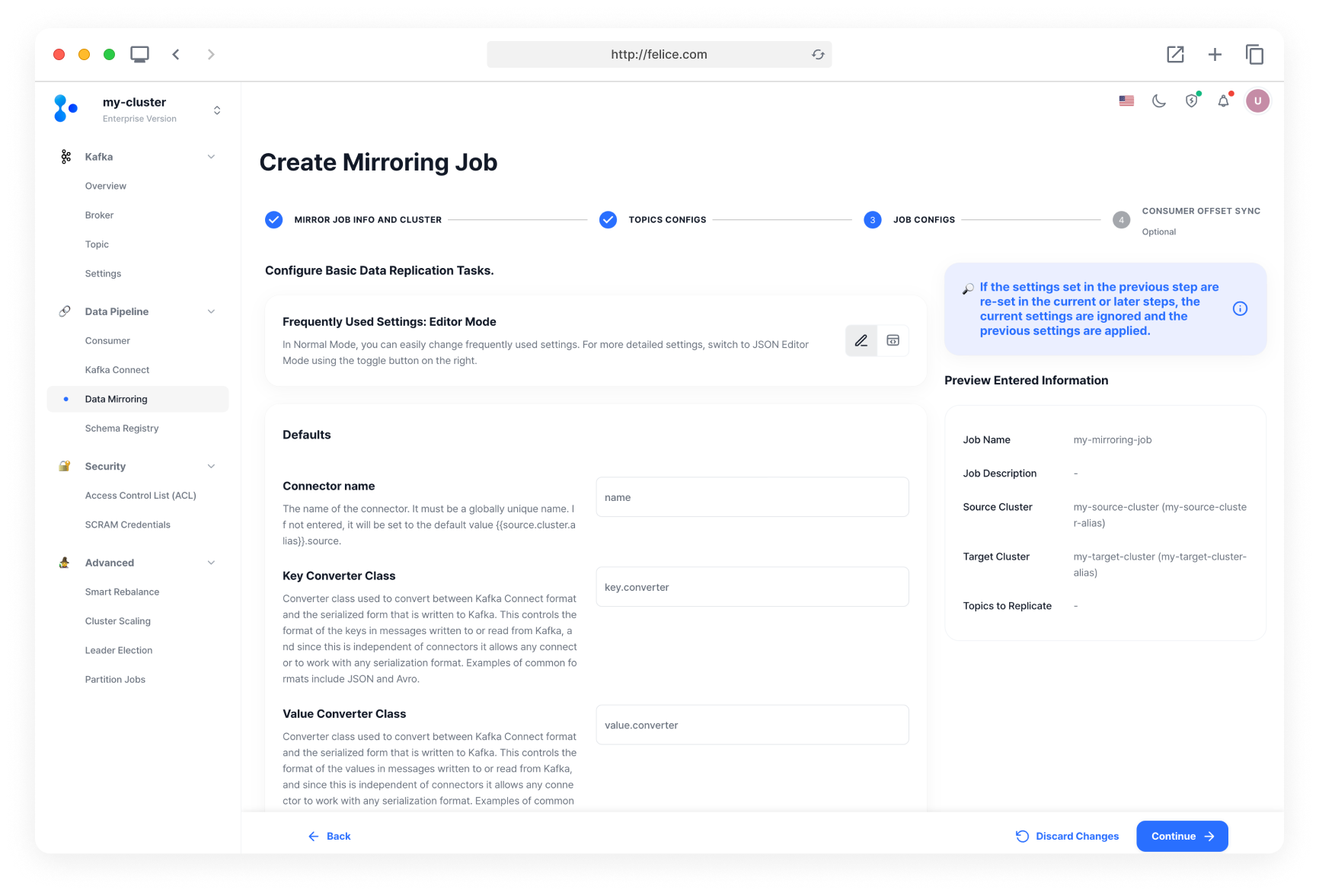
Once all information is entered, click the [Continue] button to proceed to the next step.
Step 4: Additional Task Configuration: Consumer Offset Synchronization
If you want to set up consumer offset synchronization when creating a mirroring job, enable the consumer offset synchronization checkbox.
You can add or remove the Consumer Offset Synchronization Connector even after creating the job, and the configured values will be entered as settings for the Consumer Offset Synchronization Connector when the mirroring job is created.
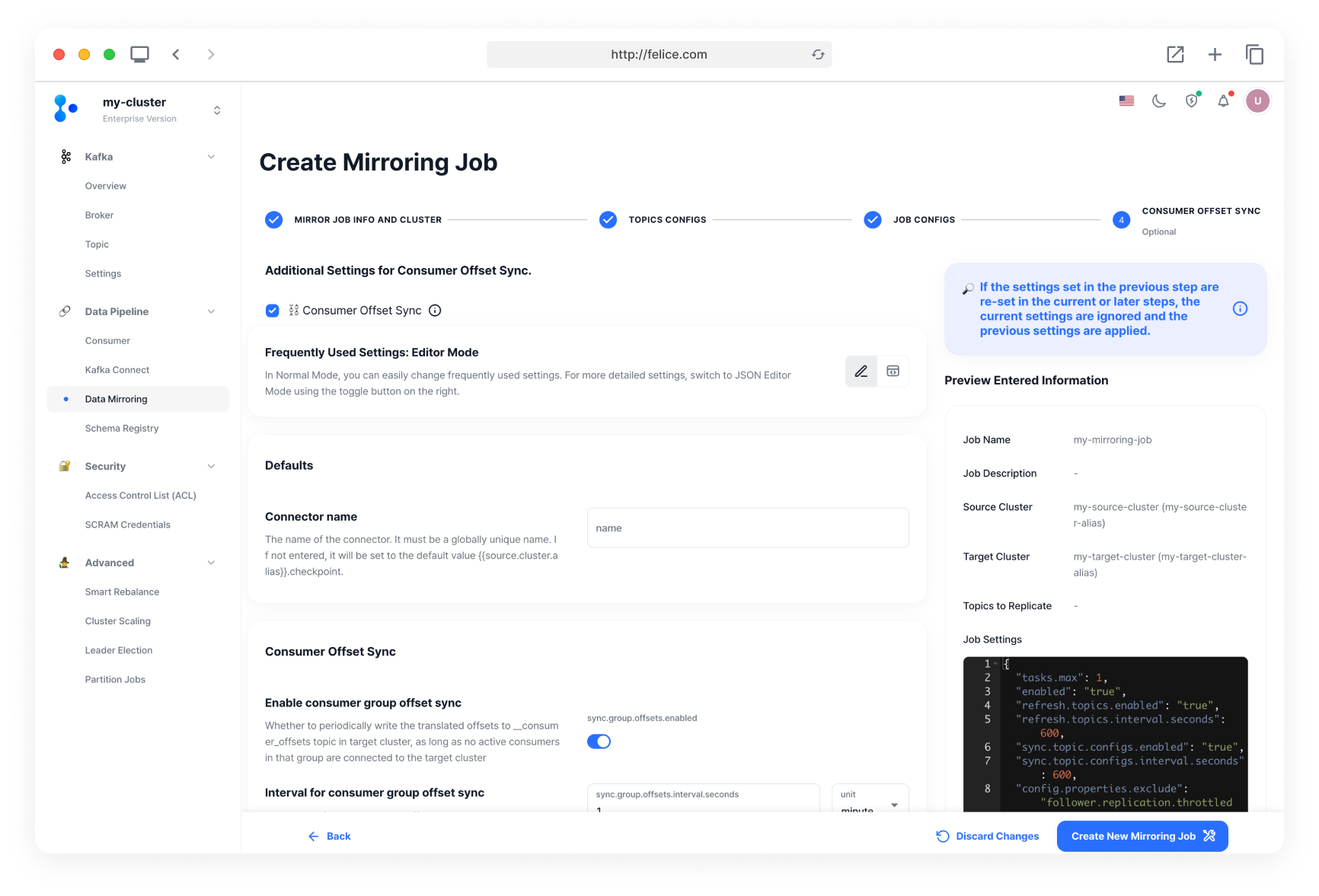
Once all information is entered, click the [Create New Mirroring Job] button to complete the mirroring job creation.
