Cluster Register
Felice provides a Kafka Cluster monitoring feature. To start the monitoring, you first need to register your Kafka Cluster.
The registration process is simple and straightforward, and once registered, you can monitor and manage the status of your cluster in real-time through Felice.
To register a cluster, click on the [Register] button on the cluster list page to navigate to the Register page.
Step1: Selecting Cluster Type
Select the type of cluster you want to register. Felice supports three types of cluster registration.
- ZooKeeper Cluster: This is the basic distributed mode of Kafka, which uses ZooKeeper for cluster coordination and metadata management.
- KRaft Cluster: This mode uses Kafka alone without relying on ZooKeeper for metadata management. It is available in Kafka version 2.8.0 and later, but it is not yet recommended for use in production environments.
- Amazon MSK Cluster: This is a fully managed Kafka service provided by Amazon Web Services. It helps you easily set up, operate, and scale your Kafka Clusters.
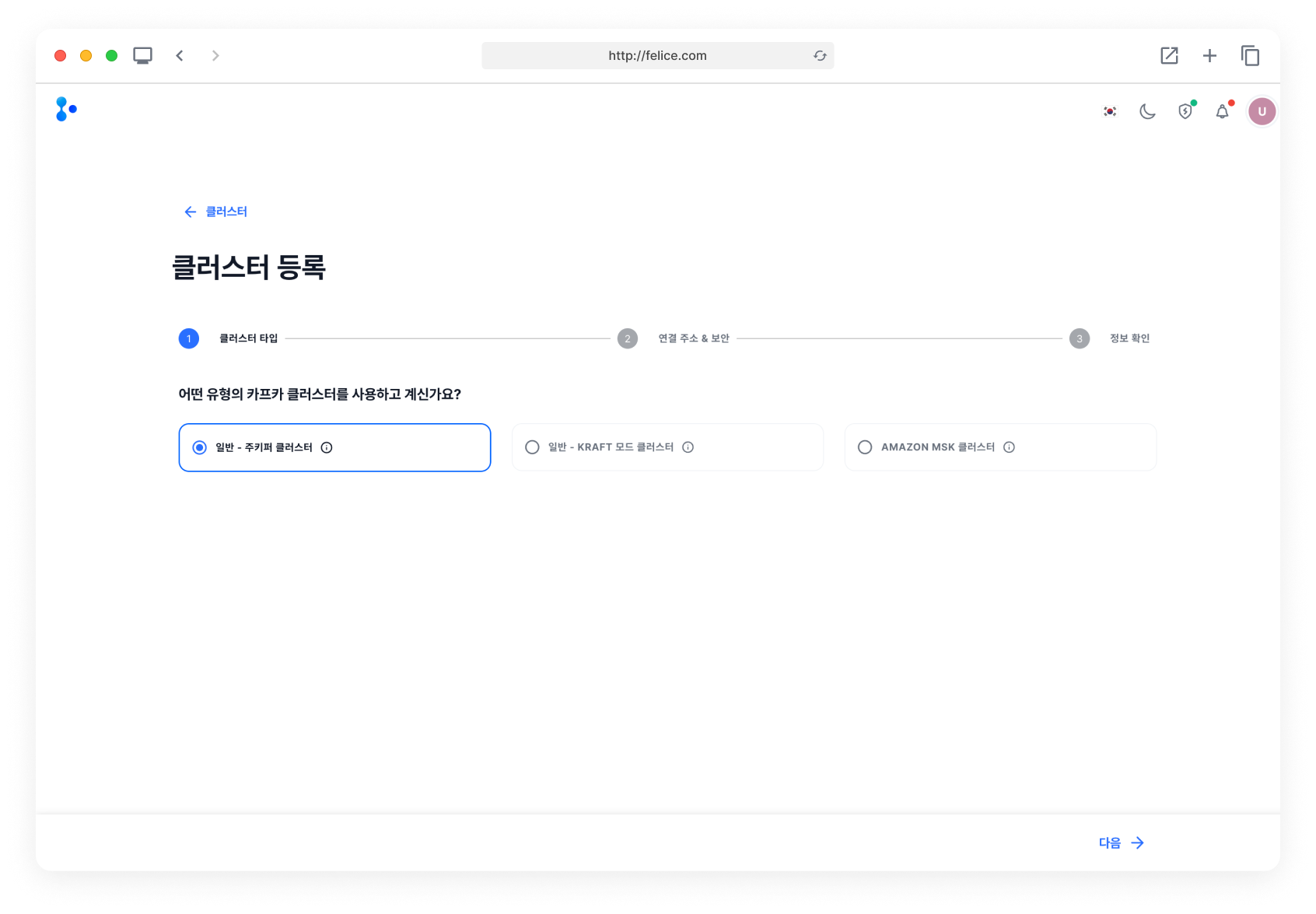
In Step1, if you selected the ZooKeeper Cluster or KRaft Cluster, move on to Step2-1: Providing Bootstrap Server Address.
If you selected the Amazon MSK Cluster, move to Step2-2: Entering Detailed Cluster Information.
Step2-1: (Selected ZooKeeper or KRaft) Providing Bootstrap Server Address
Please provide a single bootstrap server address and port number where the broker is installed. Based on the given information, the details of the remaining brokers will be automatically retrieved.
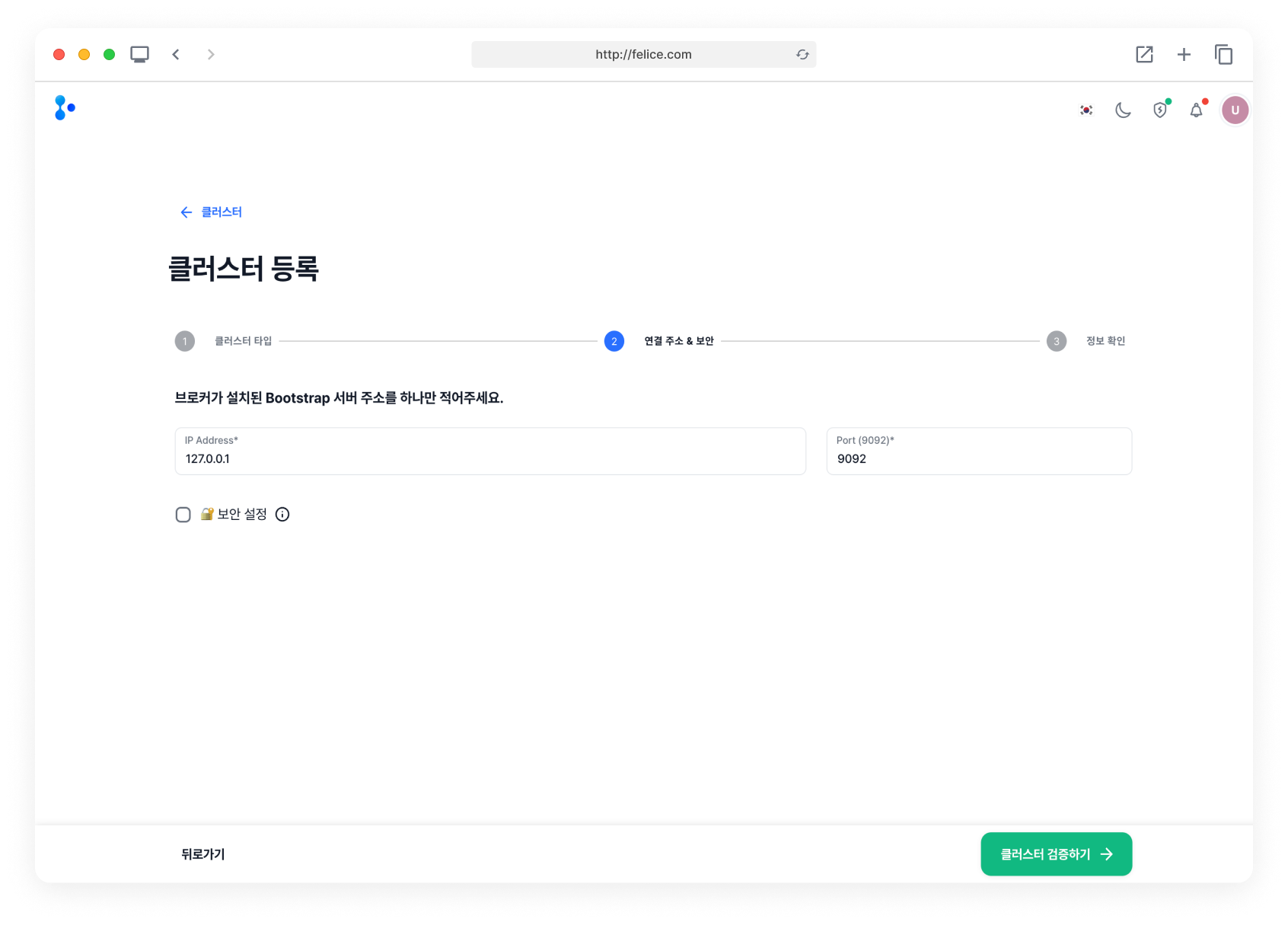
When you enter the bootstrap server address as a hostname, an error may occur if the hostname is not registered on the server.
Security Settings
If the Kafka Cluster you are registering has security settings, enable the Security Settings checkbox and enter the cluster's security information.
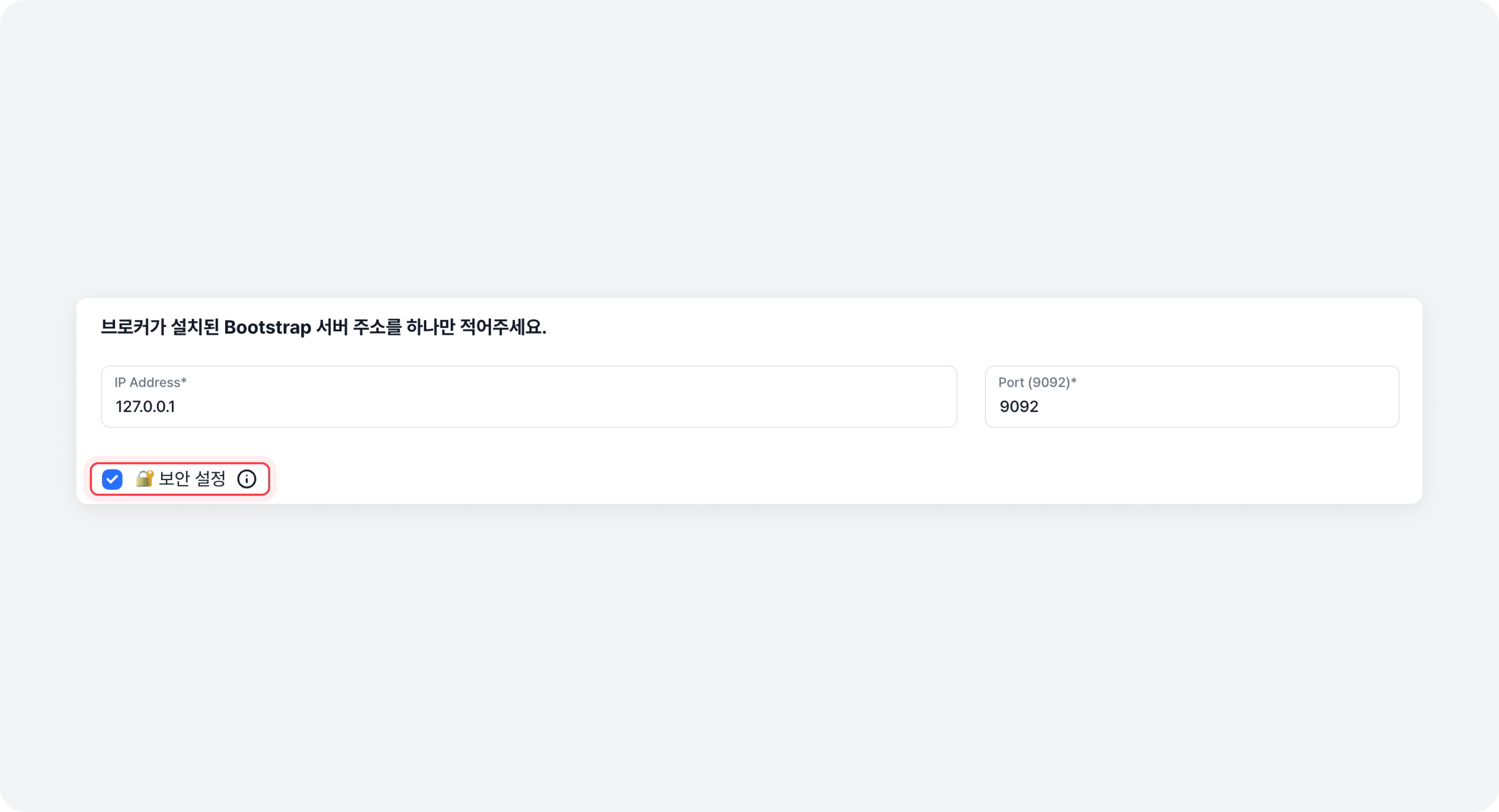
Reasons for Cluster Security Settings
Kafka is a messaging system that transmits and processes large volumes of data in real-time. Since these data can include sensitive information, it is important to maintain data integrity and confidentiality.
- Data Integrity: Ensures that data is not altered or corrupted during transmission. Data integrity can be maintained through encryption.
- Data Confidentiality: Ensures that sensitive data is not exposed to unauthorized users. Data confidentiality can be maintained through authentication.
Kafka does not have security settings enabled by default and therefore, is optional. However, for data leak prevention, protection, and service stability, it is recommended that you enable Security Settings in production environments.
What is authentication?
It is the process of identifying a user or a system. Through authentication, only clients with verified identities can access the Kafka Cluster. Kafka supports authentication via SASL.
It is a framework that helps add data security services, such as authentication or encryption, to internet protocols. It offers various security-related mechanisms for application or Kafka developers.
What is encryption?
It is a security technology that converts data into an unreadable format during network communication, ensuring that only the authorized clients can read the data. Kafka supports encryption via SSL.
It is an encrypted communication protocol layer for secure data transmission over the internet. It generally refers to TLS (Transport Layer Security), which replaces SSL. Since it encrypts and decrypts all messages, the CPU resource consumption increases, negating Zero Copy which is one of Kafka's biggest advantages and as a result, the transmission efficiency may be reduced.
What is security protocol?
A security protocol is a set of rules or procedures on a network for security purposes. Kafka provides 4 types of security protocols that combine authentication and encryption methods.
- PLAINTEXT: The default communication protocol without authentication or encryption. It is mainly used in closed networks where security is not required. This protocol is used if security settings are not enabled.
- SASL_PLAINTEXT: A security protocol that applies authentication via SASL, but does not apply encryption. It is mainly used in environments where only authentication is needed.
- SASL_SSL: A security protocol that applies both authentication via SASL and encryption via SSL. It is mainly used in environments where sensitive data needs to be securely transmitted.
- SSL: A security protocol that applies encryption via SSL, to help securely transmit sensitive data.
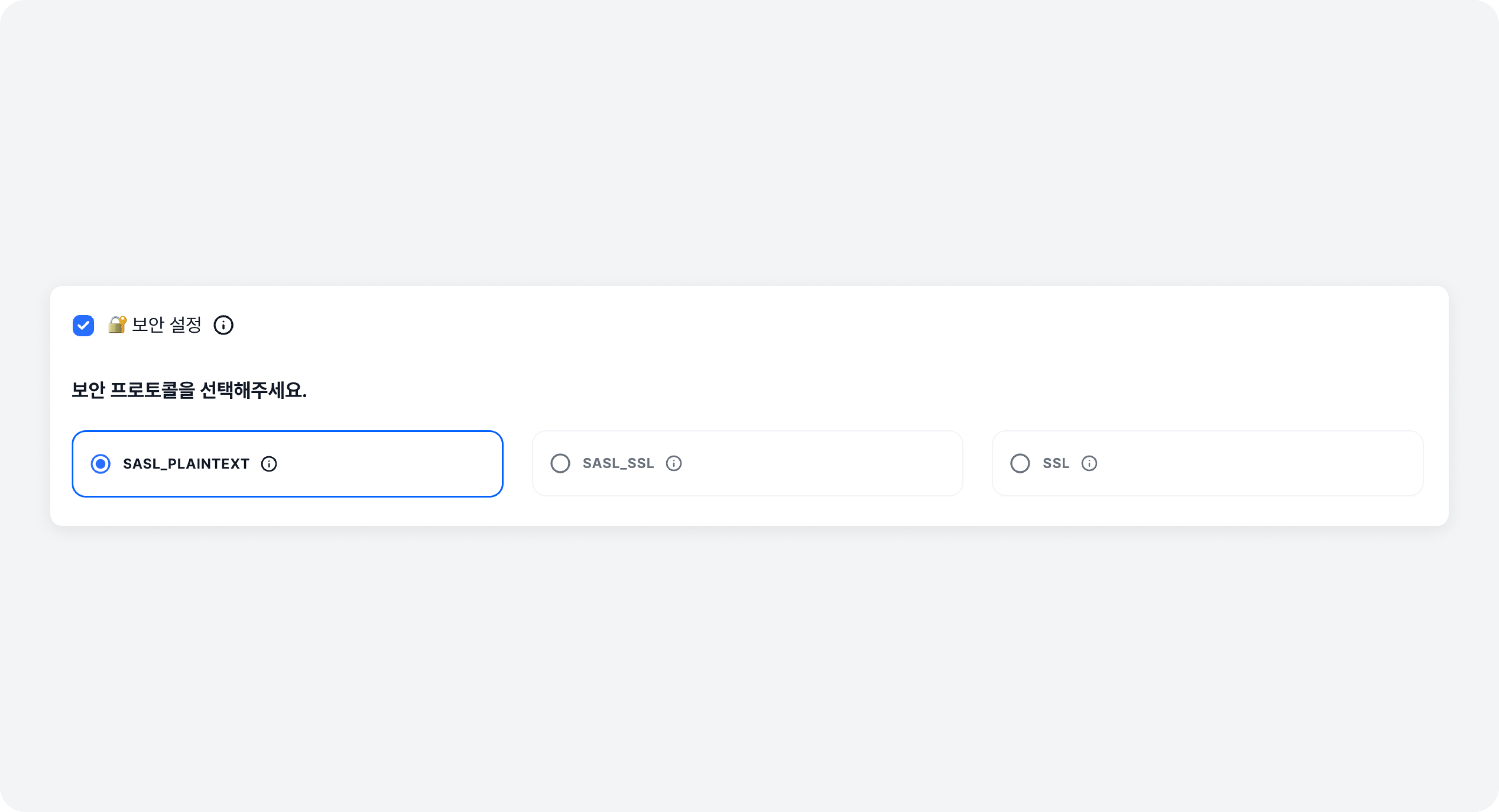
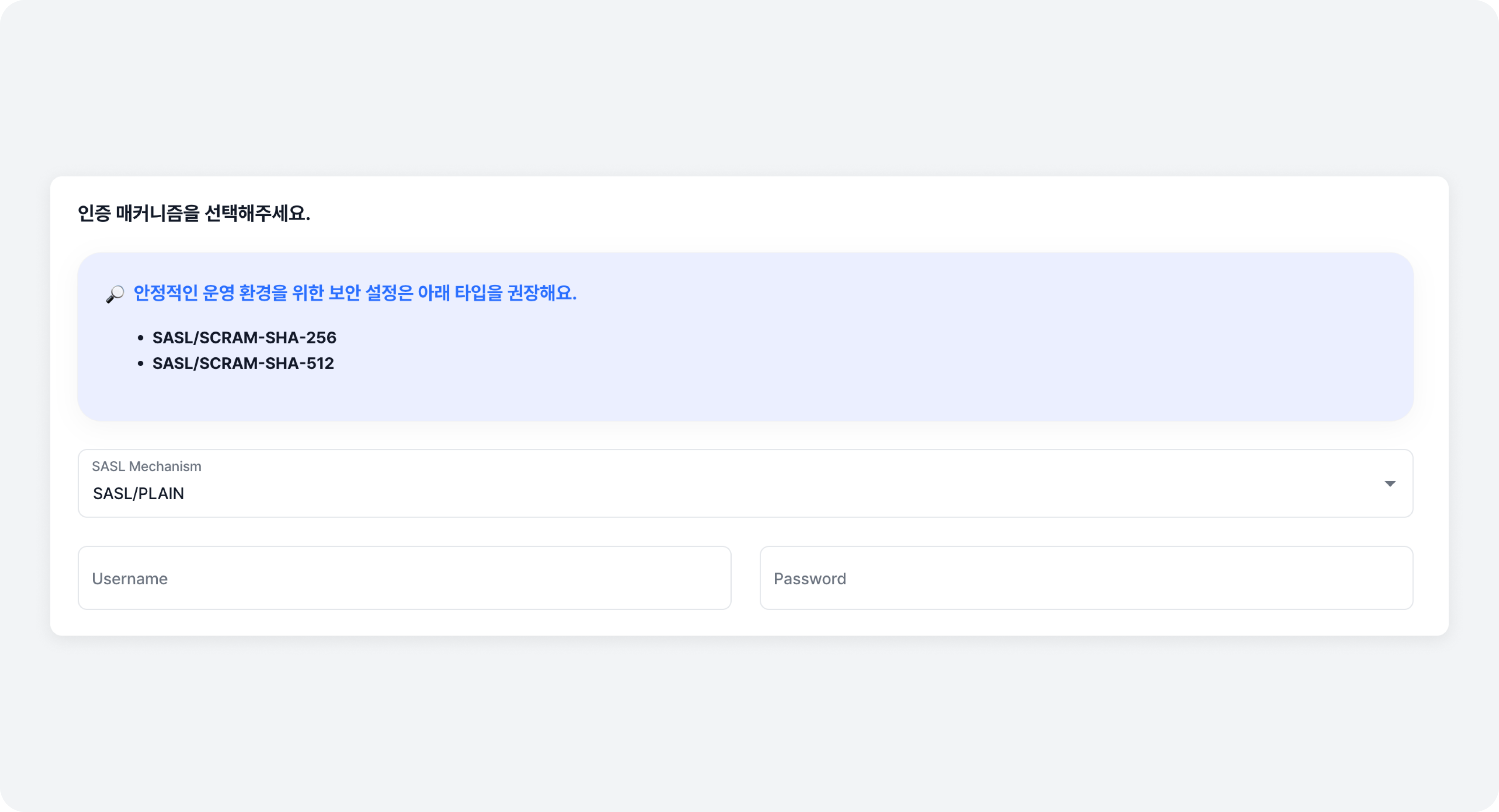
SASL Authentication Mechanism
When selecting a security protocol that includes SASL, you also have to choose an authentication mechanism. Kafka provides various mechanisms to support SASL authentication.
- SASL/PLAIN: Authenticates using a username and a password. Since the user's credentials (username, password) are sent in plaintext, it is a method that has relatively vulnerable security.
- SASL/SCRAM-SHA-256: Authenticates using a username and a password. The password, which is one of the user's credentials, is encrypted and stored using the SHA-256 method. Since credentials are stored in the ZooKeeper, direct user management is allowed via Kafka-configs command script or
Felice. - SASL/SCRAM-SHA-512: Similar to SASL/SHA-256, but uses the SCRAM-SHA-512 method for encryption process.
- SASL/OAUTHBEARER: Authenticates using security tokens issued by an OAuth2 protocol-based authentication server. This method is recommended only for non-production environment clusters due to its limited supporting features in Kafka.
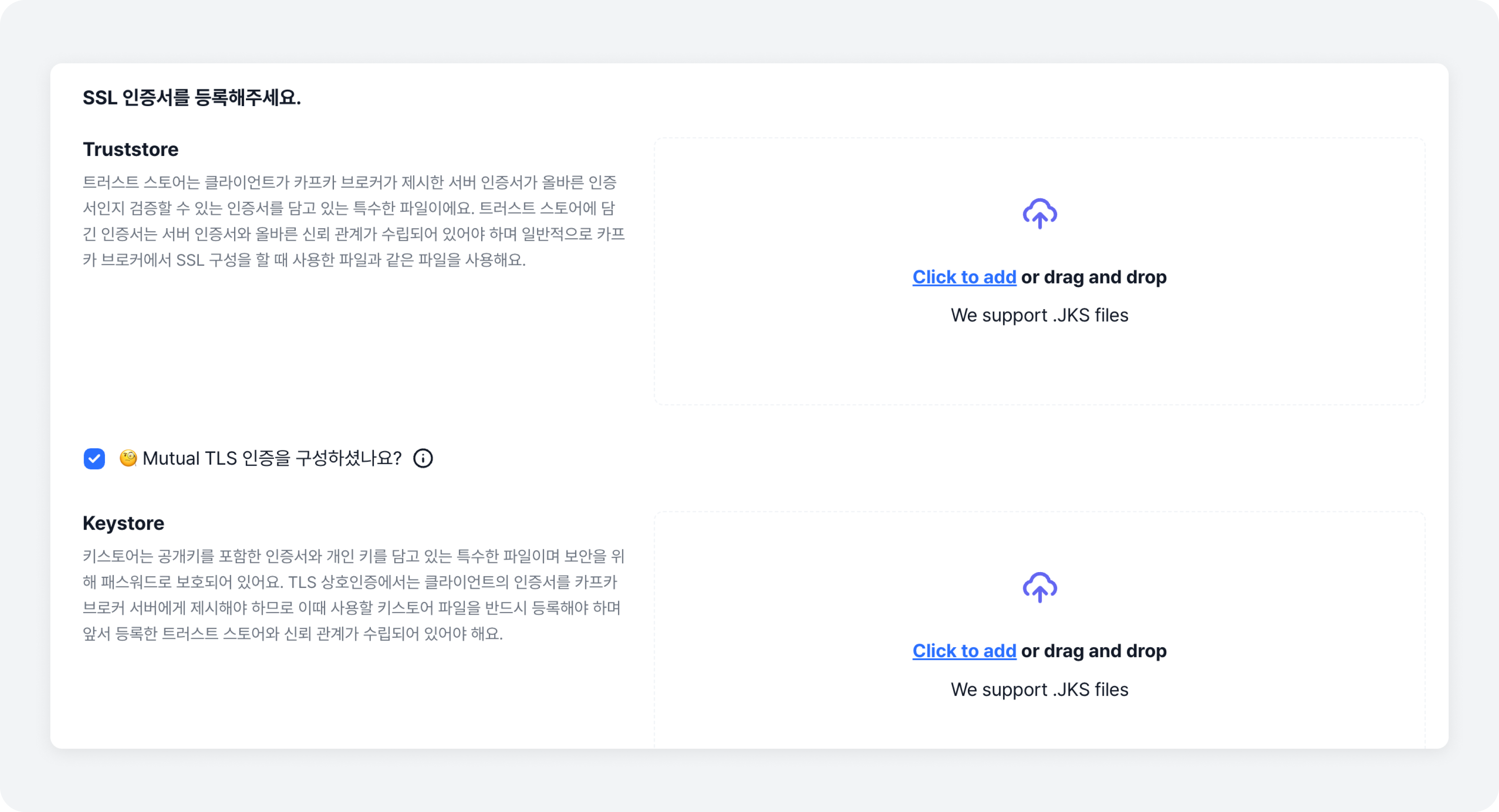
SSL Certificate
Certificates are electronic documents used for SSL communication. A third party certifies the communication between Kafka and clients. When selecting a security protocol that includes SSL, you have to upload a Trust Store file(.jks). When using mTLS, you must also upload a keystore file containing the client's certificate.
- Trust Store: When certificates are received from Kafka Brokers, a certificate from a certificate authority (CA) is required to verify their credibility. This is a special file (.jks) that stores certificates from the certificate authorities. Generally, the same file used for SSL configuration in Kafka Brokers is used.
- Key Store: This is a special file (.jks) that contains certificates with public keys, and private keys. For security, it is protected by a password. It is used in mutual authentication (mTLS) to present the client's certificate to Kafka Brokers.
mTLS is an extension of the SSL (TLS) protocol that performs mutual authentication between clients and servers. Unlike TLS, where only the client verifies the server's certificate, mTLS requires both the client and the server to verity each other's certificates to ensure that both are entities that can be mutually trusted.
Once all the information is entered, click the [Validate Cluster] button to validate the information and proceed to the next step.
Validation may fail if the broker server information is entered incorrectly, or if the access to the broker server is not possible. If validation fails, please recheck the broker server information then retry the validation.
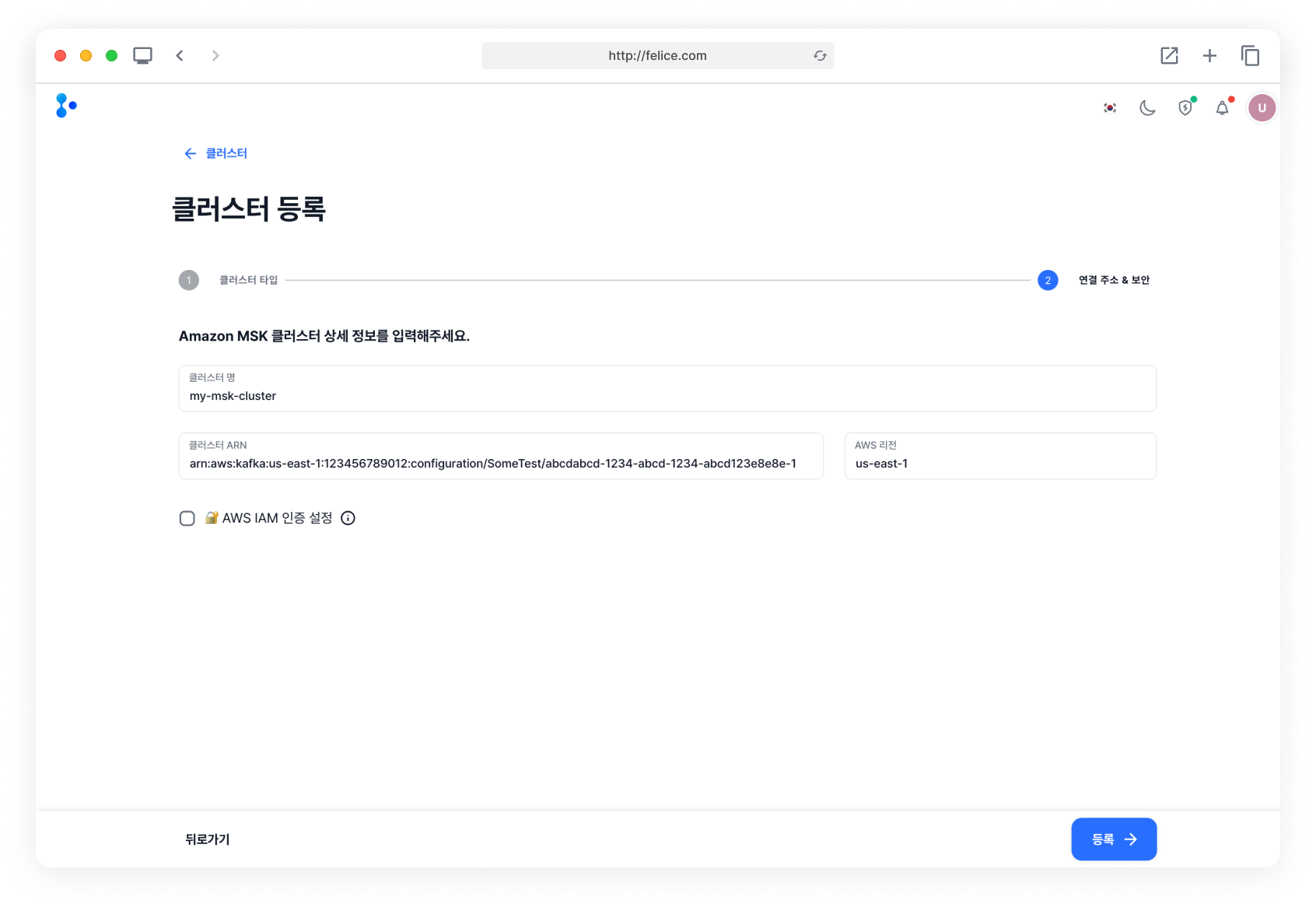
Step2-2: (Selected Amazon MSK) Entering Detailed Cluster Information
To integrate an Amazon MSK cluster with Felice, you first need to enter the MSK cluster information.
- Cluster Name: Enter the name of the cluster registered in Amazon MSK.
- Cluster ARN: It is a unique serial number that identifies each service in AWS. Enter the ARN of the Amazon MSK cluster you want to integrate.
- AWS Region: Enter the region where the AWS cloud service is being used.
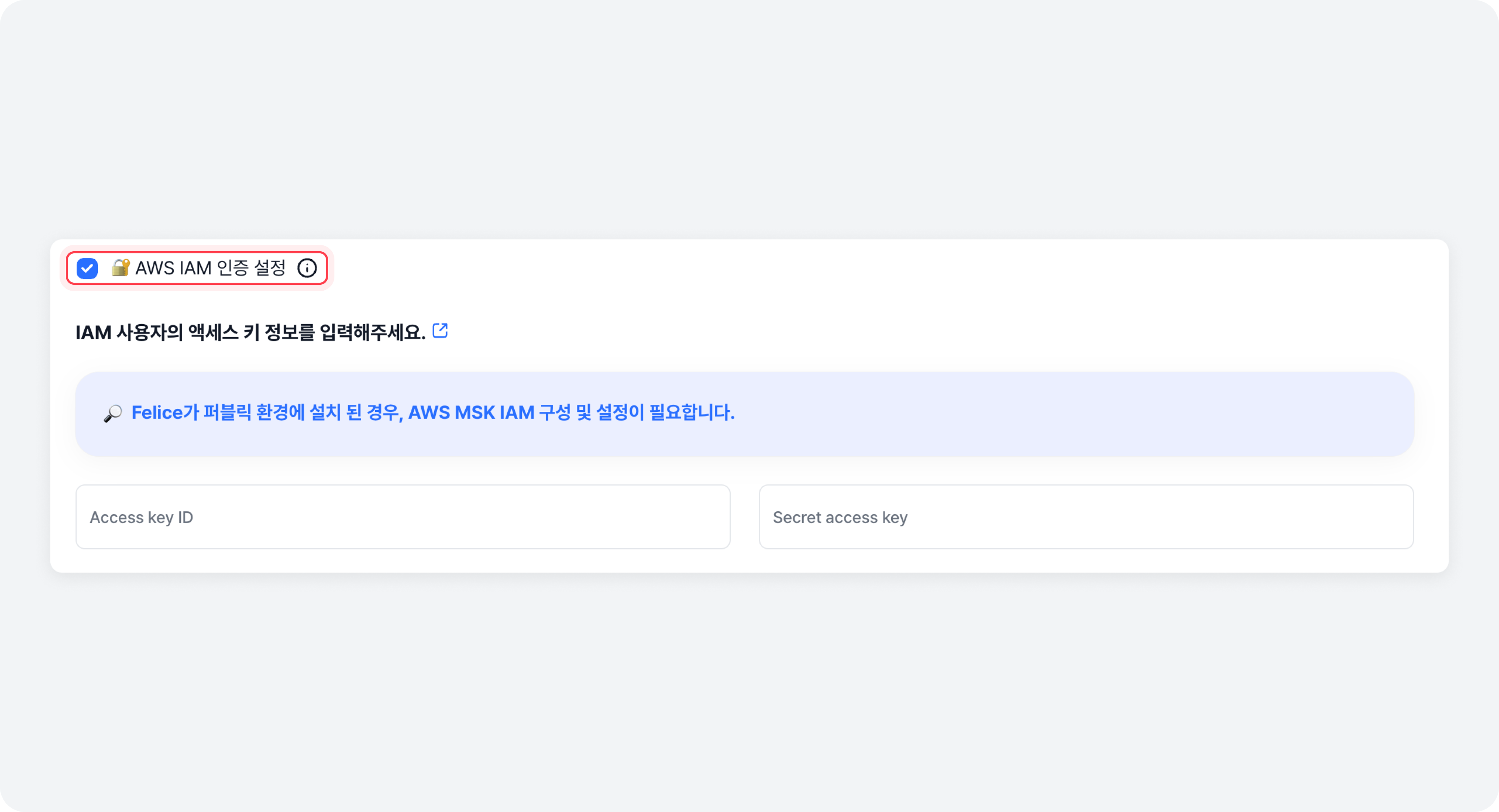
AWS IAM Authentication Settings
AWS IAM (Identity and Access Management) is a service that supports the authentication and access management for the Amazon MSK cluster. If Felice is installed in a public environment, configuration and settings for AWS MSK IAM are required.
If IAM authentication is set up for the AWS MSK cluster, enable the AWS IAM Authentication Settings checkbox and enter the access credentials (Access key ID, Secret access key) for the user with access rights to the MSK cluster.
Step3: Checking Registration Information
Once the validation is complete, Felice automatically retrieves most of the cluster information. Review the validated information, and you can make modifications before registration if any incorrect information has been retrieved.
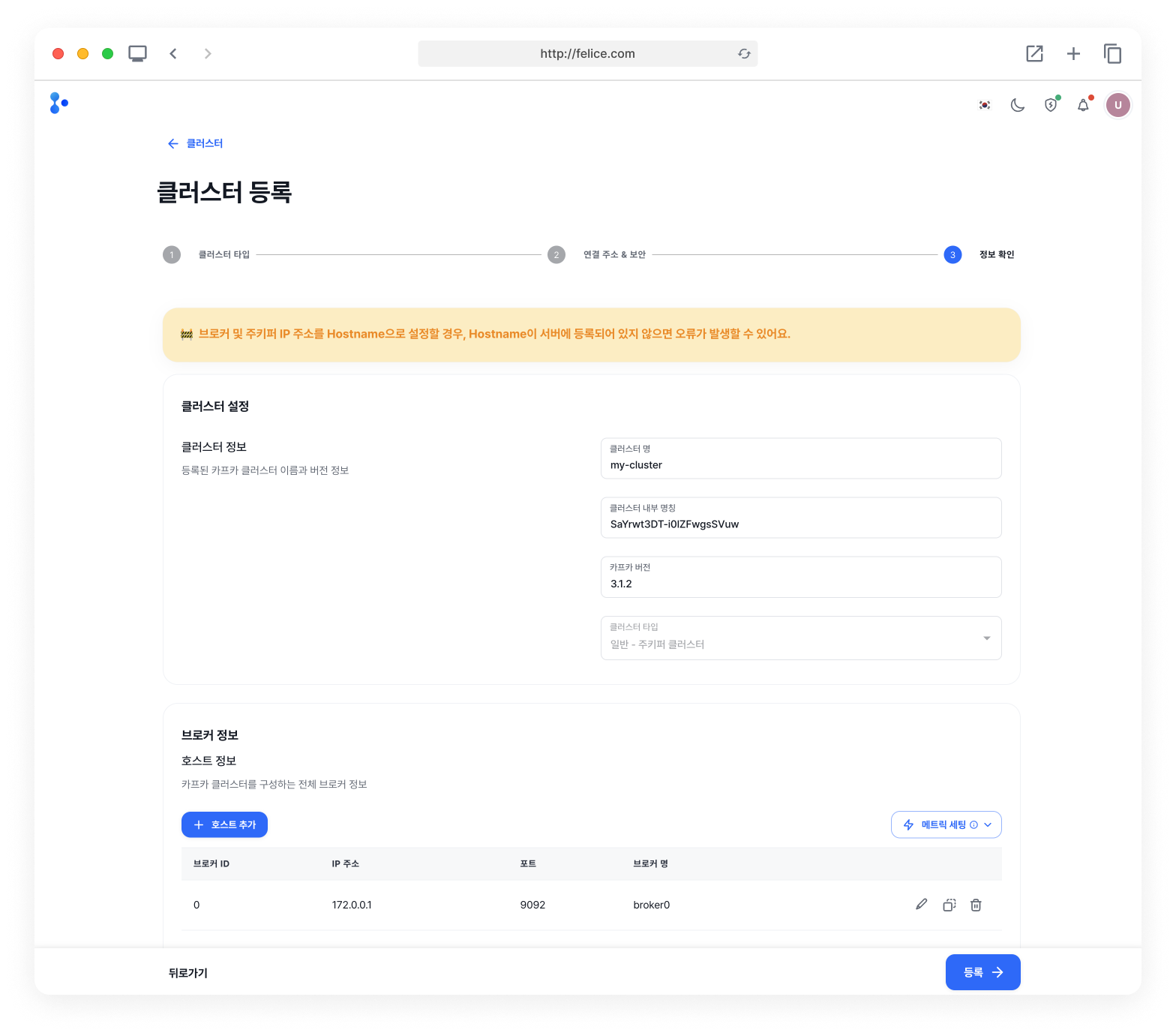
The validated information is divided into three main sections.
- Cluster Information
- Broker Host Information
- ZooKeeper Host Information
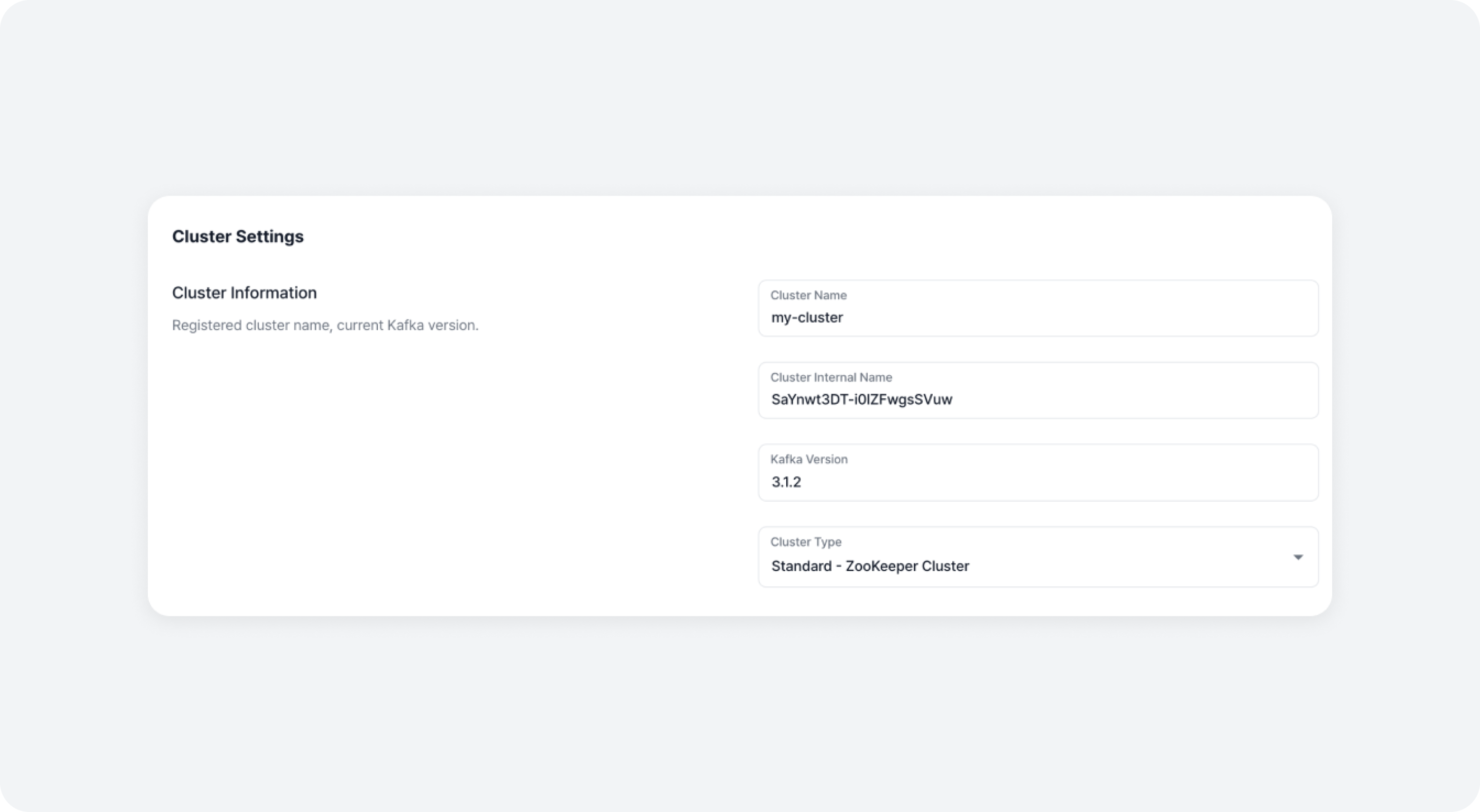
Cluster Information
You can specify the name of the cluster to be registered and used in the Felice dashboard.
Brokers Host Information
You can view the list of all the brokers that make up the Kafka Cluster. If there are any stopped brokers, they may not be listed.
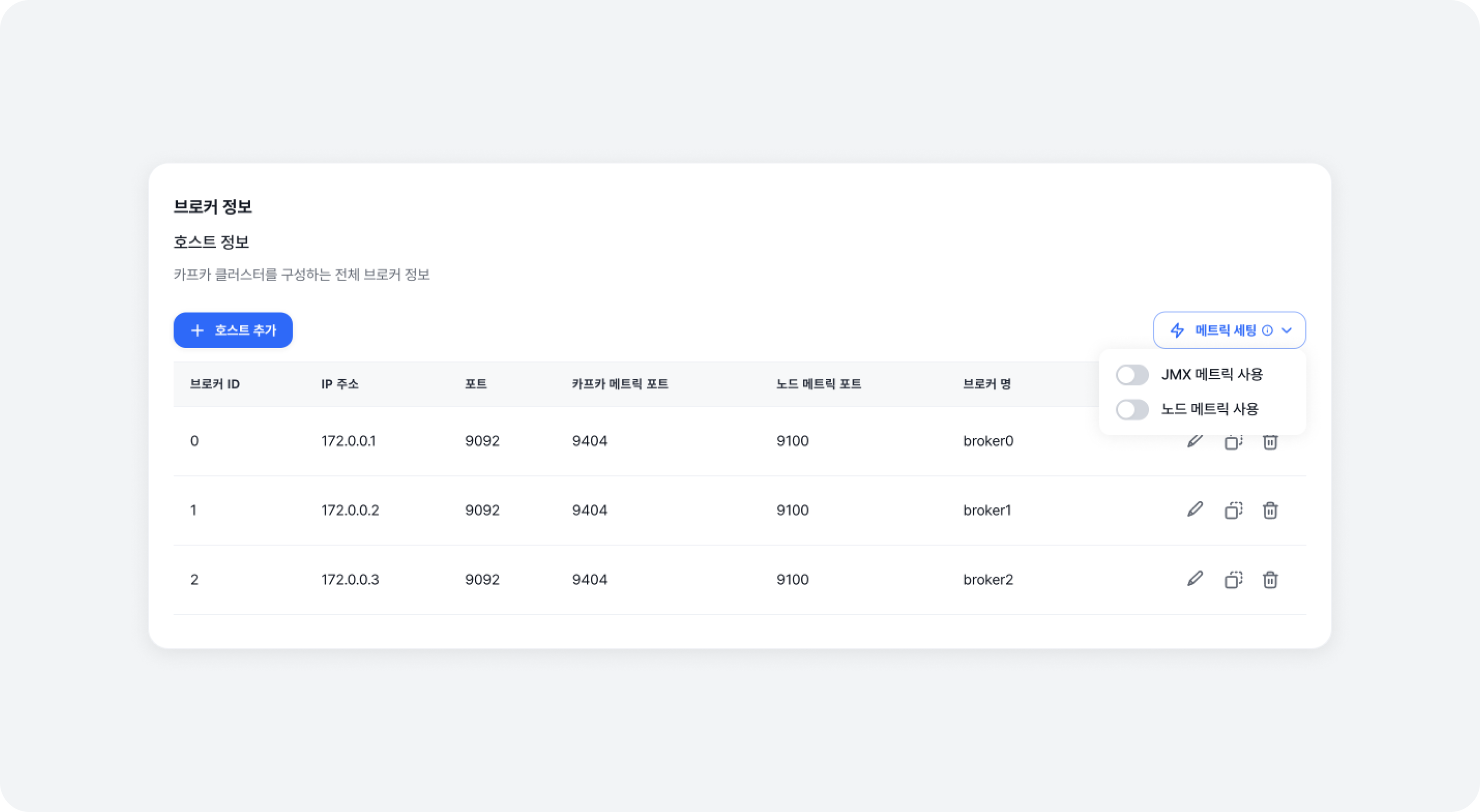
If metric collection is configured, you can activate the feature and modify the port number in the [Metrics Settings] panel.
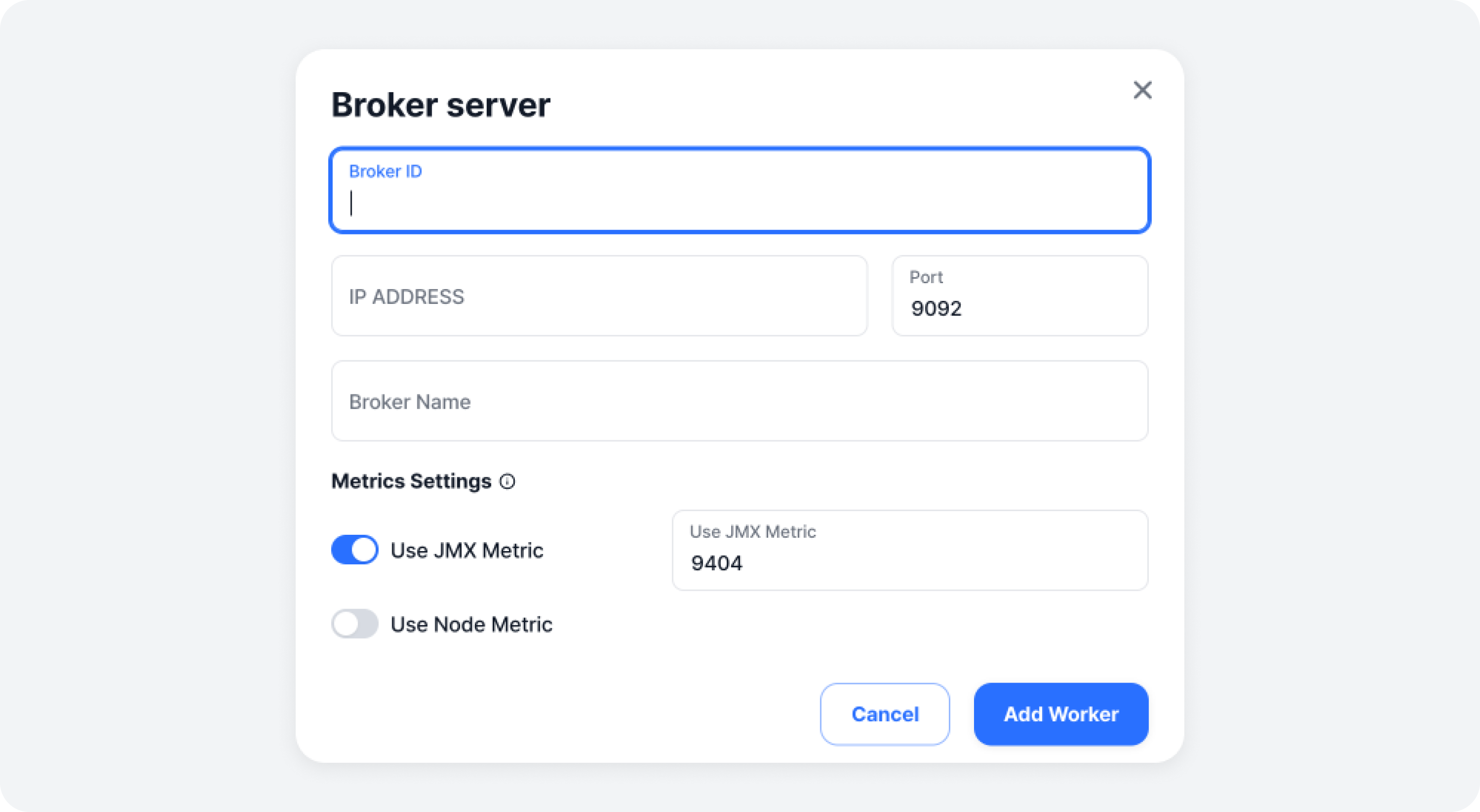
If any broker information is missing, you can add it by clicking the [Host Add] button.
ZooKeeper Host Information
You can view the list of all the ZooKeeper servers that make up the ZooKeeper ensemble. This only lists the servers that are connected to the Kafka Cluster.
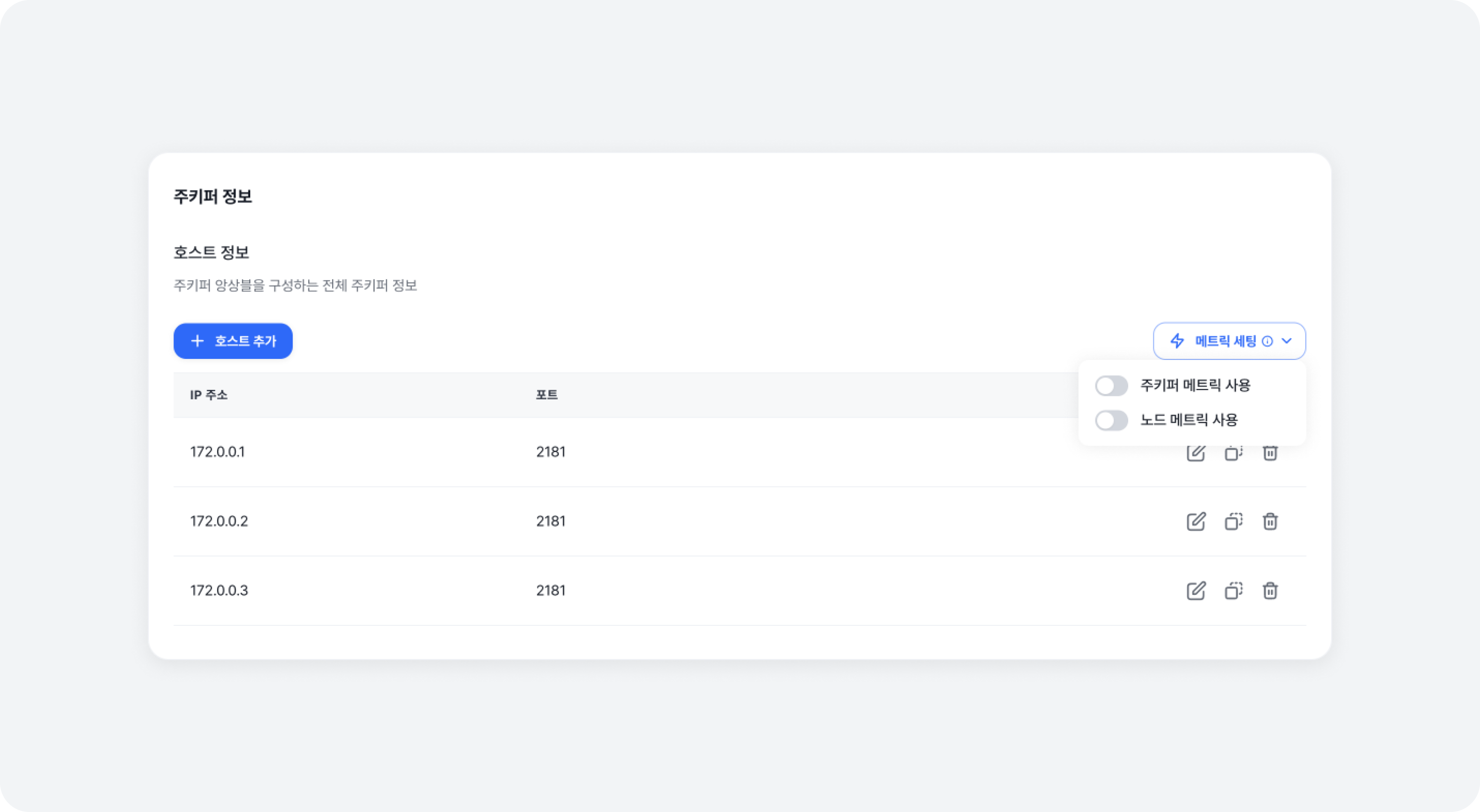
If metric collection is configured, you can activate the feature and modify the port number in the [Metrics Settings] panel.
If any ZooKeeper information is missing, you can add it by clicking the [Host Add] button.
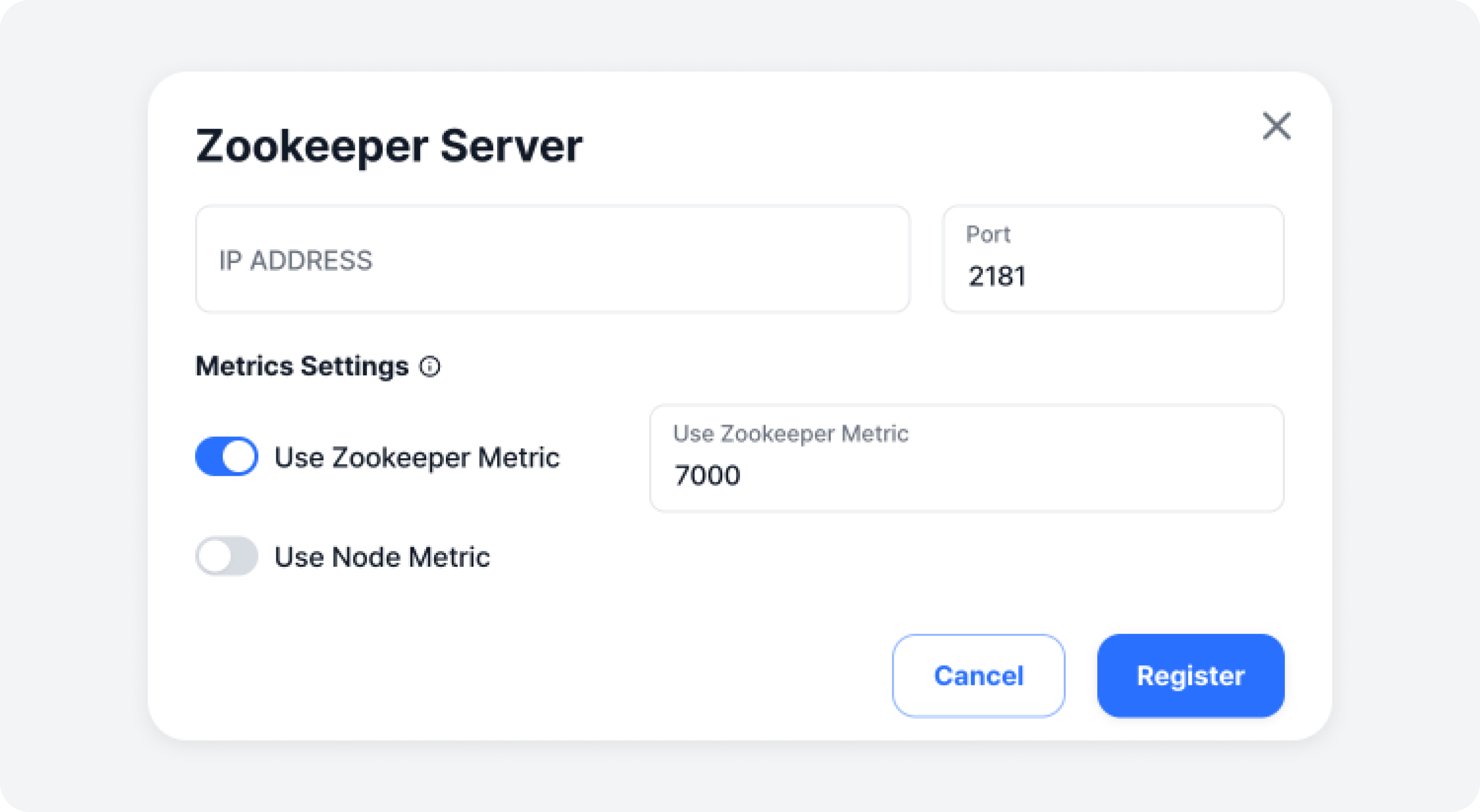
If you use JMX Exporter for brokers and ZooKeeper, you can collect JMX metrics. Please refer to the Cluster Settings document for further details.
If you use Node Exporter for brokers and ZooKeeper, you can collect Node metrics. Please refer to the Cluster Settings document for further details.
Once you have reviewed all the entered information, click the [Register] button to complete the registration.
✨ Now, you can manage and use the new cluster from the Cluster list!