Schema Management
A schema defines the format and structure of a message. It is used to ensure structural consistency between the messages produced and consumed in Kafka.
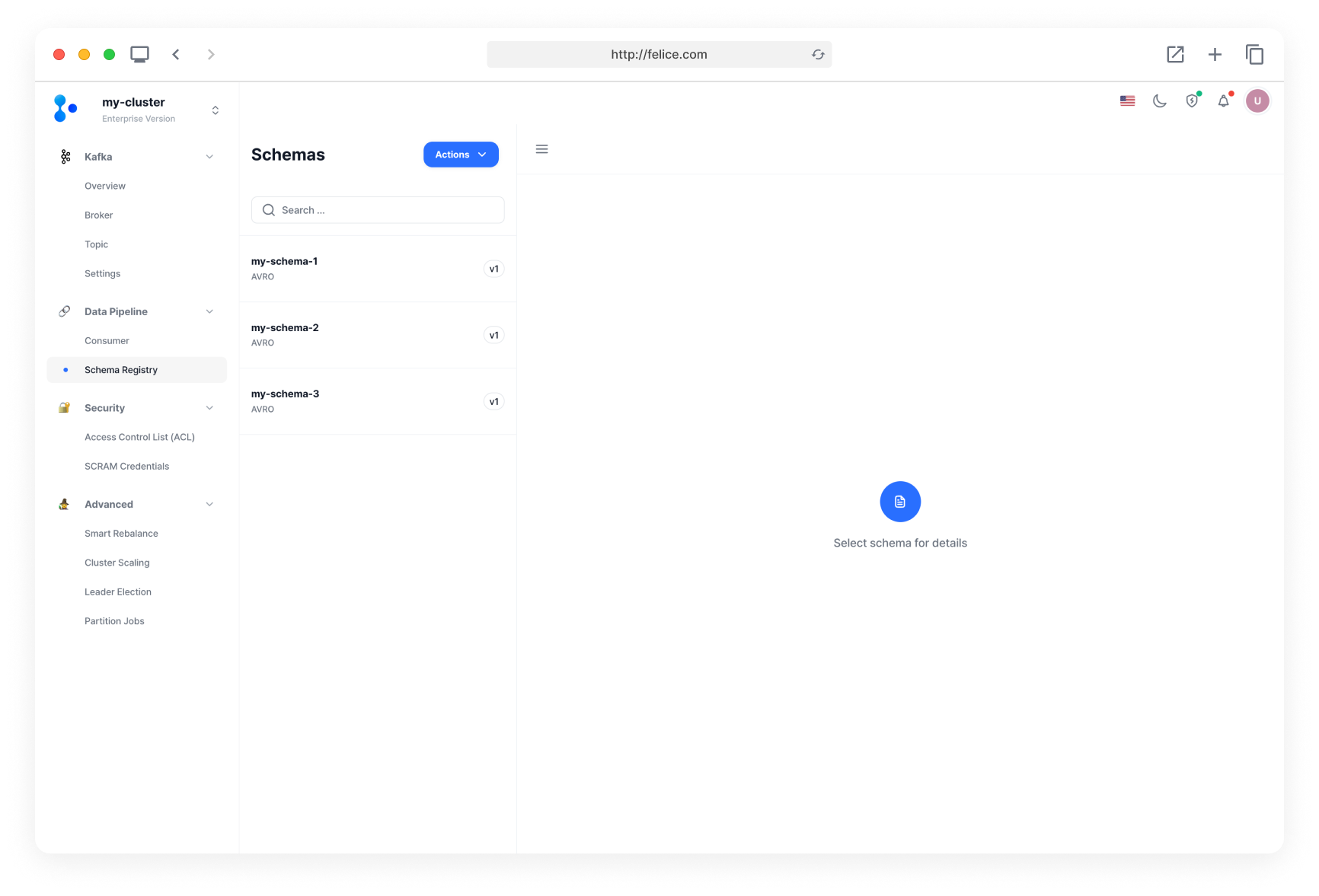
In Felice, you can manage schemas by adding, updating, and deleting them within the Schema Registry. To access the schema management page, go to the Schema Registry cluster list page and click the [Manage Schemas] button.
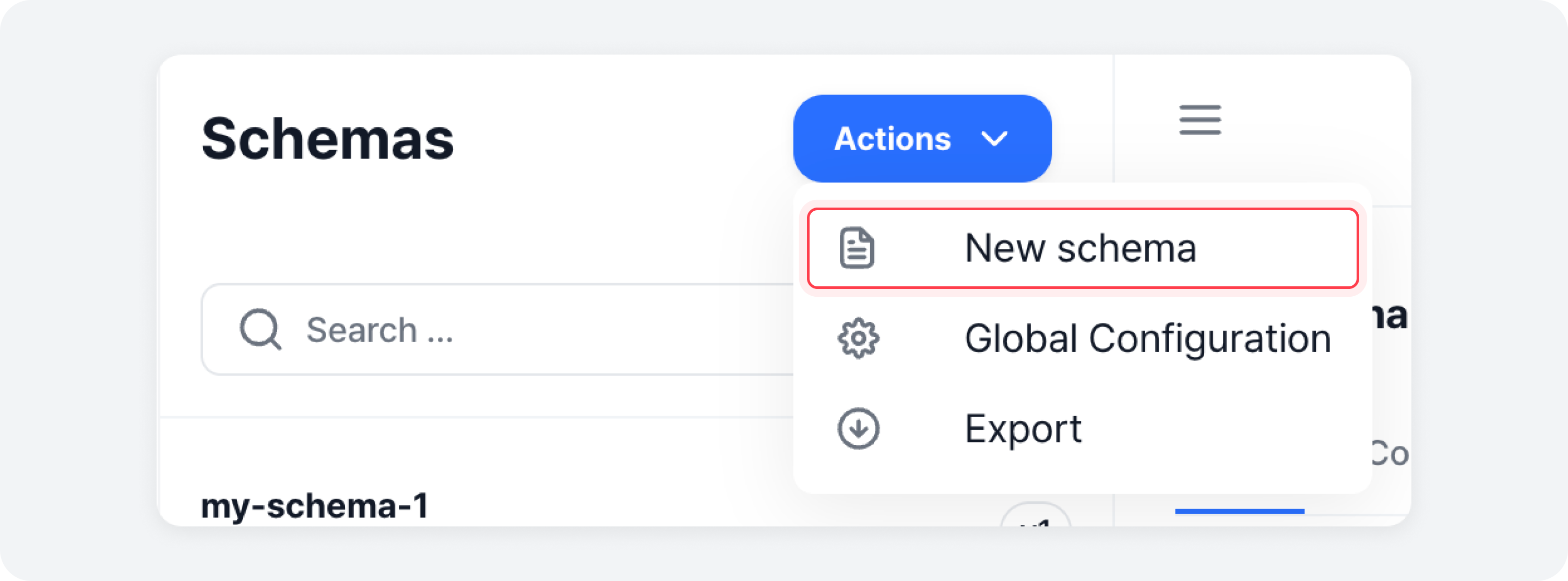
To create a new schema, open the [Actions] menu on the schema list screen and click the [New schema] button to open the schema creation modal.
Creating a Schema
Please enter all the necessary information for creating a schema. Note that while you can modify and update the compatibility level and schema data structure, the schema name and type cannot be changed after the schema is created.
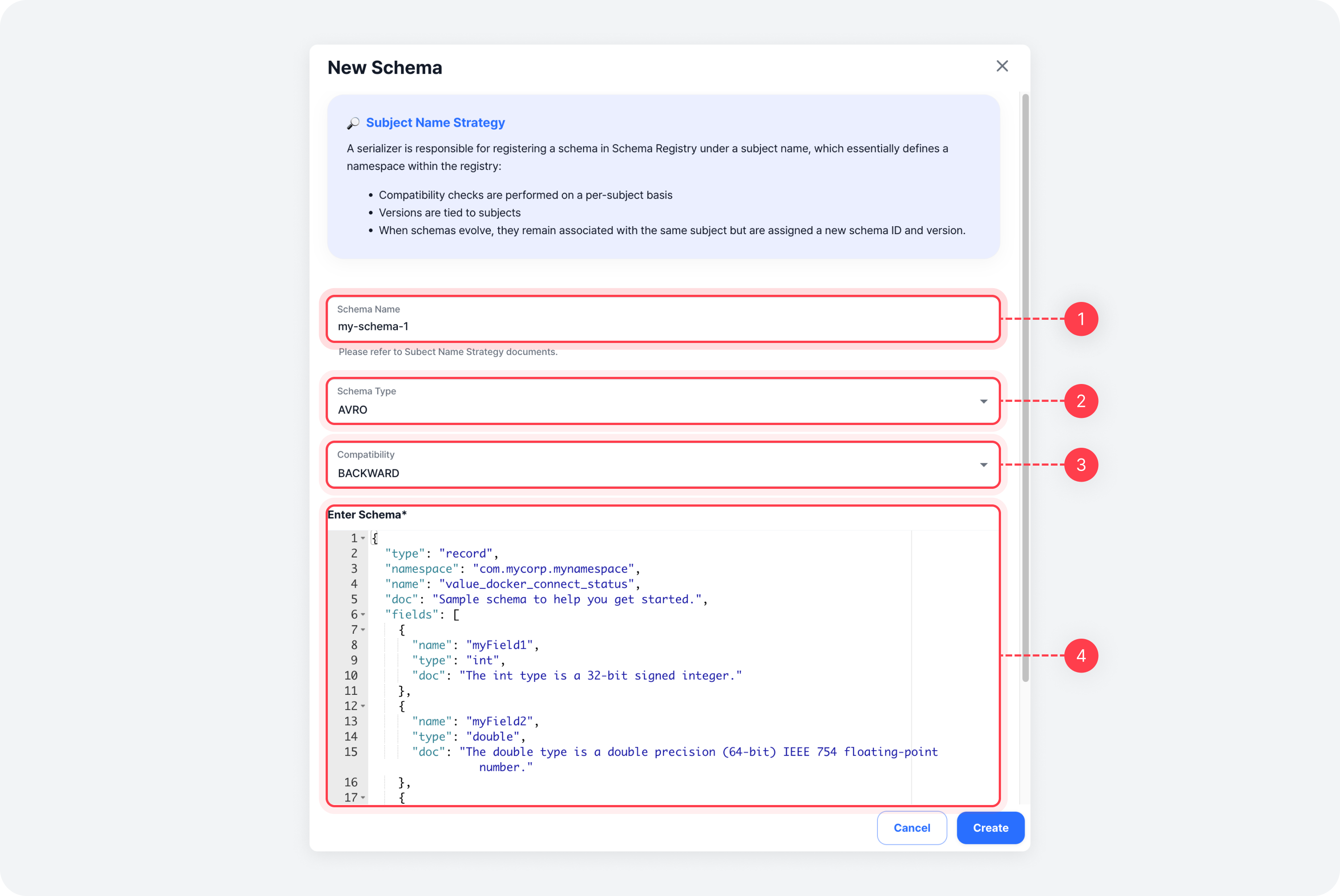
| Field | Description |
|---|---|
| ⓵ Schema Name | A unique subject name to distinguish the schema within the Schema Registry. This is used to identify and manage the schema |
| ⓶ Schema Type | The method used to define the data structure (AVRO |
| ⓷ Compatibility Level | Defines whether the new schema is compatible with the existing schema when updating |
| ⓸ Schema Data Structure | Input the data structure according to the schema type |
The compatibility level determines whether the new schema is compatible with the existing schema when updating. The compatibility level can be set during schema creation or later in the Detailed Information > Configurations Tab.For more information on each compatibility level type, refer to the Compatibility Levels document.
Schema Detailed Information
On the schema management page, the list of schemas is displayed on the left side, and when you select a schema, detailed information is shown on the right side. The detailed information shows the schema name and type, and is divided into two main tabs (Schema, Configurations).
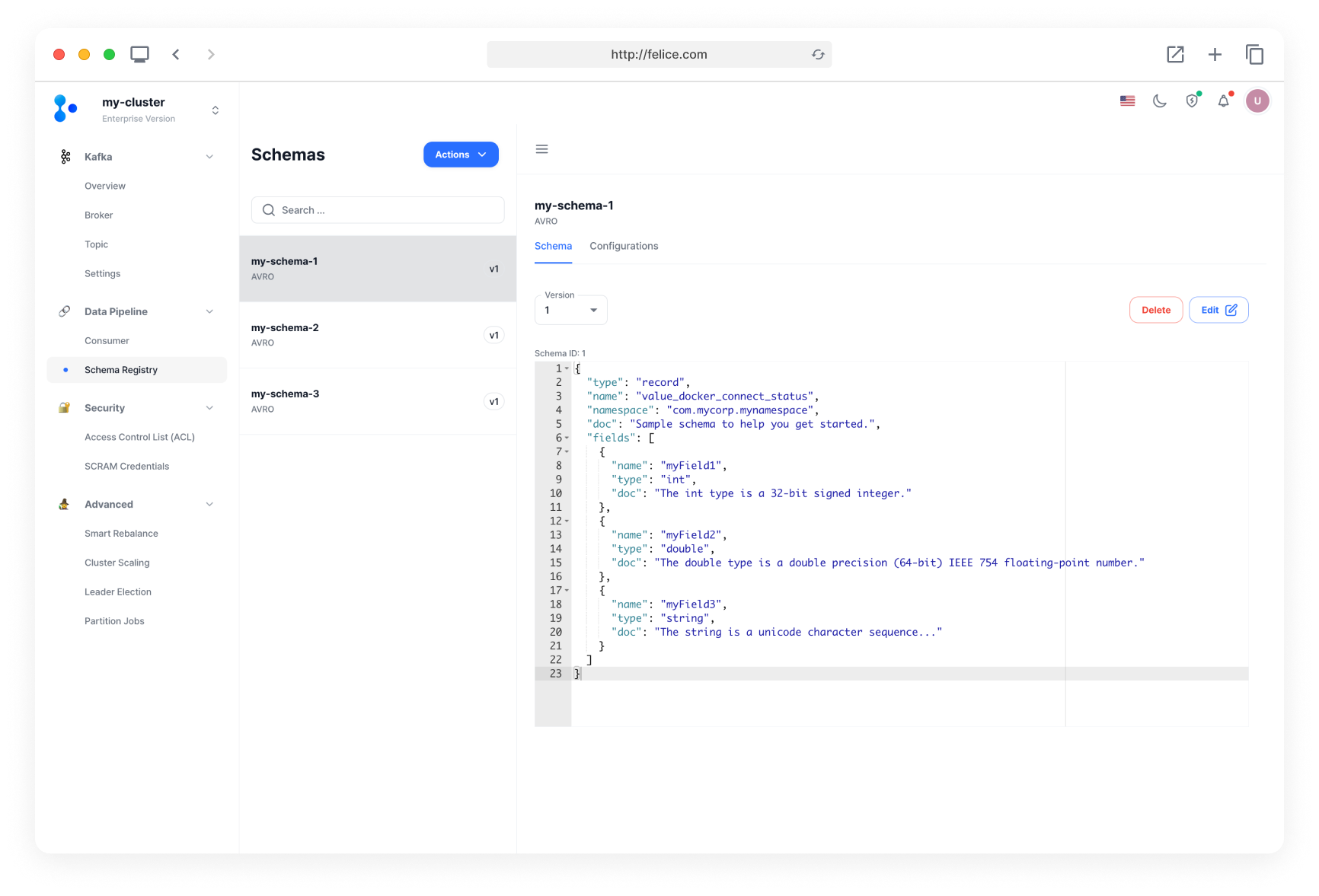
Schema Tab
You can view the version history, schema ID, and data structure of the schema. In this tab, you can delete schema of a specific version or, evolve a schema.
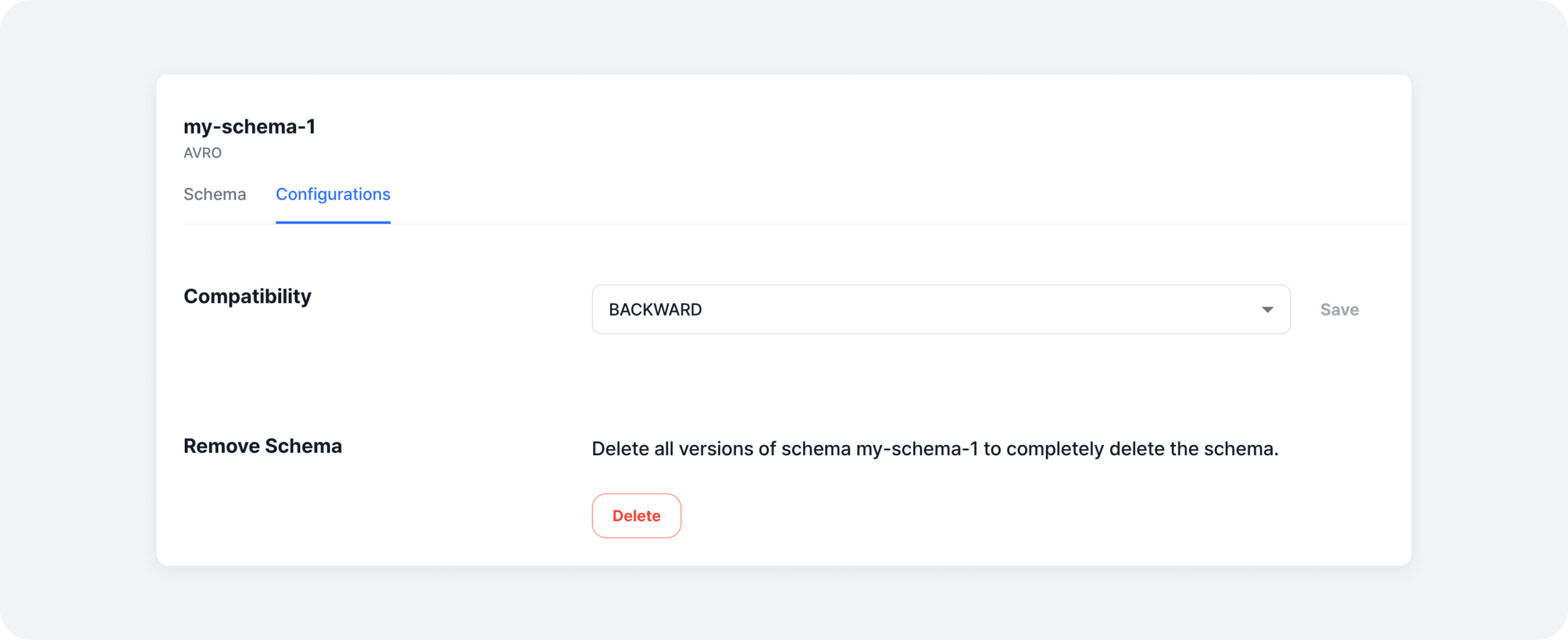
Configurations Tab
You can adjust the compatibility level of the schema or delete all versions of schema
Schema Evolution
Modifying an existing schema version is not officially supported. Instead, you can register a new version of the schema to update it. This process is known as Schema Evolution.
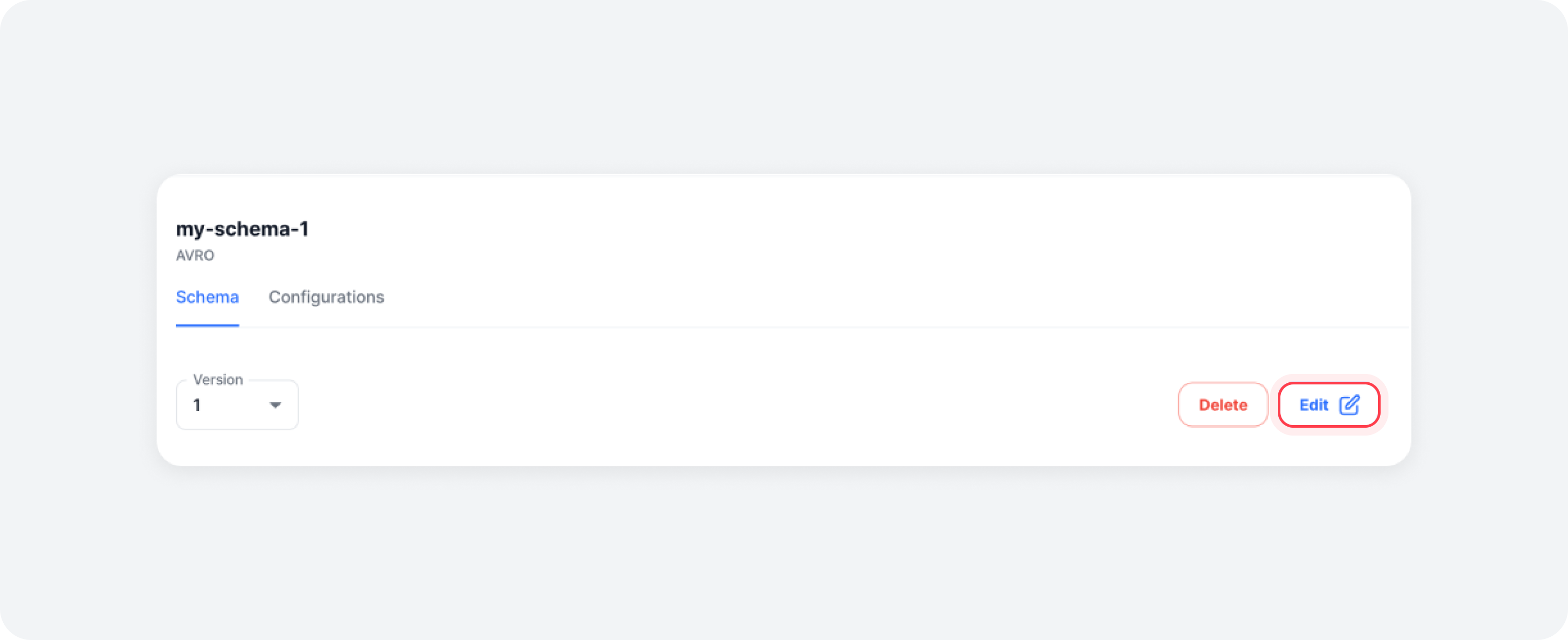
Enter schema edit mode by clicking the [Edit] button in the Schema Detailed Information > Schema Tab view. After making changes to the schema according to the Compatibility Levels, click the [Evolve Schema] button to register the new schema version.
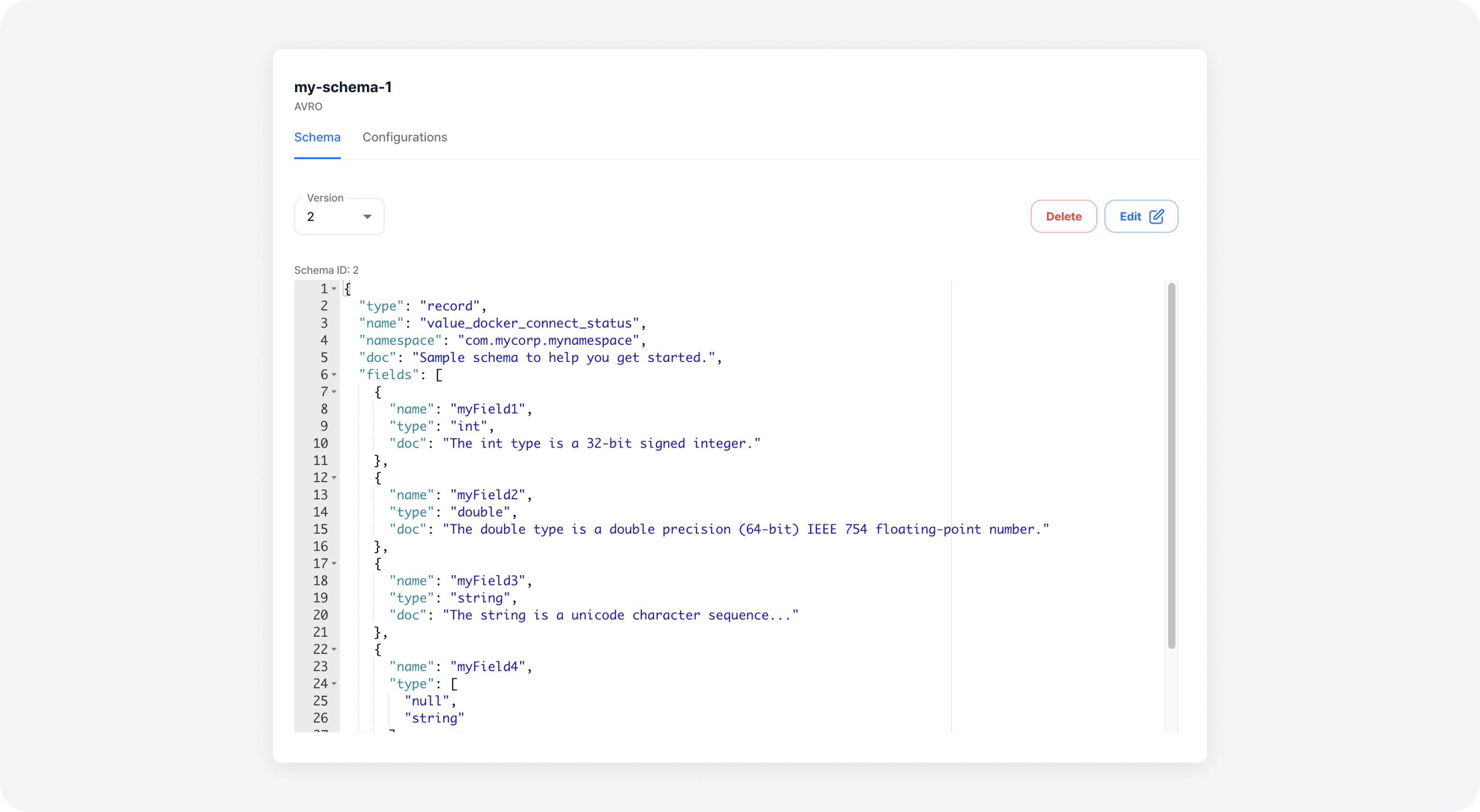
After evolving the schema, you can view both the old and new schema versions by selecting the desired version in the Schema Detailed Information > Schema Tab within the Schema Details view.
When evolving a schema, the compatibility level determines what changes are allowed. If the changes do not comply with the compatibility level, the schema evolution may fail. Please refer to the Compatibility Levels document to check the allowed field changes in advance.
Deleting a Schema
You can delete a schema of a specific version or delete all versions of a schema.
Deleting Schema of a Specific Version
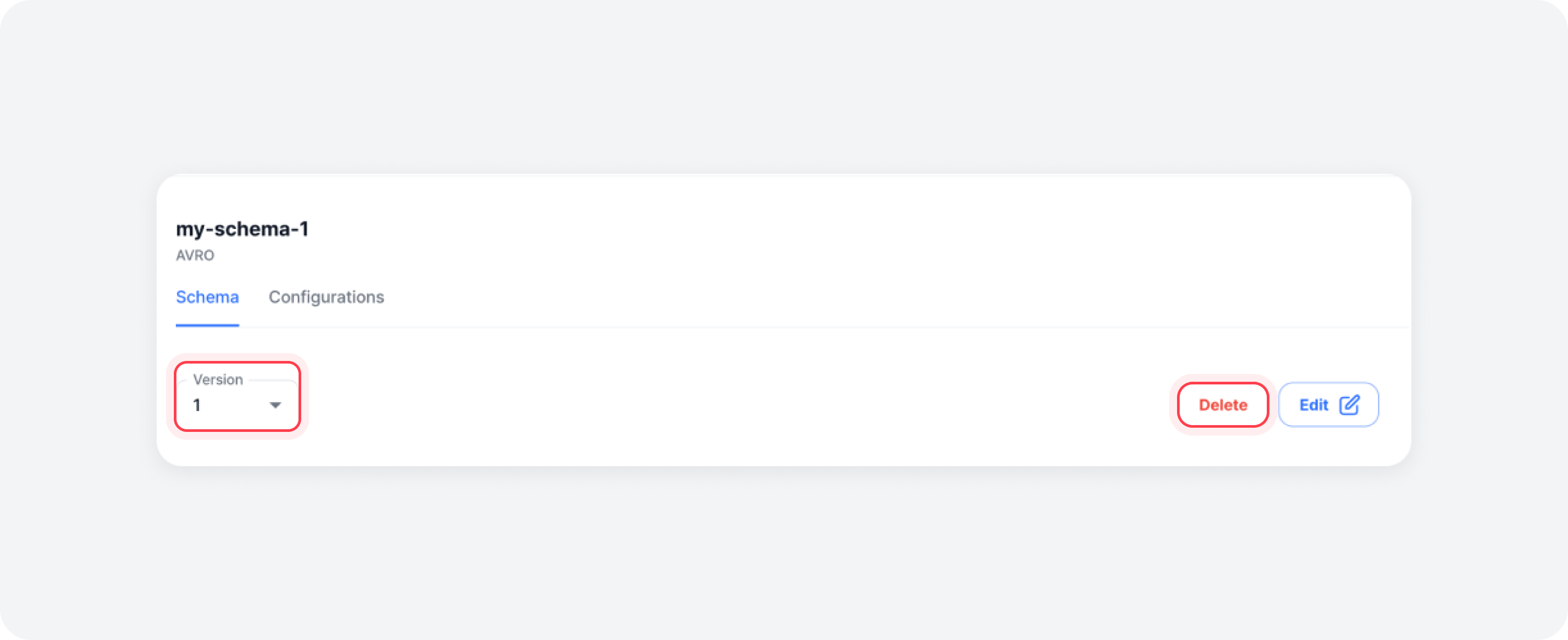
First, select the schema you want to delete from the schema list. Then, in the Schema Detailed Information > Schema Tab, select the desired version and click the [Delete] button to open the schema version deletion modal.
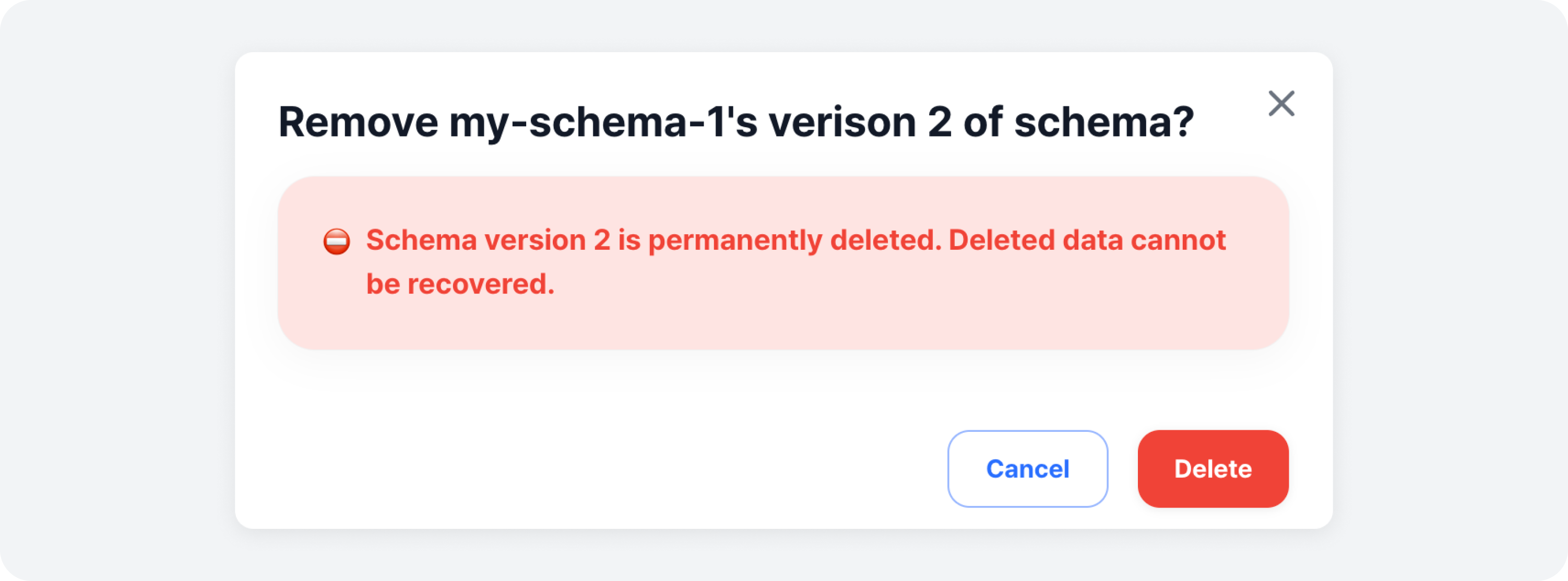
After confirming the schema name and version, and reviewing the warning message, click the [Delete] button to complete the deletion of the schema version.
Deleting All Versions of Schema
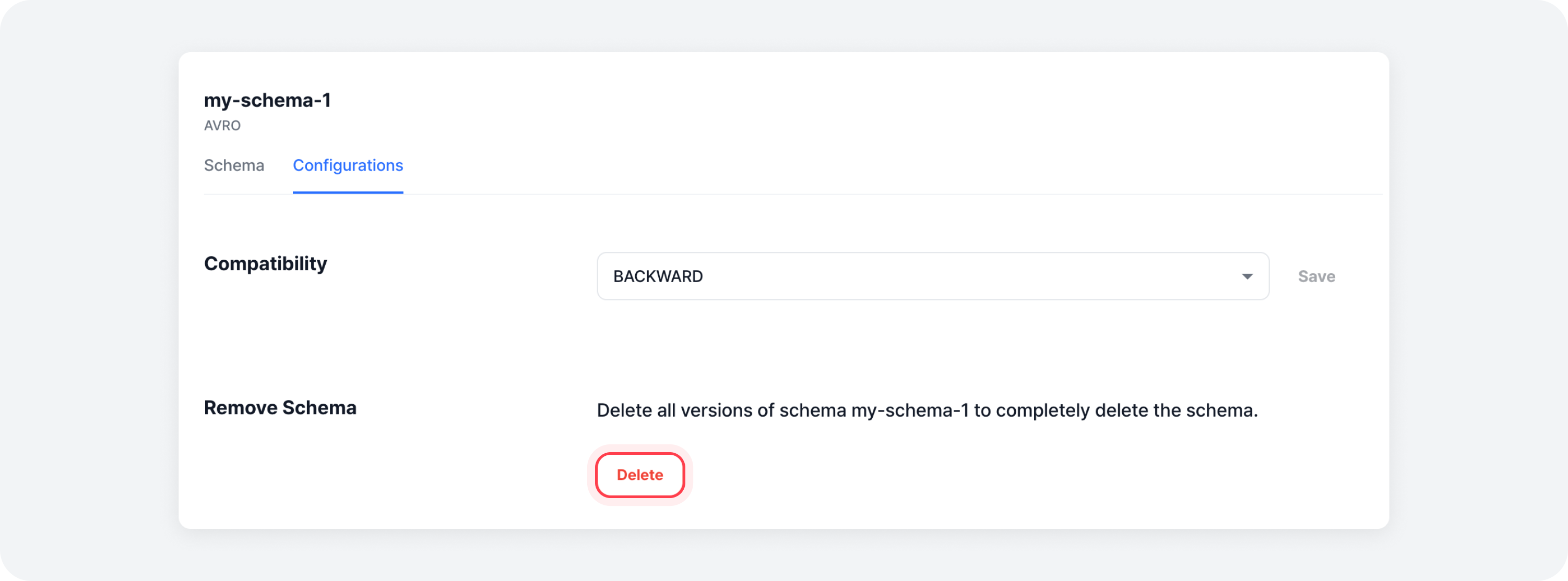
First, select the schema you want to delete from the schema list. Then, in the Schema Detailed Information > Configurations Tab, click the [Delete] button in the schema deletion section to open the schema deletion modal.
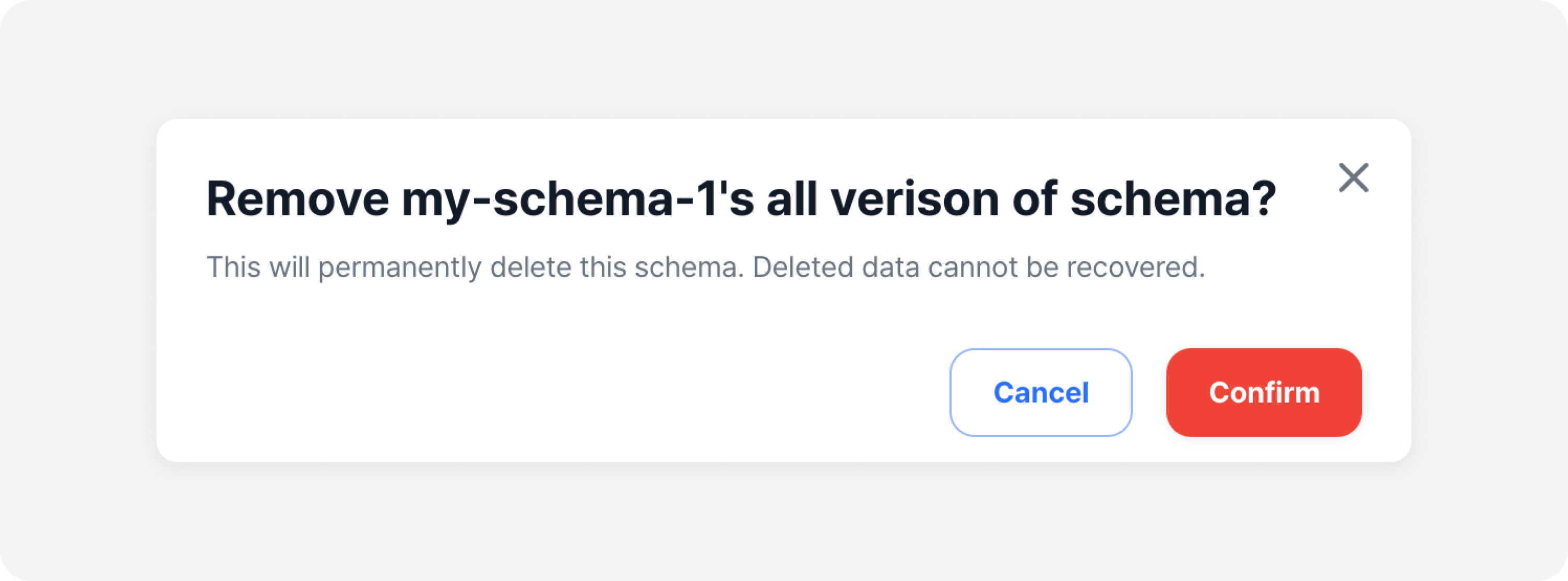
After confirming the schema name and reviewing the warning message, click the [Delete] button to complete the deletion of the schema.
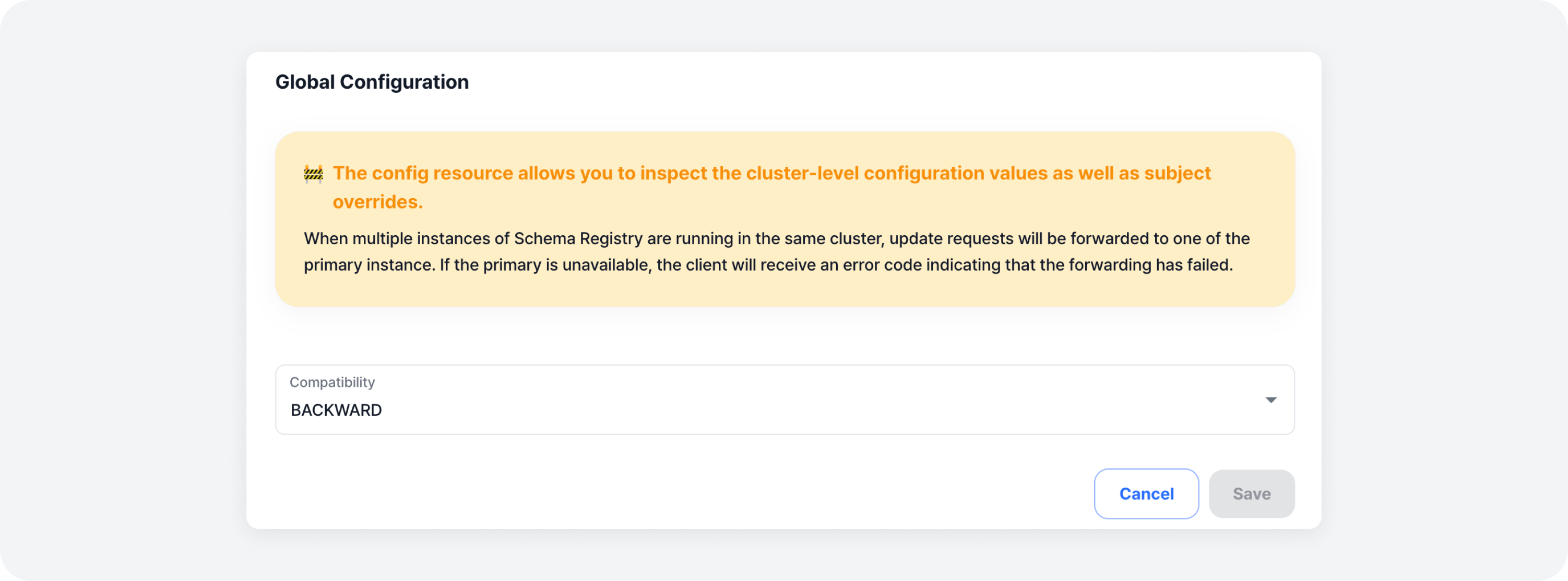
Global Configuration
Open the [Actions] menu on the schema list screen and click the [Global Configuration] button to open the global settings modal. In the global settings modal, you can apply global settings across the Schema Registry cluster. After configuring each setting, click the Save button to apply the changes.
Exporting Recent Schemas
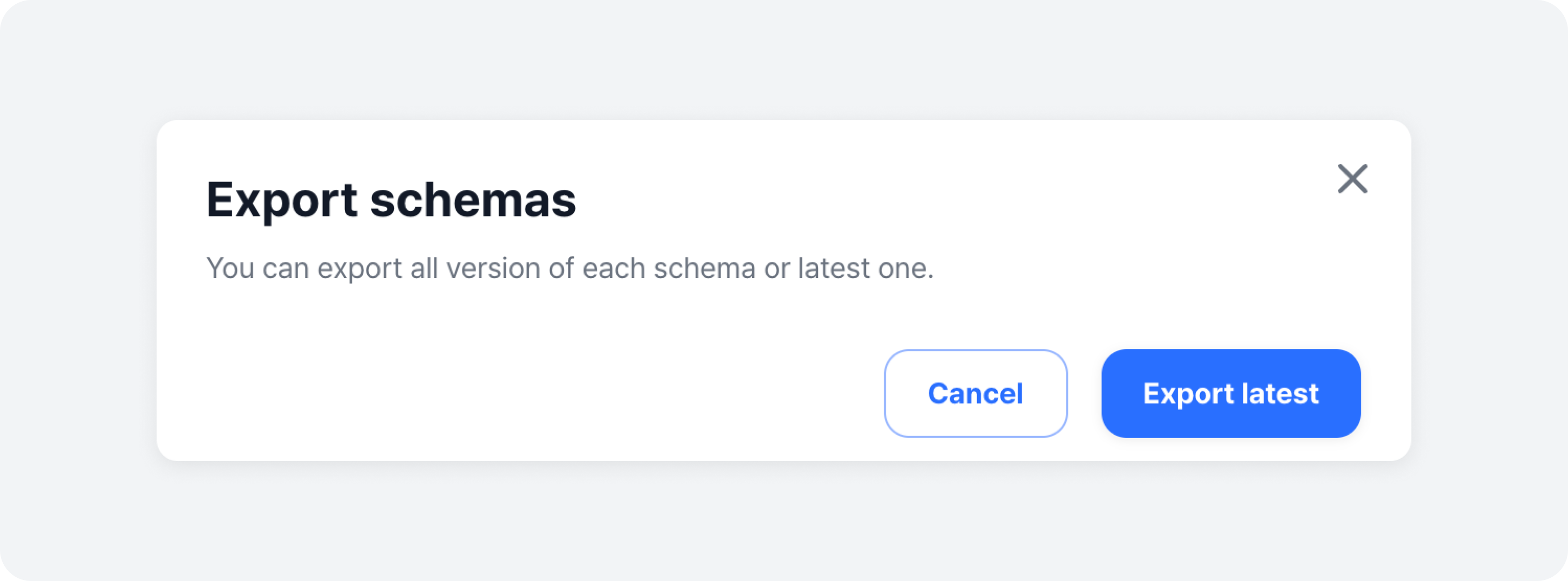
Open the [Actions] menu on the schema list screen and click the [Export] button to open the schema export modal. Then, click the [Export latest] button to download the most recent schema version as a JSON file.